
Create Quality Event
This section explains the process to create a Quality Event in the Quality Module. To create a Quality Event, the Create Incident Action should be added to the user in the User Management Module.
To create a Quality Event, follow the steps below:
- Navigate to the Quality module, and click on the Quality Events modal from the left-hand navigation pane.
- Click on the +Create button from the top menu bar and select a record type.
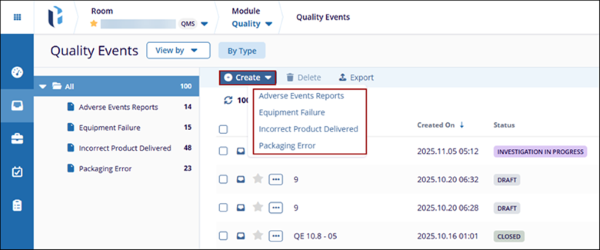
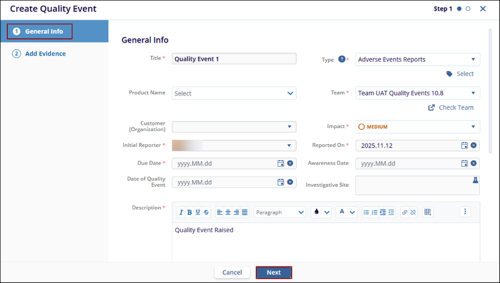
- On the Create Quality Event form, fill in the mandatory details within Step 1:
General Info and click on the Next button.
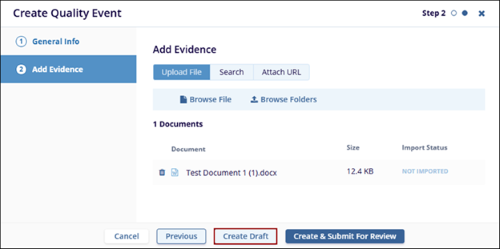
- Upload a file or folder as evidence and click on the Create Draft button.
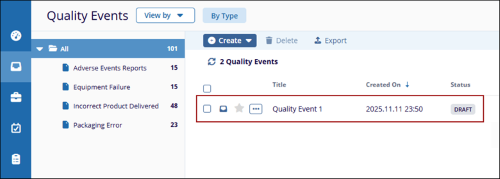
- Once the Quality Event is created, it is saved in the Draft status.
- Click on the Quality Event title and click on the Submit for Review from the
metadata panel.
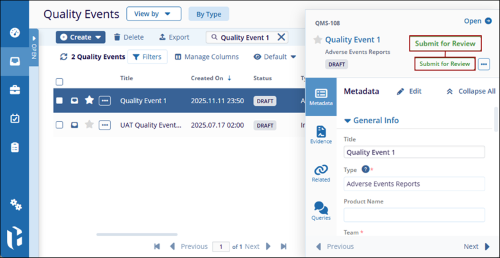
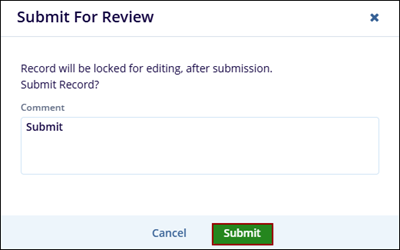
- On the Submit for Review pop-up, enter a comment and click on the Submit
button.
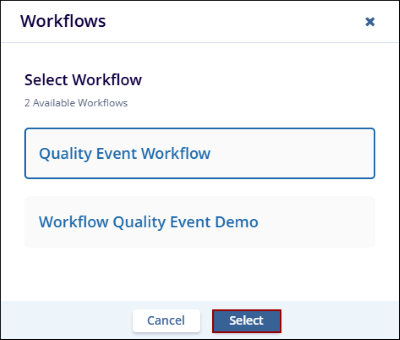
- Choose the appropriate workflow from the Workflows wizard and click on the
Select button.
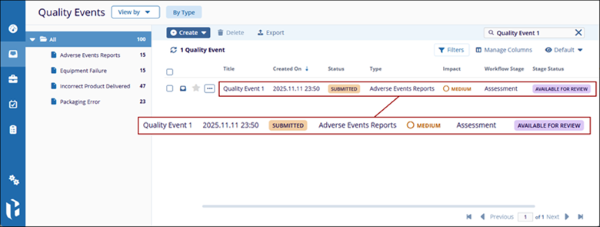
- Once the Quality Event record is transitioned to the first stage of the workflow,
the Record Status, Workflow Stage, and Stage Status display statuses as configured
in the workflow.
Create Related Records
Assignees During the Active Stage, Record Owner, Reporter, and Assigned Team Authority can add related records to a record, provided the Related Record settings have been configured for that record within the room settings.
For more information on configuring the related record settings, click here.
To create a related record, follow the steps below:
- Navigate to the Quality module > Quality Events tab and click on the Quality Events title.
- From the Quality Events' quick view panel, click on the + Add Related button.
- Select the required option and create the record.
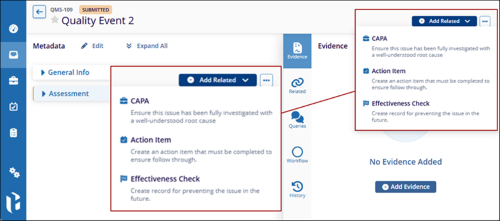
- The related record appear in the Related tab of the records metadata
© 2025 Trial Interactive. All Rights Reserved

