
Contacts search
The Contacts Search allows users to locate specific contacts by entering a name or keyword in the search bar. The results display relevant contact records, and selecting a record reveals detailed information in the Contacts Details panel.
To search for Contacts, follow the steps below:
- From the Home Page or within a specific room, click on the search drop-down and select Contacts from the list.
- Enter the contact’s name in the Search box. The system automatically displays matching contacts in the section below.
- Select a contact from the results to view detailed information
in the Contacts Details panel on the right, which
displays detailed information about the selected ID, including
their email, name, status, and other relevant fields.
Refer to the screenshot below:
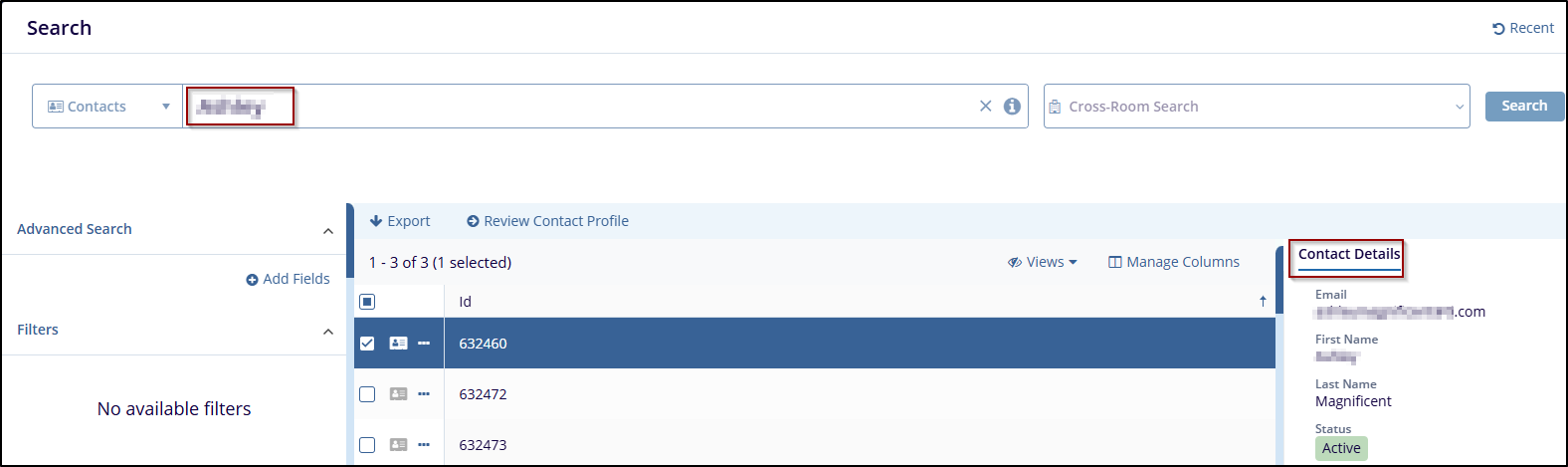
- Use the Manage Columns option to add or remove fields displayed in the search results.
- Click Export to download the search results for further use.
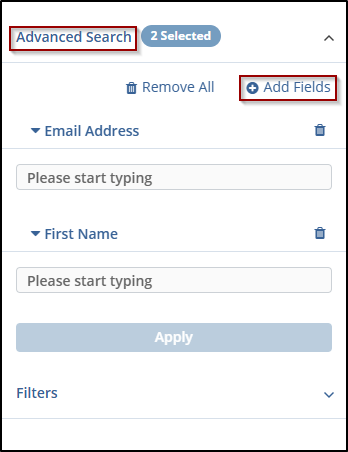
- Click Advanced Search for the same contacts and add fields to apply more specific search criteria.
Refer to the screenshot below:

 Linkedin
 X
X

