
Export Security
The Export Security steps are similar to Export Metadata, with additional options to manage access permissions. In this process, users can export not only the metadata but also the associated folders, with the ability to define specific security settings for each file. Users can assign access levels such as full access, no access, or restricted access based on security-related permissions.
To apply security while exporting, follow these steps:
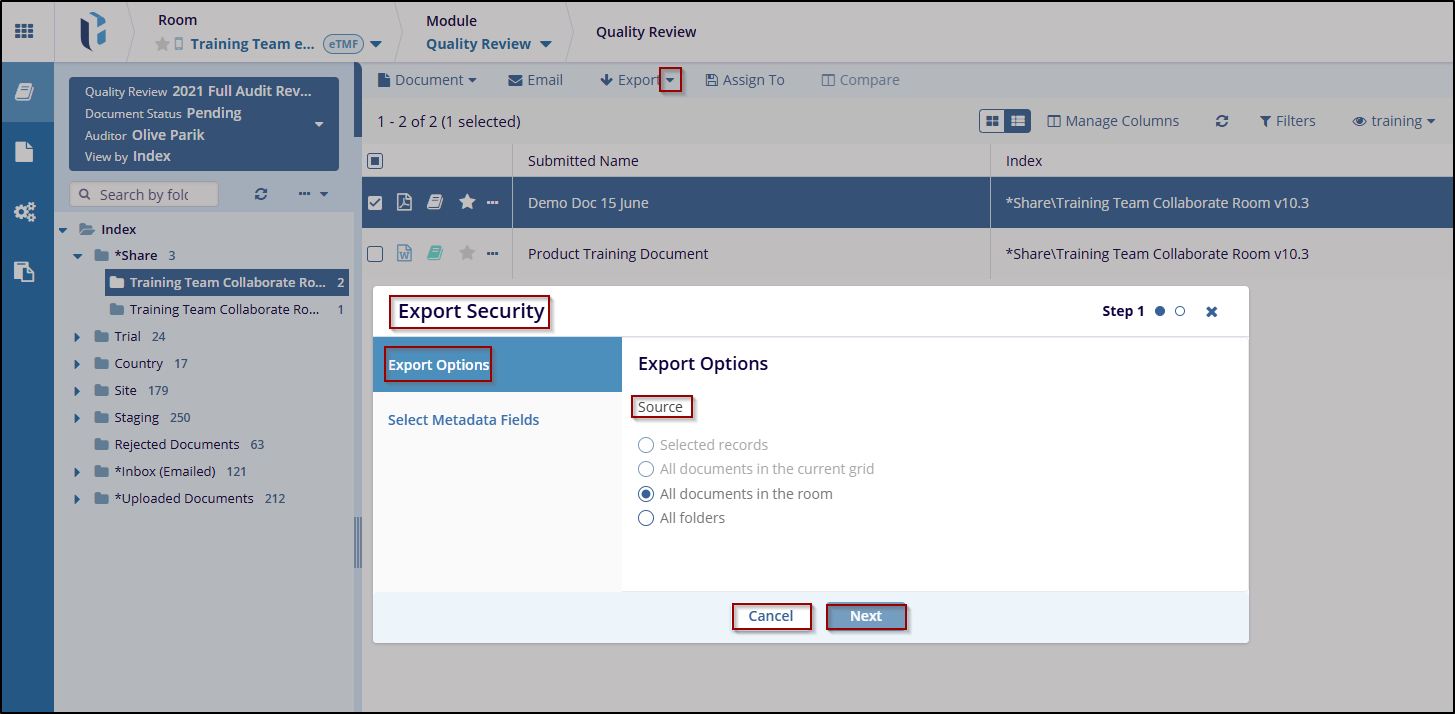
- Click the Export dropdown, and select Export Security. A new Export Security window will open, where the user can see the options, Export Options and Select Metadata Fields. By default, the Export option is selected.
- In the Export Options under source, select the radio button as per requirement. For example, All Folders is selected.
- Click the Next button to move to the next
step, where the user can configure the metadata fields.
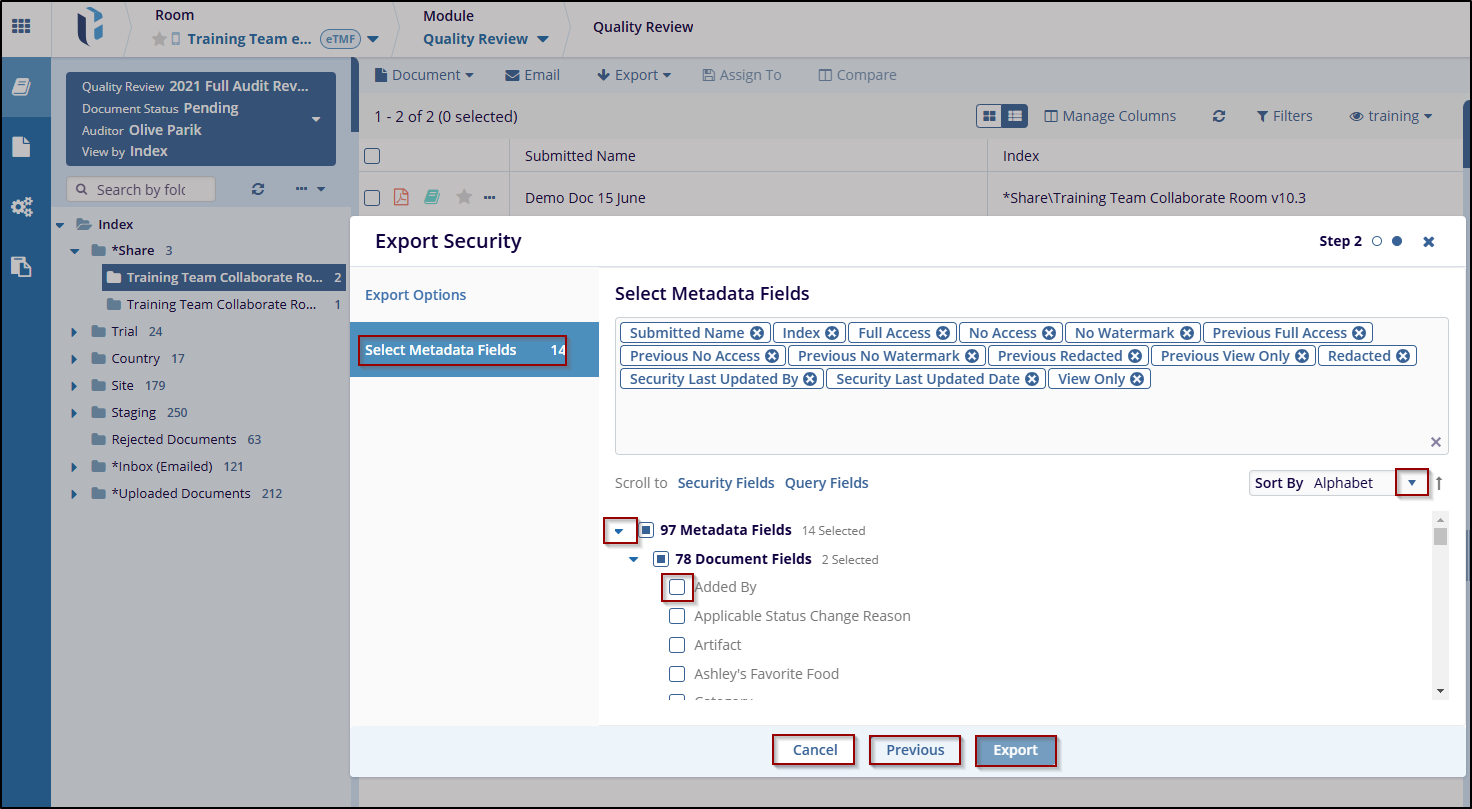
- After clicking Next in the Export Options step to the Select Metadata Fields section.
- Check the boxes next to the metadata fields that need to be included in the export.
- Click Export to proceed to the final export step or click on the Previous Button to make changes to the previous option.
- Click the cancel button to discard the changes.

 Linkedin
 X
X

