
Export Metadata
The Export Metadata involves extracting information from documents or records and exporting it in formats such as CSV, Excel, etc.
To Export Metadata, follow these steps:
- Navigate to the top menu bar click on the dropdown and select Metadata. A new Export Metadata window will open, showing the options Export Options and Select Metadata Fields. By default, the Export Option is selected.
- The Export Option allows the user to choose which queries to include in the export
and select the required sources.
- Selected records: exports only the queries the user has selected using the checkboxes in the grid view. This is useful when exporting a specific subset of queries.
- All queries in the current grid: exports all the queries visible in the grid view when they are selected. This is ideal when the user wants to export all displayed queries, even if no specific queries are checked.
- All queries in the room: export all queries in the current room, whether queries are visible in the grid. This option is used when the user wants to ensure that all queries within a room are exported.
- Enable Quality Review Related Fields to Export: select this checkbox to
include fields related to quality review (such as Pending, In Progress,
Passed, Failed) in the export.
- Include review data from the most recent quality review profile.
- Include review data from all the quality review profiles.
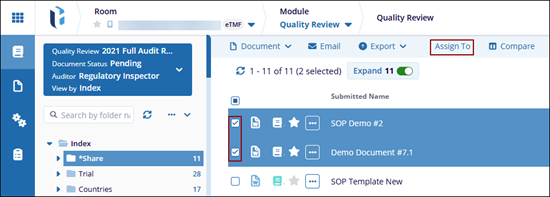
- Click Next to proceed to the Select Metadata Fields section.
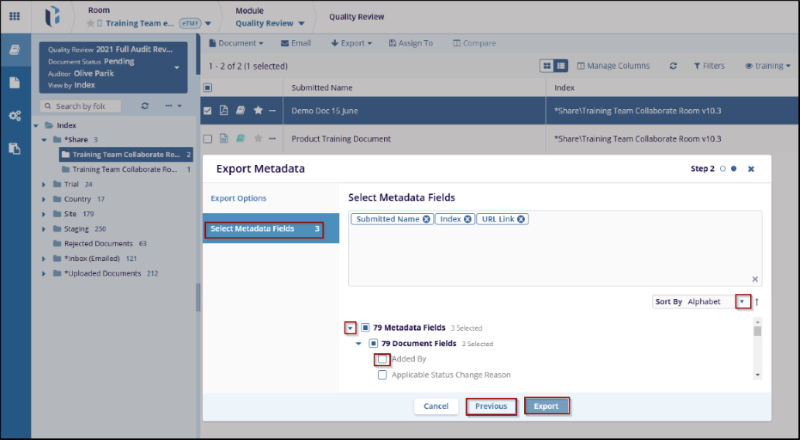
- Once you proceed to the Select Metadata Fields option and select the required metadata fields, the user can sort themby Alphabet or Logic to include in the export.
- Metadata fields are characteristics of the queries, such as: (Submitted name, Index, URL link, etc.)
- After selecting both the Export Metadata options, click on the Previous
button to go back and make changes, or click on the Export button to export
the file
- Once clicked the Export button, a confirmation message will appear on the screen.

 Linkedin
 X
X

