
Activities
The Activities dashlet provides users a centralized location to view relevant notifications associated to key information related to activities. i.e., Upcoming and Past Due Activities. The Activity records are displayed when the logged-in user is an Activity Owner.
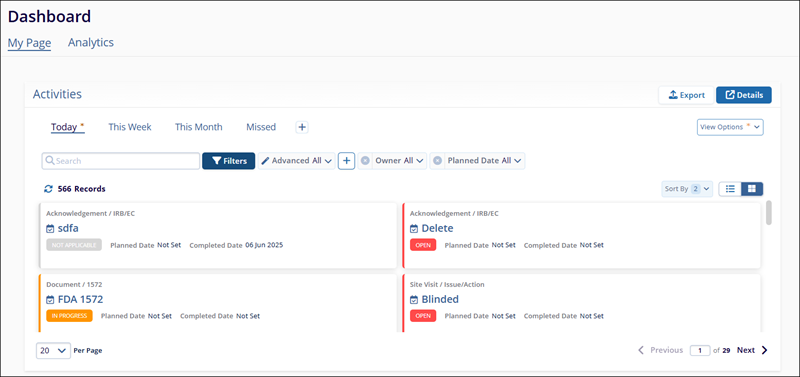
Activity Views
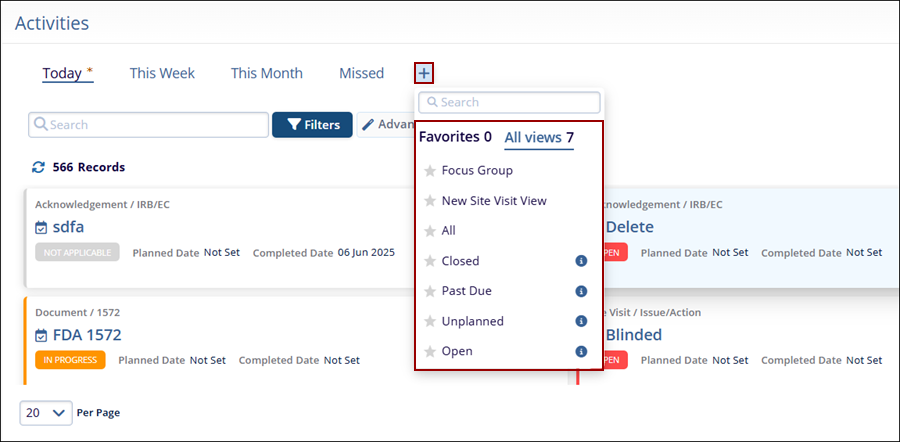
To add an activity view to the dashlet, follow the steps below.
- Click on the + icon on the Activities dashlet.
- Select a view from the available dropdown list.
- Click on the star icon to mark a view as favorite and access the Favorites tab to see all views marked as favorites.
- The newly added view appears as a tab on the activities
dashlet.
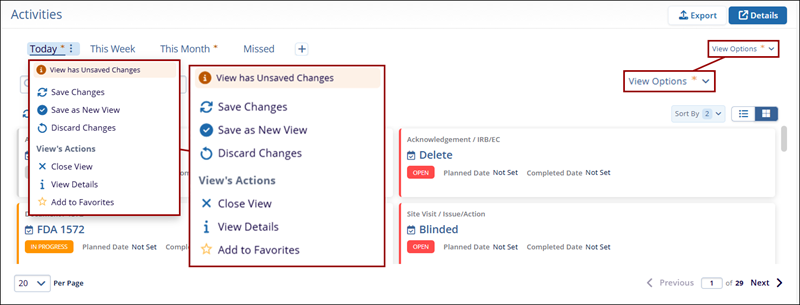
- To configure a view, either click the hamburger icon next to the desired view or
click on the View Options dropdown.
Export Activities
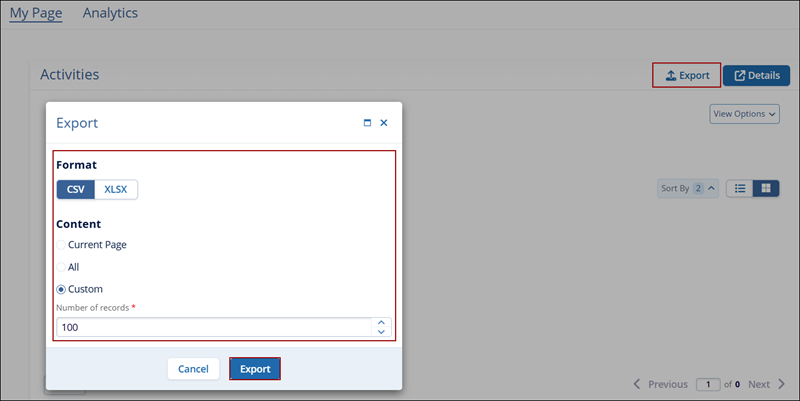
To export activities dashlet data from My Page, follow the steps below:
- Within the Activities dashlet on My Page, click on the Export button.
- Select either CSV or XLSX as file formats.
- Select either Current Page, All or Custom by clicking on the radio buttons. If Custom option is selected, specify the number of records.
- Click on the Export button once all the details are specified.
Activity Details
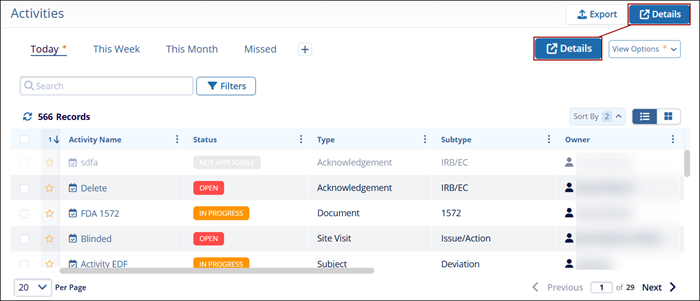
To open the list of activities in a different modal window, click on the Details button on the Activities dashlet.
Activity Filters
To filter the Activities dashlet, follow the steps below:
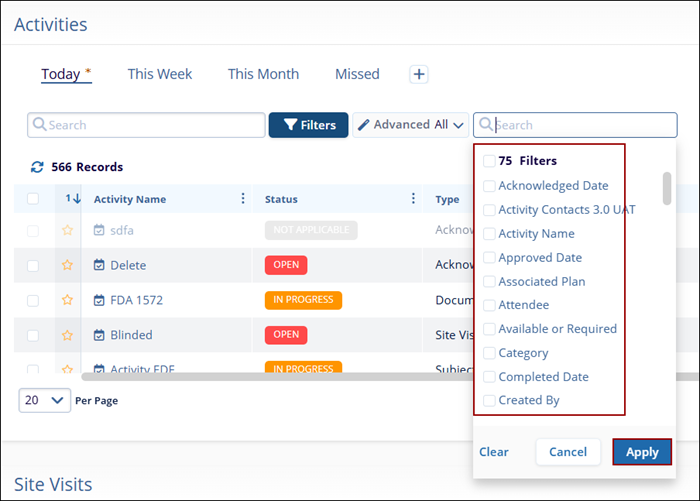
- Click on the Filters button to add the advanced and standard filters.
- Click on the + icon, select filter options from the available list and click on the
Apply button.
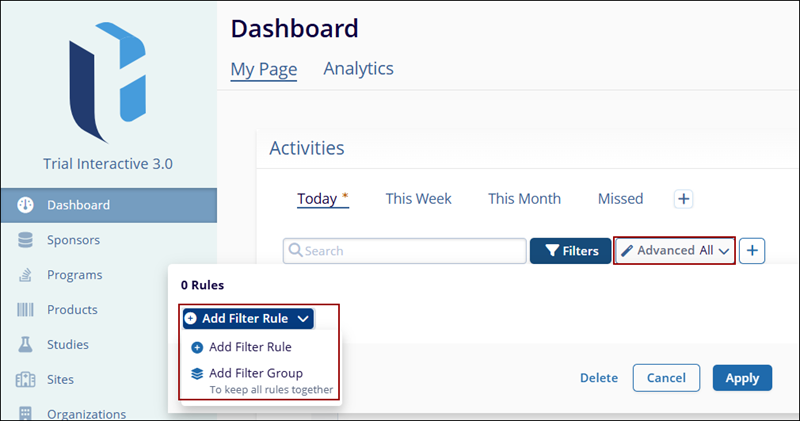
- To add advanced filters, click on Advanced All dropdown > + Add Filter Rule > Add
Filter Rule or Add Filter Group.
- To configure the filter rules, enter a criterion in the Where field, choose a logical
operator, provide a corresponding value and click on the Apply button.
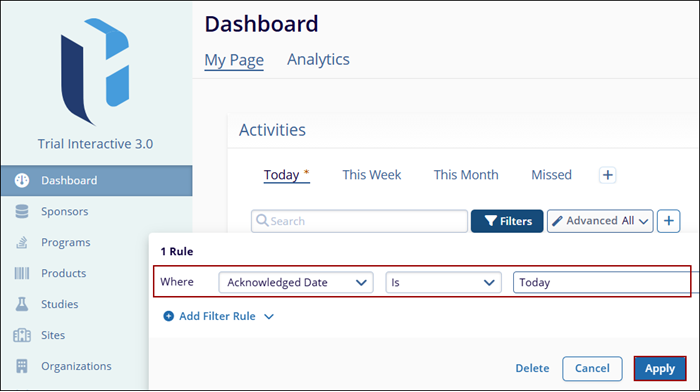
In the above example, the Activities dashlet will show only those activities where Acknowledge Date is Today i.e., Current Date etc. as per the filter applied.

TransPerfect’s Trial Interactive is an industry leader in practical, global eClinical innovation
PRODUCTS
 Linkedin
 X
X
Didn’t find what you need?
Our dedicated Project Management and Client Services team will be available to meet your needs
24 hours a day, 7 days a week.
Toll Free:
(888) 391-5111
help@trialinteractive.com
© 2025 Trial Interactive. All Rights Reserved

