
Export Contacts
To export contacts, follow the steps below:
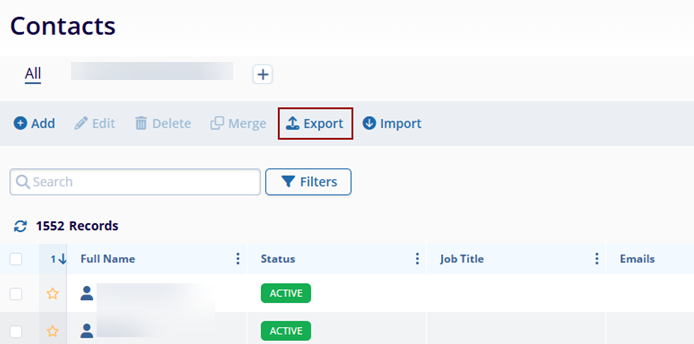
- On the Contacts screen, click on Export from the top menu bar.
-
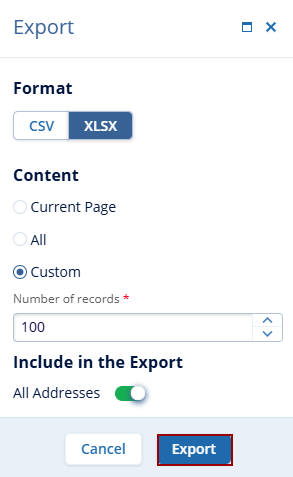
On the Export dialog box, select the file format to export the contacts data. Users can export contacts in either CSV or XLSX file formats.
- For the CSV or XLSX file formats, select either of the following:
- Current Page: This option will export data on the existing page of the Contacts screen.
- All: This option will consider all the contact data.
- Custom: Here, specify the number of records to be exported by either clicking on the up and down arrows or entering the number of records since it is a free text field.
-
Include in Report: Click on the All Addresses toggle button to include addresses in the exported file.
Note: The Include in Report option is available only if the XLSX file format is selected. - Once the desired file format and the content is selected, click on Export.
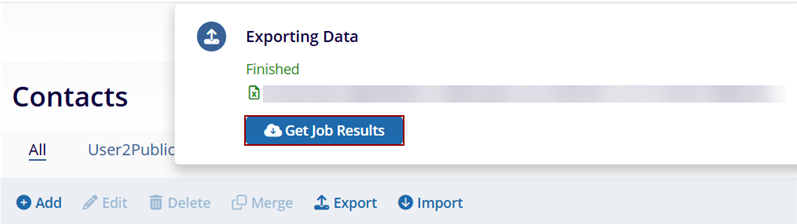
- Once the export is finished, the system displays a notification message on the top right corner of the screen stating that the data export is completed.
- Click on the Get Job Results option to download the export file on the local
system.
- The files will be downloaded to the local system and will display the file formats.
- The CSV file will display just one tab with the contact details.
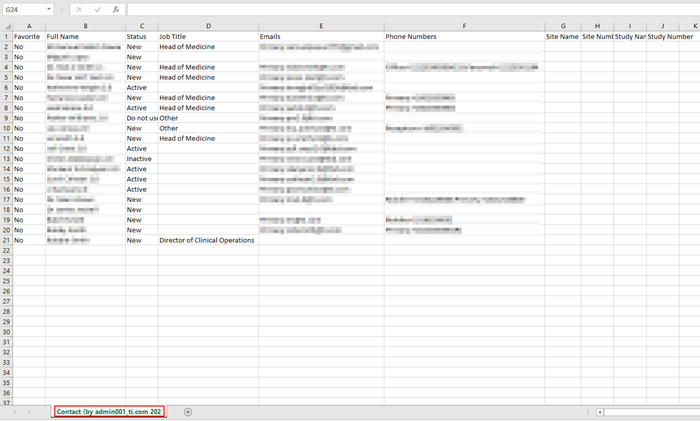
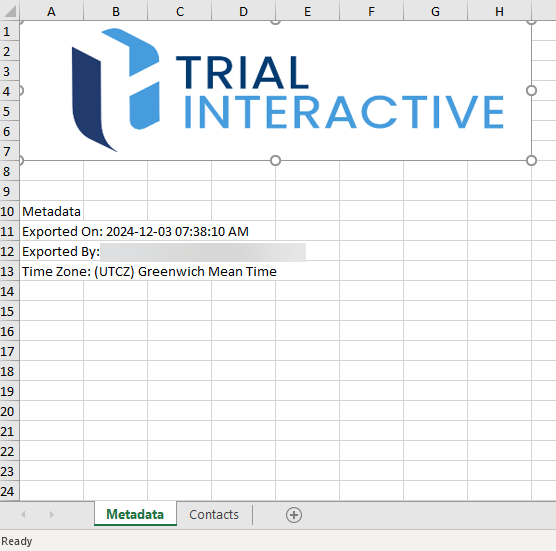
- The XLSX file will display the following two tabs:
- Metadata: This tab has details like the time of export, name, and email of the person who
initiated the export, and time zone.
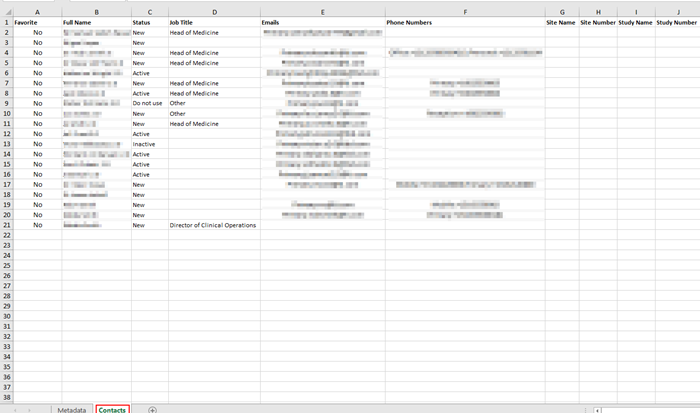
- Contacts: This tab has the contact details.
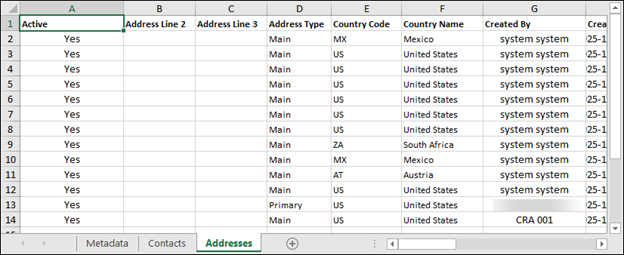
-
Addresses: This tab displays the list of addresses.

TransPerfect’s Trial Interactive is an industry leader in practical, global eClinical innovation
PRODUCTS
 Linkedin
 X
X
Didn’t find what you need?
Our dedicated Project Management and Client Services team will be available to meet your needs
24 hours a day, 7 days a week.
Toll Free:
(888) 391-5111
help@trialinteractive.com
© 2025 Trial Interactive. All Rights Reserved

