
Certificates
Explore Videos for more help:
Videos
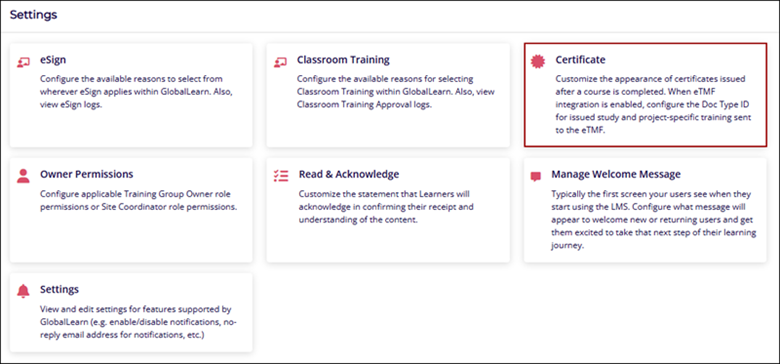
This section helps the user customize the certificate's appearance after the course is completed. When the eTMF integration is enabled, configure the Doc Type ID for the issued study and send project-specific training to the eTMF.
Courses
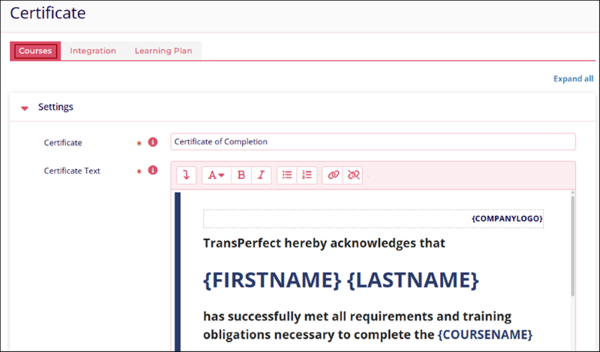
The Courses tab allows users to customize a certificate for individual courses. Once learners complete a course, the certificate they receive will be dependent on the customizations made in the Settings tab.
To customize the certificate appearance, follow the steps below:
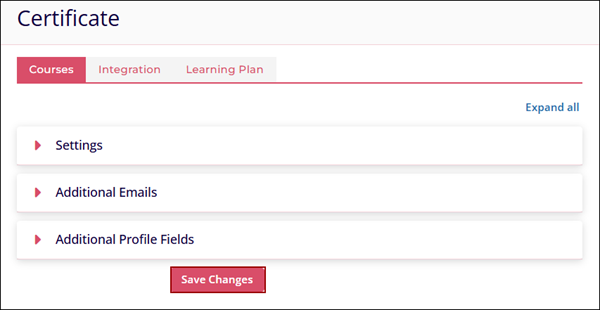
- On the Courses tab, configure the following settings.
- Certificate*
- Certificate Text*
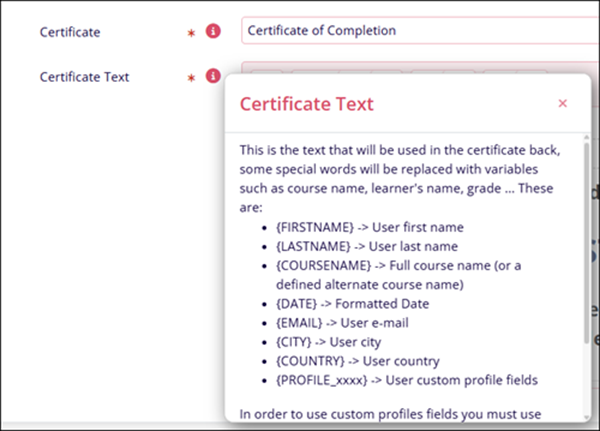
- Click on the help (?) icon to learn more about the fields.
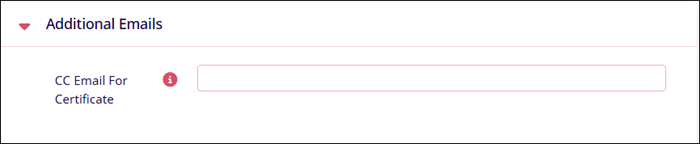
- In the Additional Emails section, specify a comma-separated list of CC email addresses in the CC Email For Certificate field. These email addresses can be individual or general.
- Whenever learners complete a course and receive a certificate, users with the specified
email addresses will be notified, irrespective of the course type and their role
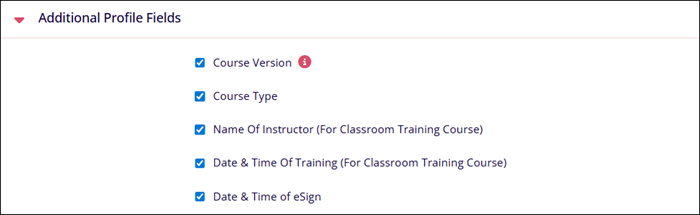
- Enable or disable the visibility of Additional Profile Fields on the certificate by
selecting or deselecting each field's checkbox.
- Click on the Save Changes button once the configurations are completed.
Integration
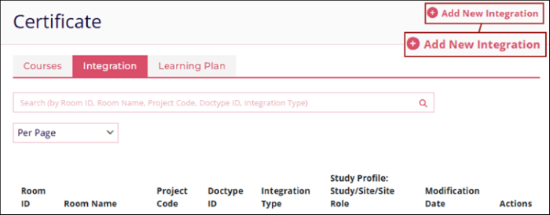
To add a new integration, follow the steps below
- Click on +Add New Integration on the Integrations tab.
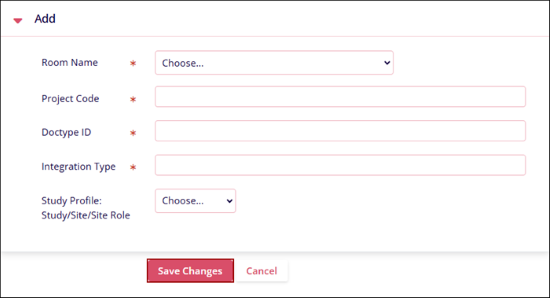
- Enter details into the following fields and click on the Save Changes button
- Room Name*
- Project Code*
- Doctype ID*
- Integration Type*
- Study Profile: Study/Site Role*
Learning Plan
The Learning Plan tab allows users to customize a certificate for learning plan courses. Once learners complete courses in a learning plan, the certificate they receive will be dependent on the customizations made in the Learning Plan tab.
To customize the certificate appearance for a learning plan, follow the steps below:
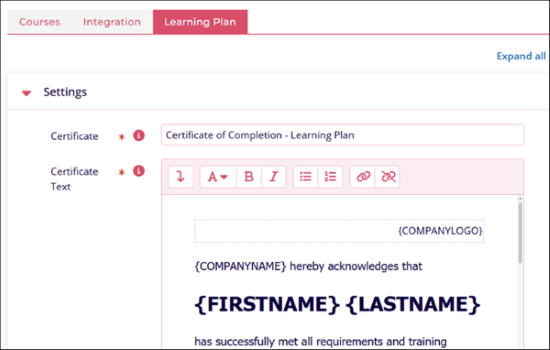
- Click on the Learning Plan tab, and configure the following settings
- Certificate
- Certificate Text.
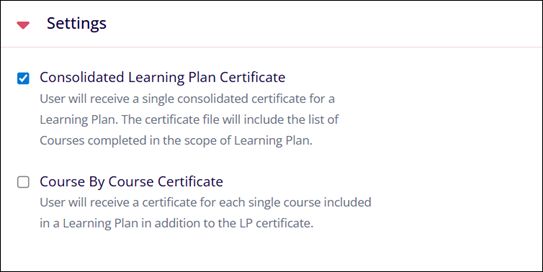
- Enable or disable the following settings by checking or unchecking their checkboxes,
respectively.
- Consolidated Learning Plan Certificate: User will receive a single consolidated certificate for a Learning Plan. The certificate file will include the list of Courses completed in the scope of the Learning Plan.
- Course-by-Course Certificate: User will receive a certificate for each single course
included in a Learning Plan in addition to the LP certificate.
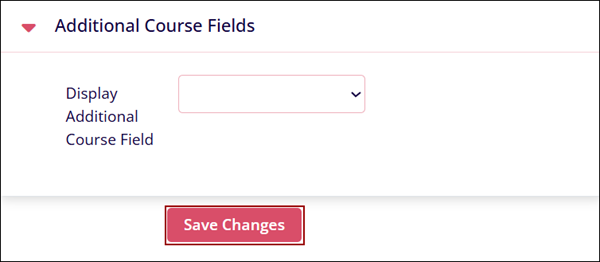
- Select an additional course field from the dropdown and click on the Save Changes
button.

TransPerfect’s Trial Interactive is an industry leader in practical, global eClinical innovation
PRODUCTS
 Linkedin
 X
X
Didn’t find what you need?
Our dedicated Project Management and Client Services team will be available to meet your needs
24 hours a day, 7 days a week.
Toll Free:
(888) 391-5111
help@trialinteractive.com
© 2025 Trial Interactive. All Rights Reserved

