
Classroom Training
Users can configure the available reasons for selecting the Classroom Training within GlobalLearn. Additionally, users can view the Classroom Training approval logs.
To access Classroom Training, follow the steps:
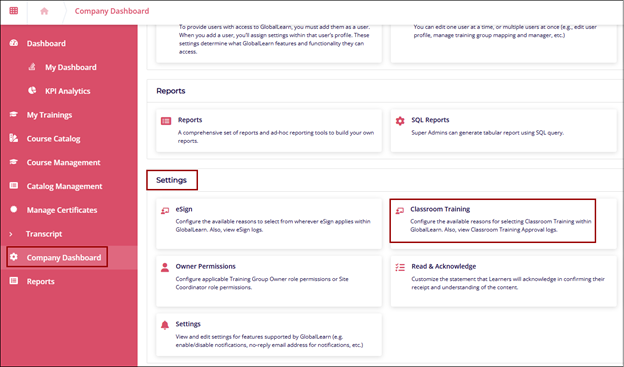
- Click on the Company Dashboard from the left navigation pane.
- Click on the Classroom Training tile from the Settings section.
Create Reason
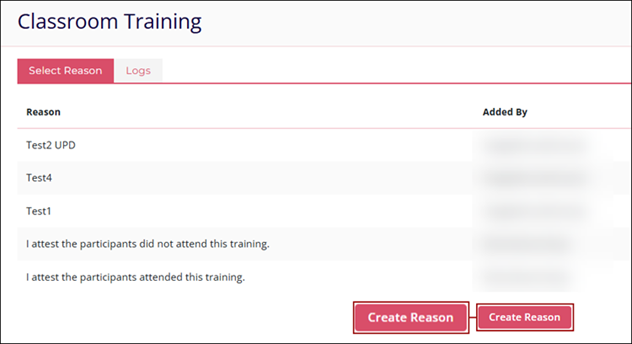
To create a reason, especially for classroom training, follow the steps below:
- Navigate to the Select Reason tab and click on the Create Reason button.
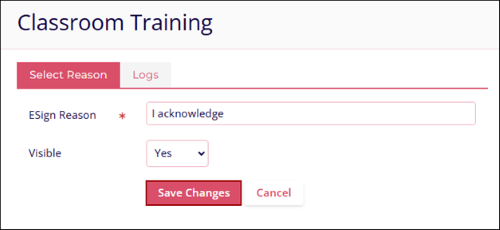
- Enter the following details to successfully create a reason and click on the Save
Changes button.
- eSign Reason*
- Visible
- To Edit and Delete the Classroom Training reason, follow the standard steps detailed in the Edit a Reason and Delete a Reason sections.
Logs (Classroom Training)
To retrieve the classroom training logs, click on the Logs tab on the Classroom Training screen and follow the standard steps detailed in the Logs section.

TransPerfect’s Trial Interactive is an industry leader in practical, global eClinical innovation
PRODUCTS
 Linkedin
 X
X
Didn’t find what you need?
Our dedicated Project Management and Client Services team will be available to meet your needs
24 hours a day, 7 days a week.
Toll Free:
(888) 391-5111
help@trialinteractive.com
© 2025 Trial Interactive. All Rights Reserved

