
Filters and Search
Filters
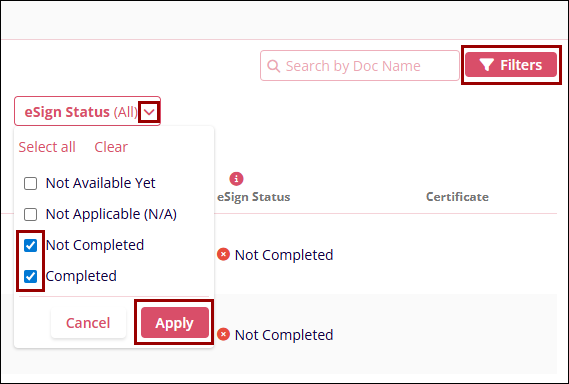
To apply filters to the External Training screen, follow the steps below:
- Click on the Filters icon beside the search box.
- Click on the following filters dropdown.
- User
- Course Name
- Status
- School/Company
- Evidence
- Evidence Document Status
- eSign Status
- Select the required entries by clicking on their respective checkboxes.
- Click on Apply.
Search
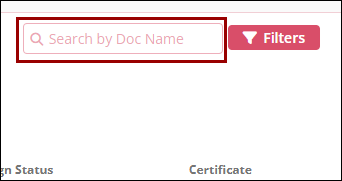
To search for a particular record, follow the steps below
- Enter the search term into the Search by Doc Name box beside Filters.
- Click on the search (magnifying glass) icon.

TransPerfect’s Trial Interactive is an industry leader in practical, global eClinical innovation
PRODUCTS
 Linkedin
 X
X
Didn’t find what you need?
Our dedicated Project Management and Client Services team will be available to meet your needs
24 hours a day, 7 days a week.
Toll Free:
(888) 391-5111
help@trialinteractive.com
© 2025 Trial Interactive. All Rights Reserved

