
Advanced Validation
To configure the Advanced Validation criteria, follow the steps below.
- On the Fields tab, select Advanced Validation from the top menu bar.
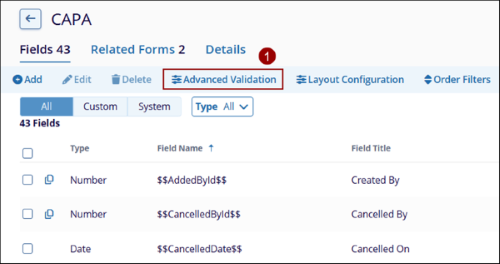
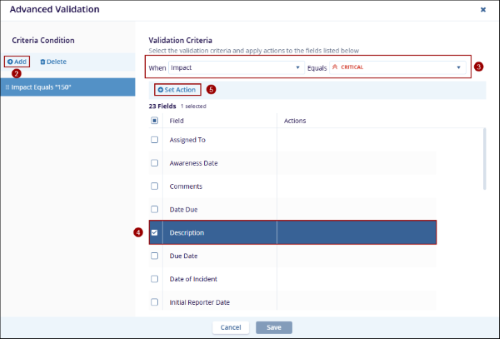
- On the Advanced Validation screen, click on the +Add button under the Criteria Condition section.
- Under the Validation Criteria section, add values for When and Equals criteria fields.
- Select a field from the list.
- Click on the +Set Action button.
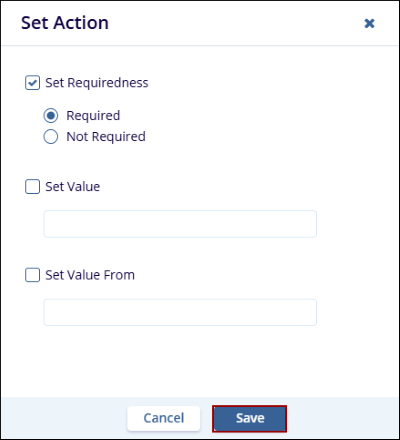
- On the Set Action pop-up, define the field behavior within the
form by selecting any one of the following and click on the
Save button.
- Set Requiredness
- Required
- Not Required
- Set Value
- Set Value From
- Set Requiredness
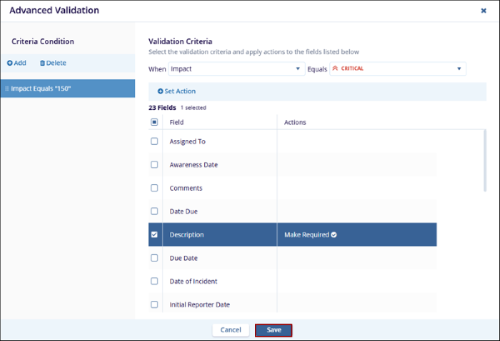
- On the Advanced Validation screen, the action appears against the field. Click on
the Save button.
Important:
- In the above example, the validation rule is defined as: When Impact is set to Critical, the Description field becomes required.
- This means that when a user creates a record, i.e., Quality Event, CAPA, or Action Item, etc., where this validation is applied and selects Critical as the Impact, they must provide a value in the Description field before proceeding, i.e., the Description field becomes mandatory.
© 2025 Trial Interactive. All Rights Reserved

