
Layout Configuration
To configure the layout of a form, follow the steps below:
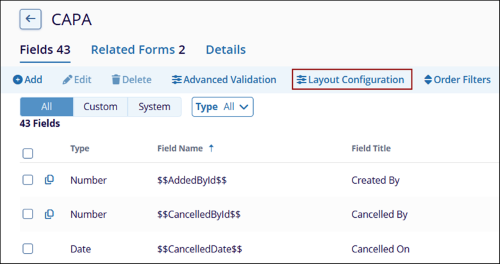
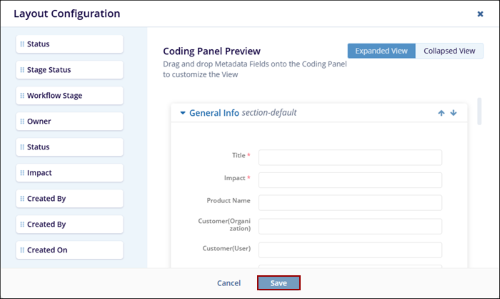
- Select Layout Configuration from the top menu bar on the Fields tab.
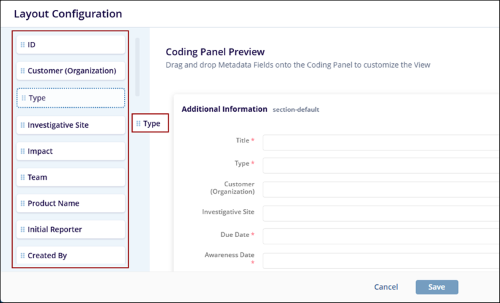
- On the Layout Configuration screen, drag and drop a metadata
field from the left sidebar to arrange it in the desired order,
allowing the configuration of how the metadata fields are displayed
on the form.
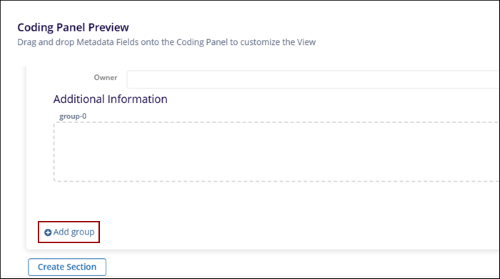
- Within the Coding Panel Preview section, click on the +Add Group button.
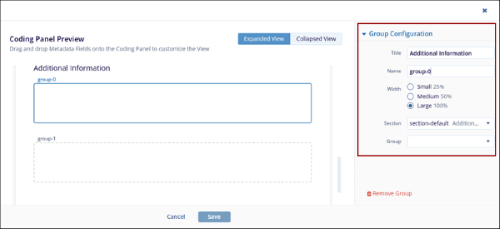
- Click on the blank area of the added group and configure the following details under
the Group Configuration section and click on the Save button.
- Title
- Name
- Width
- Section
- Group
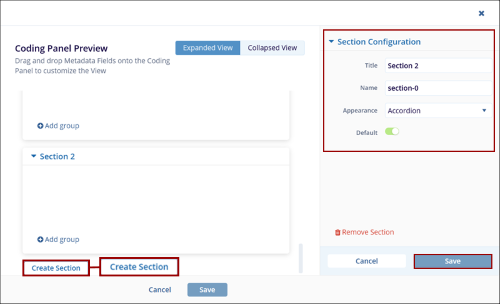
- To create an additional section in the form, click on the Create Section button within the Coding Panel Preview.
- Within the Section Configuration add the following details and click on the
Save button.
- Title
- Name
- Appearance
- Default
- Once all the configurations are made, click on the Save button at the bottom
of the Layout Configuration screen.
© 2025 Trial Interactive. All Rights Reserved

