
Create a Workflow
To create a workflow, follow the steps below:
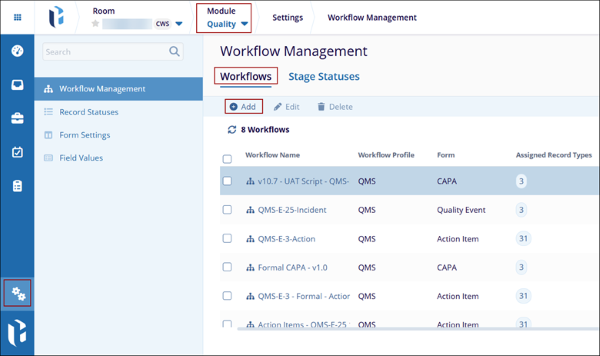
- From the Quality module, click on the Settings menu > Workflow Management > Workflows tab.
- Click on the +Add button.
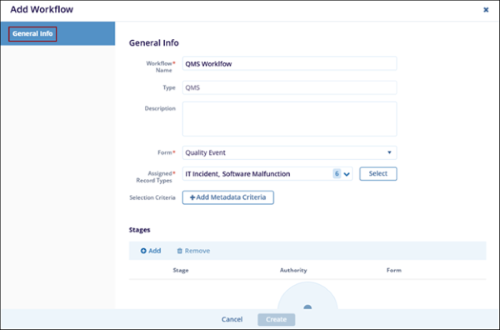
- On the Add Workflow form, fill in the following details in the General Info
section.
- Workflow Name*: Provide a name for the workflow.
- Type: The workflow type ‘QMS’ is auto-populated and non-editable.
- Description: Optionally add a suitable description for the workflow.
- Form*: Select any one of the forms, i.e., Quality Event, CAPA, Action Item, etc.
- Assigned Record Types*: Select one or multiple record types as per requirements. The ‘Assigned Record Types’ dropdown displays options based on the form selected.
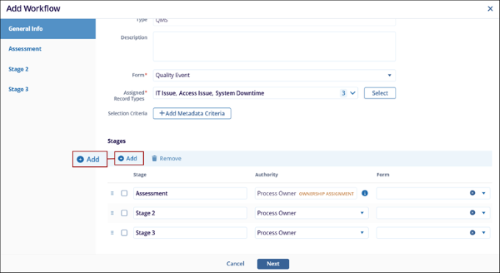
- In the Stages section, click on the +Add button and add the required number
of stages to the workflow.
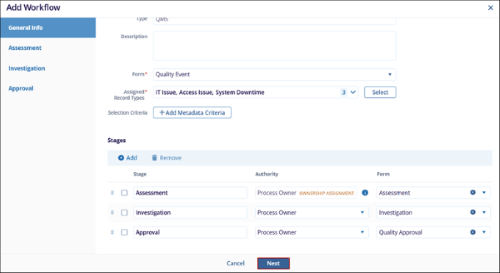
- Rename each stage, associate an authority with the stage, select the form type, and
click on the Next button.
-
Within each stage of the workflow, access the following tabs and configure the necessary details.
- Access Permissions
- Stage Configuration
- Fields
- Statuses
- Notifications
- Timeline
- Actions
Access Permissions
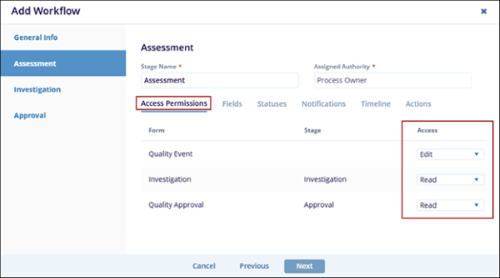
This tab allows Admins to define read/edit access for the assigned authority to the main form (e.g., Quality Events) and related forms (e.g., Investigation, QA) during the stage. These permissions define whether the assigned authority at a specific stage can view or modify the record, either within the current stage or across other stages, depending on the configuration.
To configure access permissions, follow the steps below:
- Use the Access dropdown in this tab to select either Read or Edit.
Stage Configuration
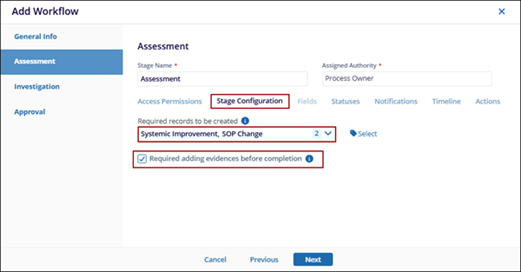
This tab allows Admins to define which record types must be created to complete that particular stage and whether the stage authority is required to add evidence before completing the stage.
To configure a stage, follow the steps below:
- Click the Required records to be created dropdown and select one or multiple records. If specified, the stage assignee must create the record to complete the stage.
- Select or unselect the Required adding evidence before completion checkbox.
If enabled, the stage assignee must add one or multiple evidences.
Fields
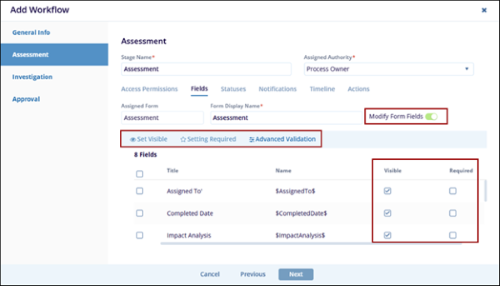
The Fields tab allows Admins to configure the display name of the form assigned to the stage and manage field visibility, requiredness, and advanced validation.
To edit the form fields, follow the steps below
- Enable the Modify Form Fields toggle switch.
- Once enabled, check or uncheck the ‘Visible’ or ‘Required’ checkbox to configure each field to be visible, required, or both.
- Select individual fields to update their visibility, mark them as setting
required, or apply advanced validation rules.
Statuses
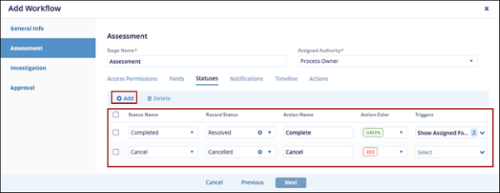
The Statuses tab allows Admins to define the statuses that can be applied during a particular stage.
To configure the statuses, follow the steps below:
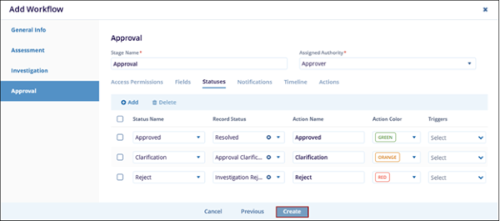
- Click the +Add button to create the required number of status records.
- Choose a Status Name from the dropdown list, which displays options configured under the Stage Statuses section.
- Select the appropriate Record Status from the dropdown, populated based on configurations in the Record Statuses section.
- Enter an Action Name corresponding to the selected status. This name will appear as a clickable button in the record’s quick view panel.
- Choose an Action Color from the dropdown. The action button will display in the selected color.
- Select one or more Triggers from the dropdown. When the action button is clicked,
the associated trigger will prompt the user to complete a specified action before
the record status is updated.
- Initiate Effectiveness Check: Opens a modal window that allows creating an effectiveness check as an action item.
- Provide Feedback: Prompts the user to add a comment or explanation when setting the status.
- Send Clarification: Opens a modal to send a query/clarification request to another authority before proceeding.
- Show Additional Participants: Displays additional participants in the workflow.
- Show Assigned Form: Displays the form assigned to this stage so the user can complete it.
- Show upcoming stages & Assignments: Displays upcoming workflow stages for a record and pre-assigns assignees/participants and the Owner before those stages begin.
Notifications
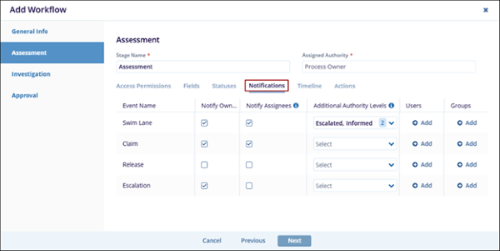
The Notifications tab allows workflow creators to select users, groups, and authority levels who will receive the notifications and under what circumstances at a specific workflow stage for the following notification types.
- Swim Lane: Triggered when the record enters a stage, either by progressing to it or returning from a later stage. This notifies the relevant parties that their stage is now active.
- Claim: Sent when a user claims the stage to inform others that someone has taken ownership of the tasks for that stage.
- Release: Triggered when the record is released from the particular stage.
- Escalation: Triggered when the stage remains unclaimed or incomplete beyond the defined escalation period, alerting escalation-level users to intervene.
To configure the notifications, follow the steps below:
- Click on the Enabled checkbox for the following events to enable sending the notification emails to the assigned users, authority types, and groups.
- Click on the Notify Owner checkbox for each event to enable sending the notification emails to the record owners.
- Select the Authority Levels, i.e., Assigned, Escalated, and Informed, from the dropdown that should receive the notification.
- Add the additional users and groups who will review the record by clicking on the
+Add button under the Users or Groups headers for each event name.
Timeline
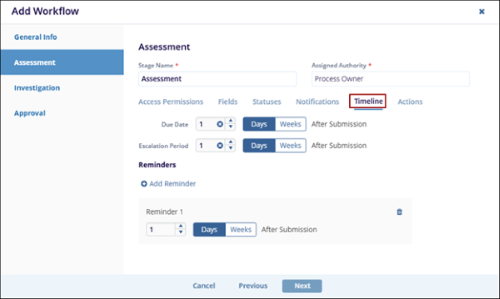
The Timeline tab allows users to define the due days, reminder schedule, and escalation frequency to ensure timely task execution and support automated follow-ups and escalations to maintain workflow efficiency and accountability.
- Due Date: Defines how many days the assignee has to complete the stage once it is initiated.
- Escalation Frequency: Defines the number of days after which, if no action is taken, the stage will escalate to the users assigned at the escalation level.
To configure the timelines, follow the steps below:
- In the Due Date field, select either Days or Weeks enter the number of days or weeks after which the task or item is due. Use the up/down arrows to increase or decrease the value.
- In the Escalation Frequency section, enter the number of times the escalation notification should occur. Use the up/down arrows to specify the duration or number of days.
- Click on the + Add Reminder button and specify the reminder details, such as
how many days or weeks before or after the due date the reminder should trigger.
Actions:
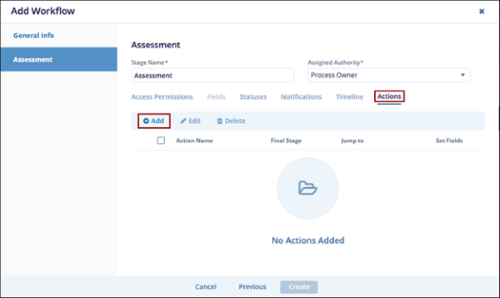
The Actions tab enables the configuration of automated custom actions based on specific field values in the assigned form. These actions are triggered dynamically during stage processing to guide workflow logic or transitions.
Add Actions:
To add an action, follow the steps below:
- Click on the +Add button within the Actions tab.
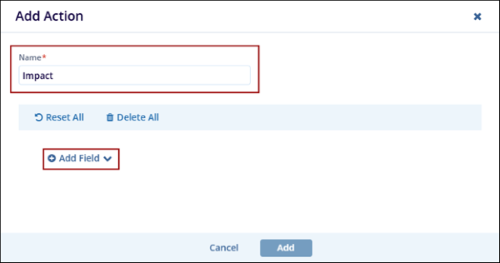
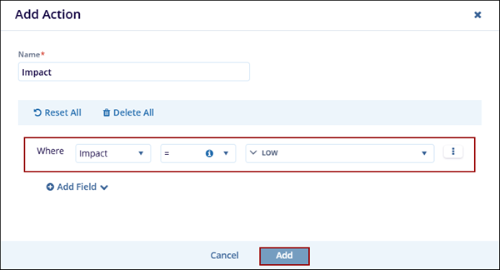
- On the Add Action modal window, provide a name to the action and click on the
+Add Field button.
- Configure the condition by specifying the values and the logical operators, and
click on the Add button.
Edit Action
To edit an action, follow the steps below:
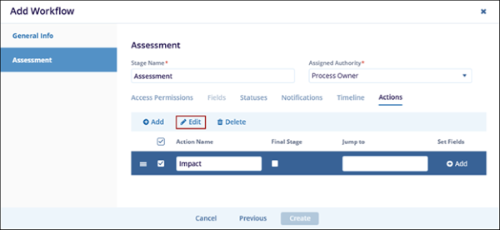
- Select an action and click on the Edit button.
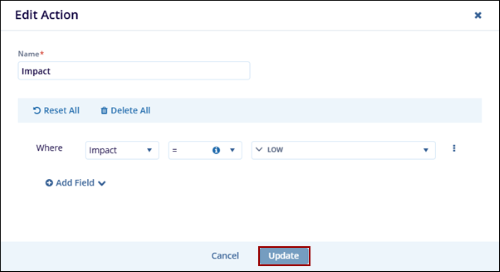
- On the Edit Action window, make the required changes and click on the Update
button.
Delete Action
To delete an action, follow the steps below:
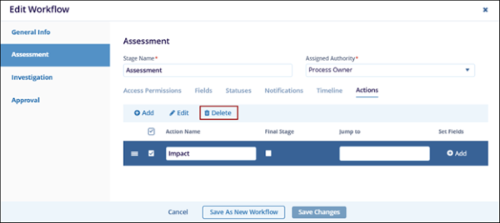
- Select an action and click on the Delete button.
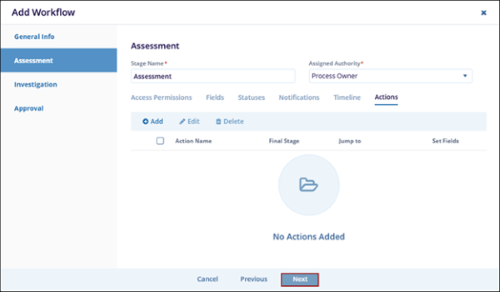
- Once the required details are added and configured in the first stage, click on the
Next button to proceed to the next stage and perform similar
configurations until the last stage.
- Click on the Create button once the details are configured in the last stage.
© 2025 Trial Interactive. All Rights Reserved

