
Documents Module
Auto Purge Settings
Trial Interactive offers the ability to permanently purge deleted documents as needed. This can be done manually from the Deleted Documents view in the Documents module or configured as an automated process. Follow the instructions below to set up Auto Purge.
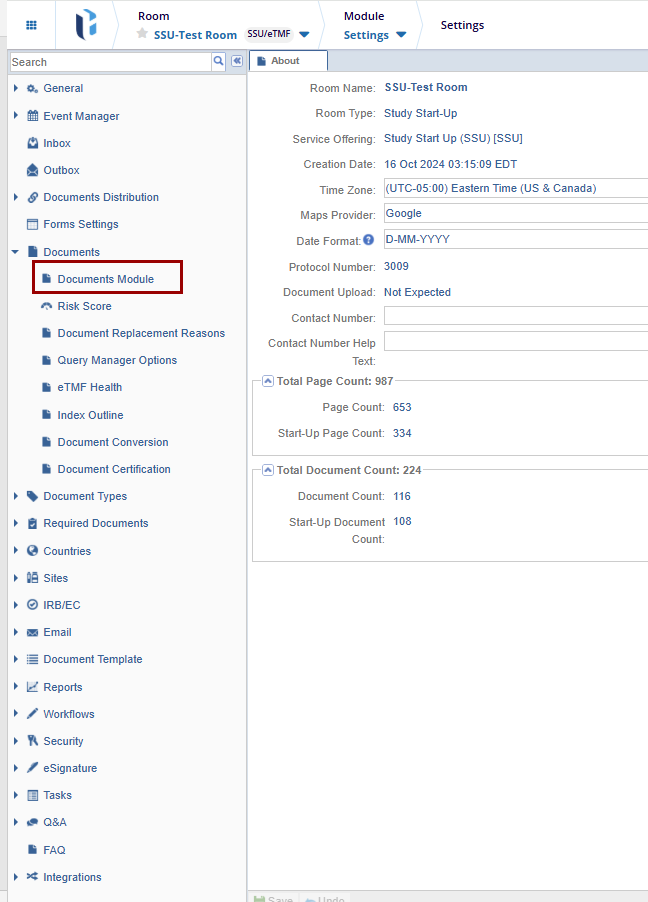
- Navigate to Navigation Grid -> Settings -> Documents -> Documents Module.
- Click the checkbox next to Enable auto purge.
- Once the Enable Auto-Purge checkbox is selected, the related
options become active.
- Adjust Days to auto-purge by entering the number of days in the box.
- Click the Save button at the bottom of the page.
Document Expiration Settings
Document types with an applied expiration date may expire before the study concludes. To address this, Trial Interactive provides tools to detect and replace expired documents. The settings for managing these features are detailed here.
- Navigate to Navigation Grid -> Settings -> Documents -> Documents Module.
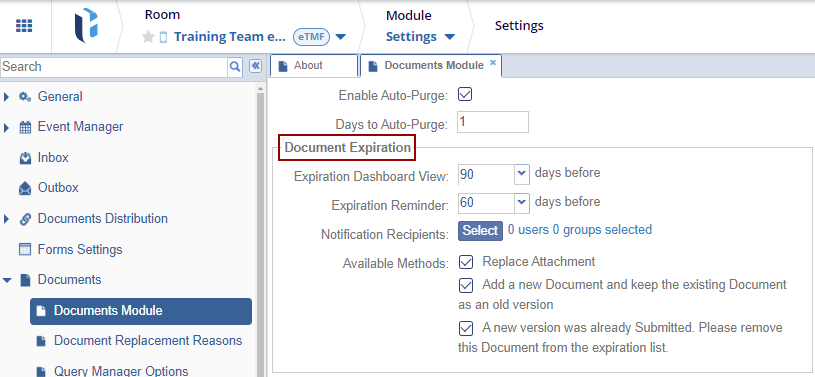
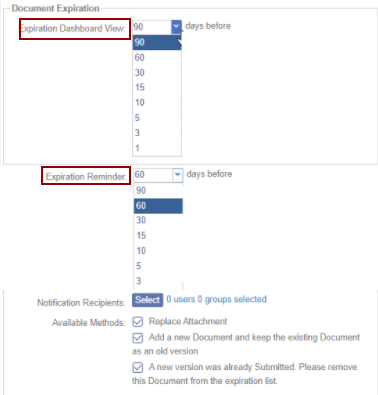
- The Expiration Dashboard View field determines the lead time users have to view and take action on an expiring document before its expiration date.
- The Expiration Reminder specifies when reminder emails are sent for documents approaching their expiration date.
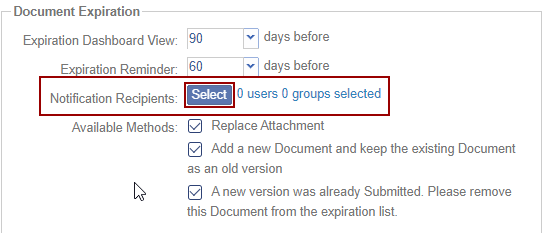
- Click Select from the Notification Recipients the Members pop-up window is displayed.
- The Members pop-up window is divided into a left pane and a right pane.
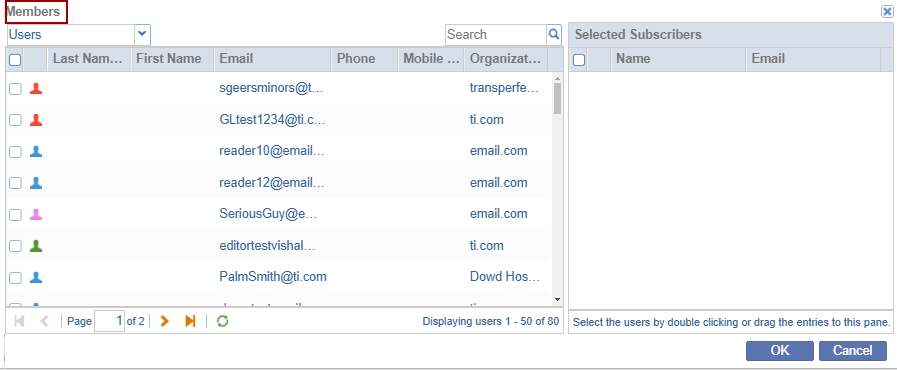
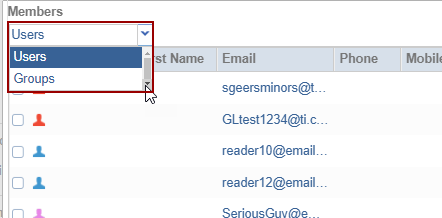
- Click the arrow next to the Users field to select Users/Groups.
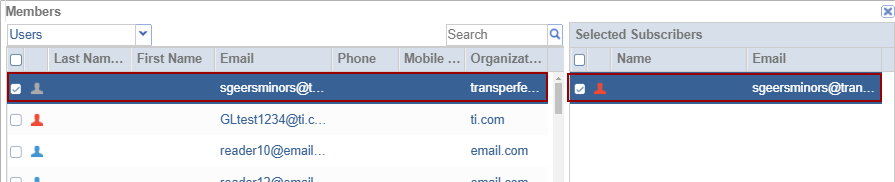
- The selected Users/Groups will appear in the right pane. To select users, either double-click or drag the entries to the right pane.
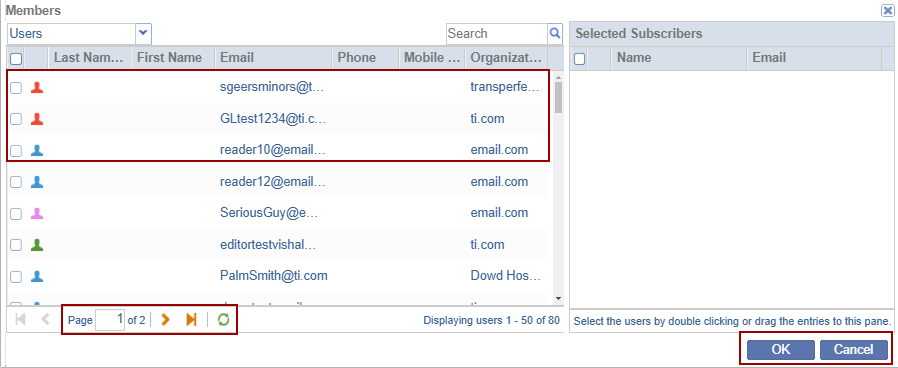
- The notification emails received by the Users/Groups are listed in the left pane of the Member's pop-up window. The window also includes Pagination, a Refresh icon, and OK and Cancel buttons at the bottom.
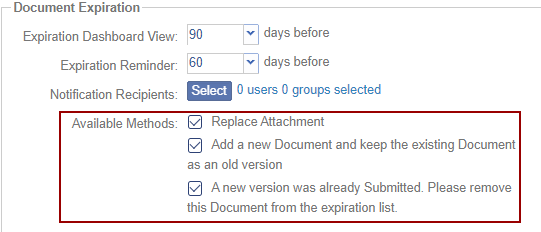
- The Available Methods section enables room
administrators to select the options accessible to users in the
Expiring Documents dashlet.
- The ‘Replace Attachment’ allows users to replace the file linked to the existing metadata. All document versions remain accessible in the Versions tab of the metadata panel.
- The ‘Add a New Document and Keep the Existing Document as an Old Version’ enables users to retain the existing version for reference while adding a new document.
- The ‘A new version was already submitted. Please remove this document from the expiration list’ option indicates that a newer version of the document has been submitted to the room as a separate document, and the expiring document should be removed from the expired/expiring documents list.
Duplicate Check Options
The methods used to detect duplicate documents are generally determined during room configuration. However, room administrators can modify one option if needed. For changes to duplicate detection requirements beyond this, consult the Service Desk, which has access to additional configuration options.
The Find Document Duplicates by Hash option allows room administrators to enable or disable this specific duplicate detection feature. A document hash is an alphanumeric code representing the unique characteristics of a document.

Automatic Document Name Generation
Room owners can configure an auto-naming pattern for a document type, allowing document names to be generated automatically based on the defined pattern. This setting is typically established during room configuration and is rarely modified during the study. If changes to the automatic name generation settings are required, it is recommended to collaborate with the Trial Interactive Service Desk.

- Click the Regenerate Document Names, the
‘Select Document Types to Regenerate Documents Names’
pop-up window gets displayed with the below options:
- Trial
- Country
- Site
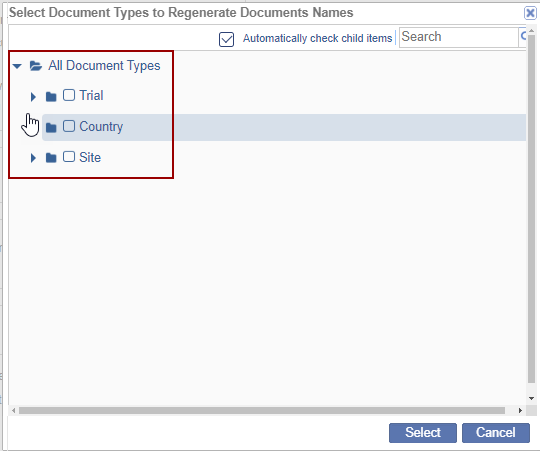
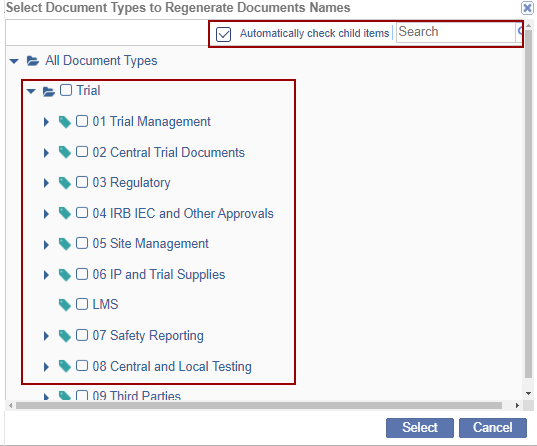
- The user can expand the arrow available beside the above options select the specific document type and click the Select option.
Note: The user can search the child items when the ‘Automatically check child items checkbox is checked.
TI Automate – The new Artificial Intelligence service in TI Automate enables automatic document classification and metadata extraction upon upload to a room.
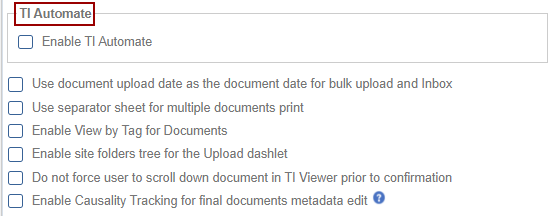
The following check box can be used as per the requirement:
Document Upload Date as Document Date
Note: Although not recommended, an Administrator can modify the naming and dating conventions applied to documents that are bulk uploaded or delivered to the room via the Inbox.
- Enable the ‘Use Document Upload Date as the Document Date for Bulk Upload and Inbox’ option by selecting the checkbox.
- The upload date will now automatically be assigned as the document date in the document profile.
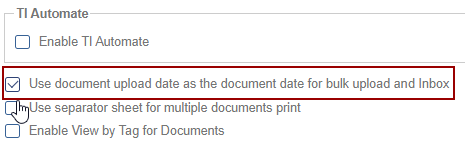
Use Separator Sheet for Multiple Documents Print
This option affects the Print function in the Documents module. When users select multiple documents to print, the system first creates a single PDF file containing all the selected documents. This file can then be downloaded or printed locally. Enabling this option adds a separator sheet between each source document in the generated PDF.
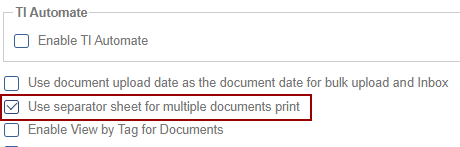
Enable View by Tag for Documents
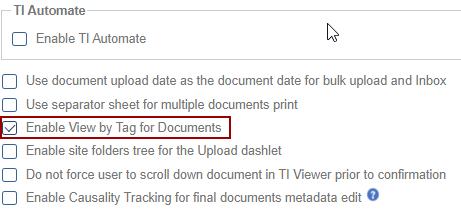
Enabling this option allows room users to view documents in the Documents module based on the value in the Tag field. Like other metadata fields, the Tag field can be enabled or disabled and assigned to specific documents or all documents. However, enabling the View by Tag option here does not activate the metadata field itself. To enable the Tag field for use, either configure it during room setup or contact the Trial Interactive Service Desk.
The View by Tag metadata field allows users to apply tags (similar to hashtags used in social media) to documents, indicating that documents with the same tag are related. For example, documents submitted in a specific language could be tagged to group them, regardless of their document type. A key advantage of this feature is that multiple tags can be applied to a single document, enabling cross-referencing and the ability to associate a document with multiple categories or contexts.
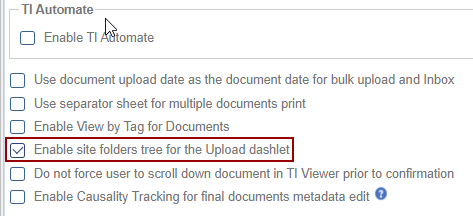
Enable Site Folders Tree for the Upload Dashlet
This option allows users to view site-related folders within the Documents module and select the appropriate folder for uploading documents.
Do not force the user to scroll down the document in TI Viewer prior to confirmation
When enabled, this option removes the requirement for users to scroll through the entire document in the TI Viewer before confirming their action.
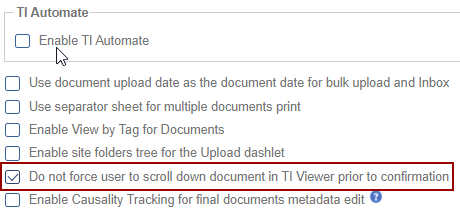
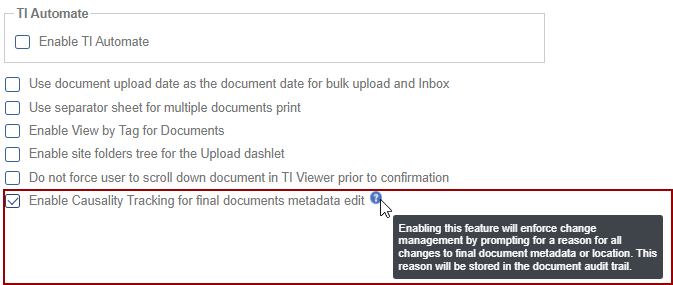
Enable Causality Tracking for Final Documents Metadata Edit
Enabling this option allows Administrators and Document Manager users to modify metadata for final documents within a study room. This setting has two effects:
- Metadata Modification: Grants permission to update metadata fields for finalized documents and should be requested to provide a reason for making the change.
- Enhanced Flexibility: Ensures greater control over document information while maintaining proper access restrictions. Mass Coding will be disabled in the study room.
The Change Log option, located at the bottom-right of the screen, provides a record of activity in the Documents Module and includes two menus:
- Documents Module - It includes columns for Item Name, New Value, Old Value, Updated By, and Updated On (with the timestamp).
- Regenerate Documents Names - It displays the names of the regenerated documents along and a Close button.
Ensure to click Save to apply and retain any changes.

 Linkedin
 X
X

