
Risk Score
Risk scoring in an eTMF (electronic Trial Master File) refers to a process used to evaluate, monitor, and manage potential risks associated with clinical trial documentation and regulatory compliance. It helps ensure that the trial documentation adheres to Good Clinical Practice (GCP) standards, regulatory requirements, and sponsor expectations.
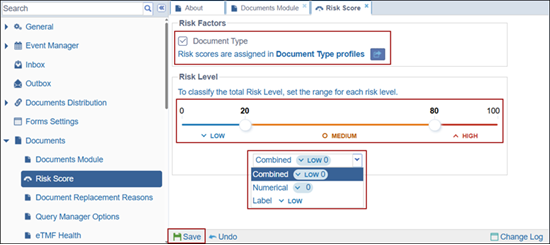
The Risk Score settings, when configured, allows users to assign risk scores to document types.
To configure the risk score settings, follow the steps below:
- From Settings page, expand the Documents dropdown and select the ‘Risk Score’ option.
- Check the Document Type checkbox under the Risk Factors section.
- In the Risk Score section, configure the range for each risk level using the slider: Adjust the values to define low, medium, and high-risk ranges.
- In the Score Display dropdown, select how the risk score should appear in
folders and document views and click Save
- Combined: Displays both numeric score and risk label (e.g., LOW 0).
- Numerical: Displays only the numeric score.
- Label: Displays only the risk level (LOW, MEDIUM, HIGH).

 Linkedin
 X
X

