
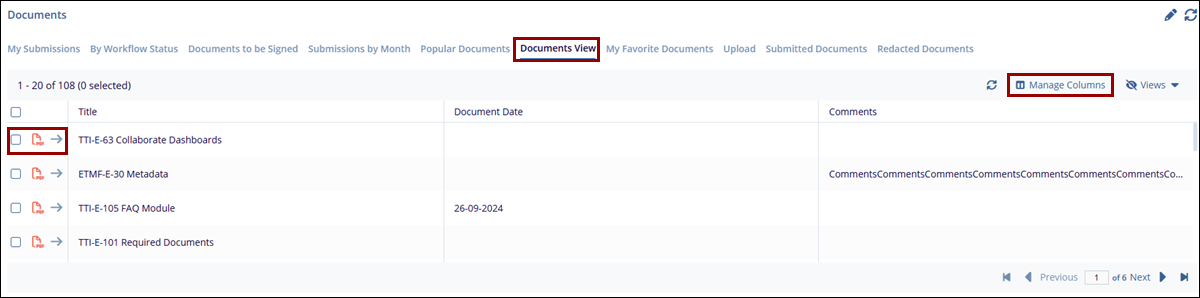
Documents View
This tab displays the documents in a grid column with a selection tab for Unread, Unclaimed, and Pending.
Steps to review documents:
- Click the Documents Views, next to popular Documents.
- Select the required and appropriate checkboxes from the Submitted name option to select the document. Next to the checkboxes, the user can click on the blue arrow (Go to the document), which will navigate to the document index.
- To view the Document, click on the PDF icon (for detailed steps, refer Document to be Signed tab above)
- To customize the columns displayed in the document list, click
Manage Columns and select or deselect columns as
required to view.
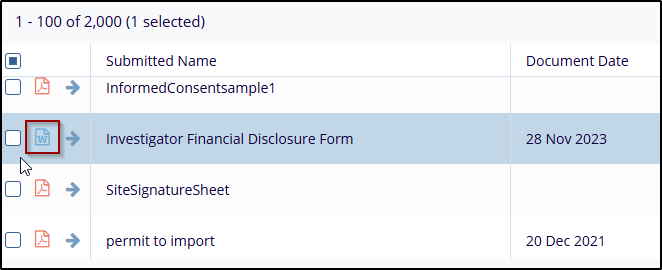
- By clicking on the Word icon, the Word file window will open
with the document.
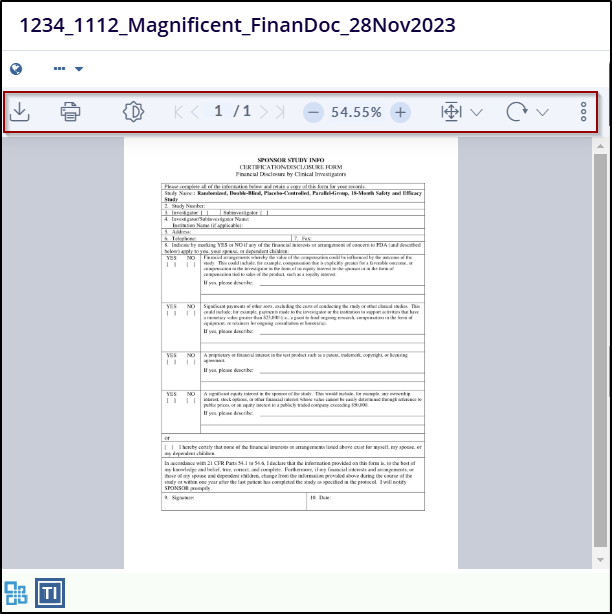
- User can perform various actions, such as
(Print, download, Page navigation arrows, Zoom
options, Full page, Turn page, Search Icon, Image
processing menu, Show and Hide)
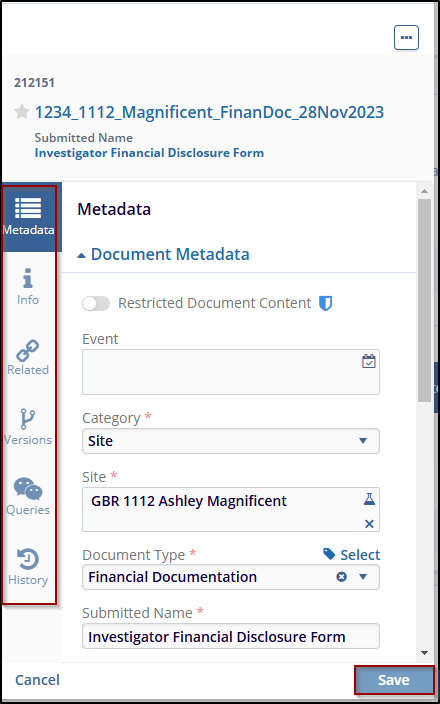
- On the right side of the Word file, where the user can find the document Metadata, Info, related, version, queries, and history sections, after updating metadata or making any necessary changes, click Save to apply the changes. (For detailed steps, refer to Documents to be signed, 4th step)
Refer to the screenshot below.
Note: Users with edit and above access can perform the selection and rotation of multiple pages at once in the TI viewer.

 Linkedin
 X
X

