
Placeholder Activities
Add Document to Placeholders
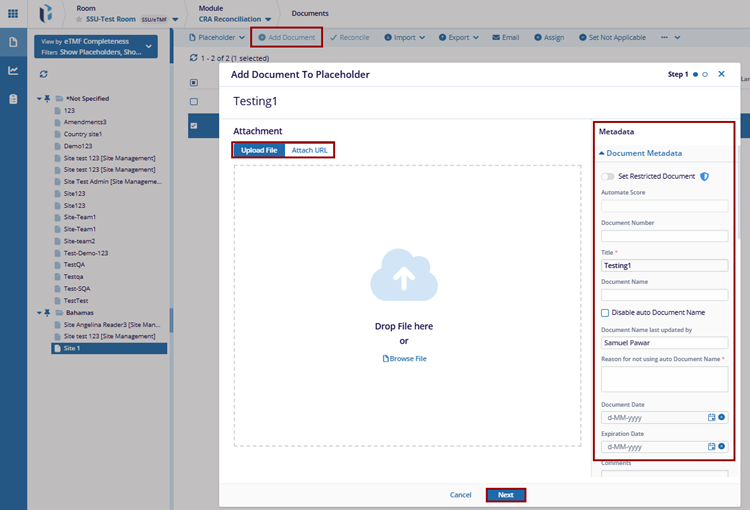
The Add Document refers to uploading a document or attaching a URL, such as an eTMF (Electronic Trial Master File) document. These documents may include queries, audits, or any other files that need to be added to placeholder.
To Add Document to Placeholder, follow these steps:
- Click the Add Document button and a Add Document to Placeholder window will appear.
- Upload file or Drag and Drop File in the pop-up window. Complete the required metadata fields to add document for the placeholder.
- Once metadata is filled, click the Add button to apply the changes.
The Reconcile refers to the process of comparing and matching documents or data from different sources (e.g., eTMF and site binder) to ensure consistency and accuracy. It involves verifying that all necessary documents are in the correct locations. This is applicable to: Editor and Reader level. Note:
Users can accomplish this action only when their setup fulfills two conditions:
- The user is present in the CRA field within Site Details.
- The user has been endowed with the CRA Reconciliation action.
Reconcile
To Reconcile the document, follow these steps:
- Navigate to the CRA Reconciliation Module via the Navigation Grid on the top left corner of the screen.
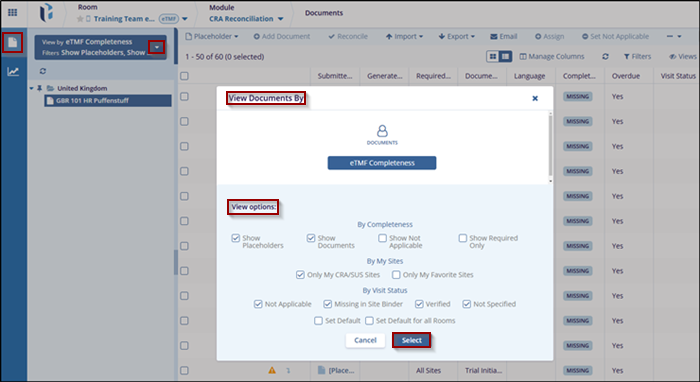
- Click the View By dropdown setting. above the index panel.
- Select the following option in the View Documents By window:
- Drill down in the folders to locate the site to which the user has been assigned as a CRA.
- Select a fulfilled placeholder from the list of documents.
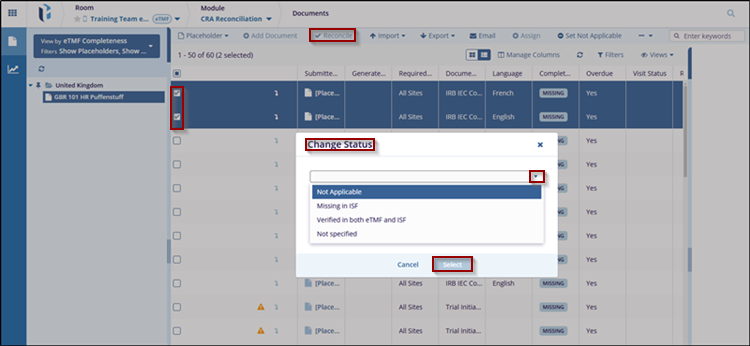
- Click the Reconcile button, available in top ribbon, this will open a new Change Status window.
- Select the following option from the dropdown, such as: Not Applicable, Missing in ISF, Verified in both eTMF and ISF, Not specified
- After selecting option, click the Select button to apply the changes.

 Linkedin
 X
X

