
Events Manager
The Event Manager was created as a new way to manage amendments, milestones, visits, and other events that occur during a Clinical Trial. It is important to have a simple way to recognize clinical events as they happen in order to get the most accurate picture of eTMF Health. That way, as amendments, visits, and other activities occur, the eTMF ‘knows’ what documents are needed in association with those events and can even plan them, including the responsible party and due date.
Events may be applied to the eTMF Required Document and Placeholder definitions, providing a simple way to manage the milestones of a study, applying the planned documents automatically, and improving the quality of the measurement of eTMF Health. Placeholders are defined and applied as a part of amendments, milestones, visits, and other trial activities. Sites and countries may be included or removed as necessary.
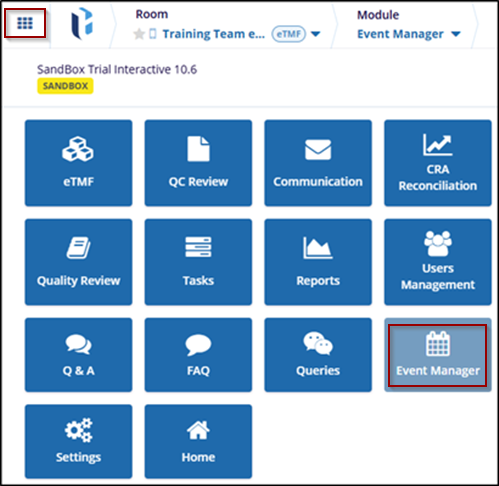
The Events section provides an organized view of all scheduled and completed events within the system. It includes filtering options for different event statuses such as All Events, Planned, and Completed.
Before creating a specific event in the system, ensure the event type has been created. If your room has pre-populated event types based on the system's default settings or milestones cloned from another room, the user can use those. However, there may be instances where creating a custom event type is necessary.
Users can access Events by selecting Events in the menu bar on the left-hand navigation pane.
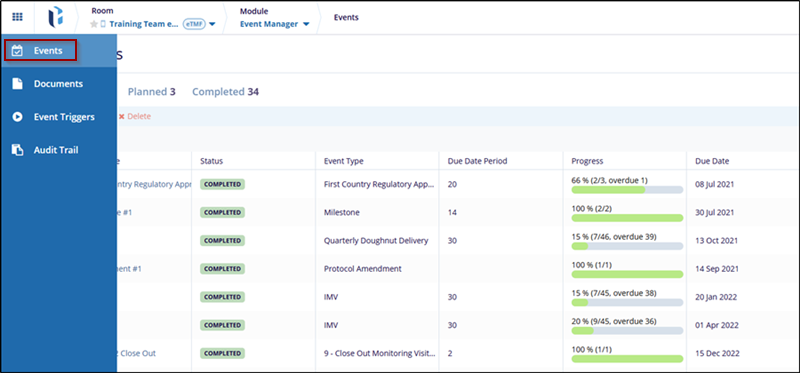
Access the Events, any previously created events should be displayed in the window.
Double-click on the Event to modify. The Event detail page will open. The event profile has three tabs:
- All Events: This tab includes the event name of the all status, any impacted sites or countries, event type, etc.
- Planned: This tab displays the planned events, with the event name, event type, planned date etc.
- Completed: This tab displays the completed events, with the event name, event type, completed date etc.

 Linkedin
 X
X

