
CRA Reconciliation
Explore Videos for more help:
Videos
The CRA Reconciliation module in Trial Interactive enables Clinical Research Associates (CRAs) to easily verify/reconcile documents and the related metadata between eTMF and Site Binder as a part of formal process with a provision to indicate results through for this verification exercise.
This module helps reconciling any differences between site and eTMF documentation thereby reducing compliance risk, enhancing discoverability of information, and contributing to a healthy and timely eTMF.
To access the CRA Reconciliation module, follow the steps below:
- Click the waffle menu (navigation grid) at the top left.
- Select the CRA Reconciliation module.
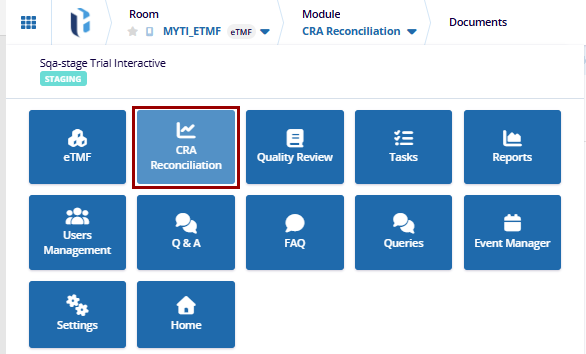
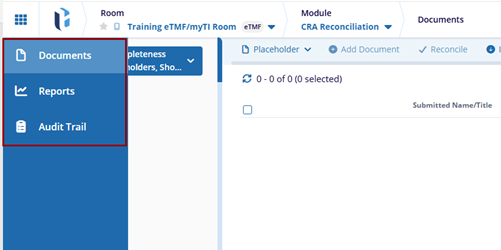
- The CRA Reconciliation module displays the following sections in the left-hand
navigation pane.
- Documents: This tab allows users to configure placeholders, add documents to the placeholders created, reconcile documents and other common functions such as import, export and configure grid views.
- Reports: This tab allows users to configure the CRA Reconciliation reports.
- Audit Trail: This tab allows users to retrieve a chronological set and source
of records that provide evidence of the sequence of activities performed over a document.
Important
- For users to access the CRA Reconciliation module, they must be assigned as a CRA to at least one site in the room.
- Additionally, the CRA Reconciliation action must added to the user’s profile via the User Management module.
- While any user can be granted access, only those designated as a CRA for a site can perform reconciliation and reporting functions.

 Linkedin
 X
X

