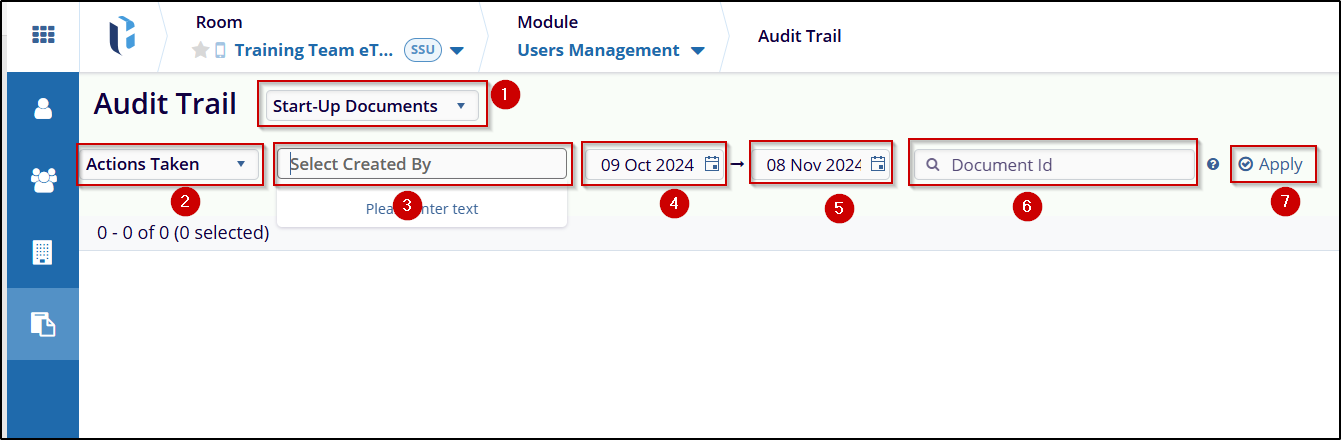
Audit Trail
An Audit Trail is a security-relevant chronological set and source of records that
provide evidence of the sequence of activities performed over a document. The changes made in
a document by all users are displayed within the Audit Trail.
Note: By
default, the audit trails grid pane is empty, and the documents are displayed only after
entering and applying certain parameters and criteria.
To access the Audit Trail modal within the eTMF module > User Management, click the Audit Trail icon in the left pane. This will open the Audit Trail screen.

Audit Trail Process
To retrieve the audit trail, follow the steps below.
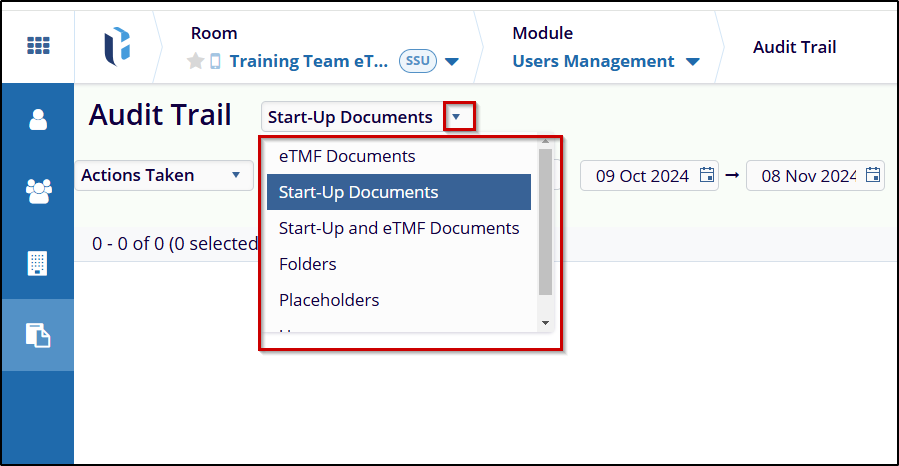
- On the Audit Trail screen, specify a parameter from the available dropdown options:
- eTMF documents
- Start-Up Documents
- Start-Up and eTMF Documents
- Folders
- Placeholders
- Users
-
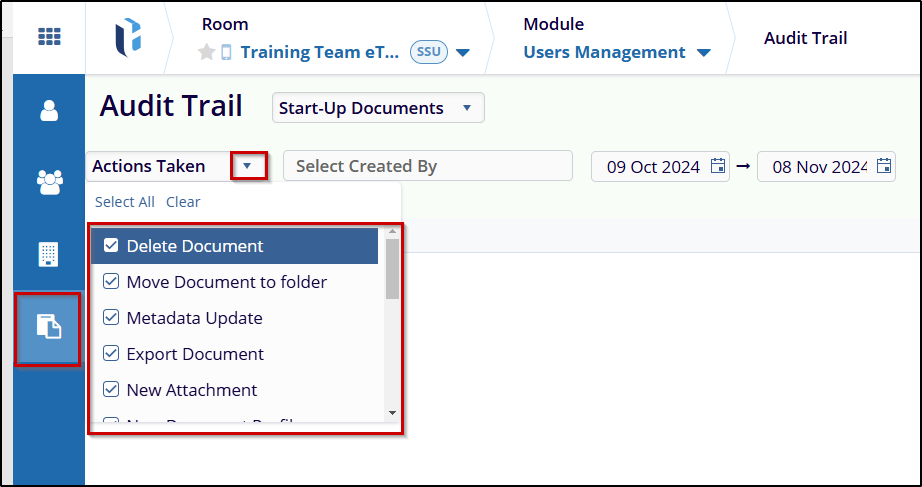
Click on the Actions Taken dropdown and select or deselect actions by clicking on their respective checkboxes.
-
Specify one or multiple users in the Select Created By field.
-
Add the From and To dates by clicking on the calendar icon.
-
Specify one or more Document IDs separated by commas to retrieve data restricted to the specified document IDs.
-
Click on the Apply button.