
Teams
The Teams section of the User Management module allows administrators to manage organizational structures effectively. This section guides users through the following topics:
- Create a New Teams: This helps how to add a new Teams, ensuring users can be grouped and managed according to needs.
- Edit/Modify a Teams: This helps to understand how to update or edit Teams details such as names, members and document.
- Remove a Teams: This helps to delete a Teams that is no longer required.
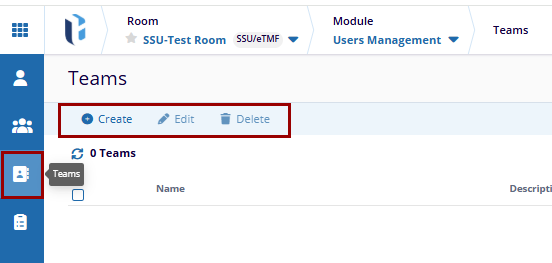
Steps to Create Team:
- In User Management, click the Teams icon in the left pane. This will open the Teams
screen. Click on the Add button at the top of the screen.
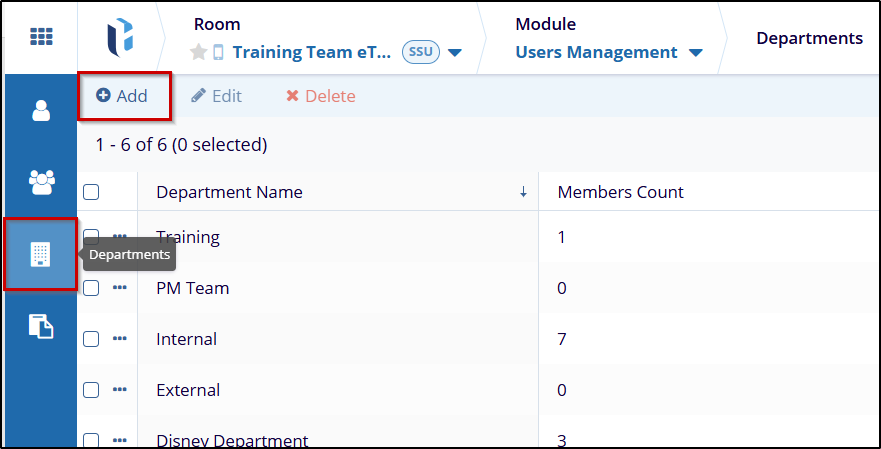
- In the Create Team window, enter the Team Name in the mandatory field. To add
members to this Team, click on the Add button in the Members section.
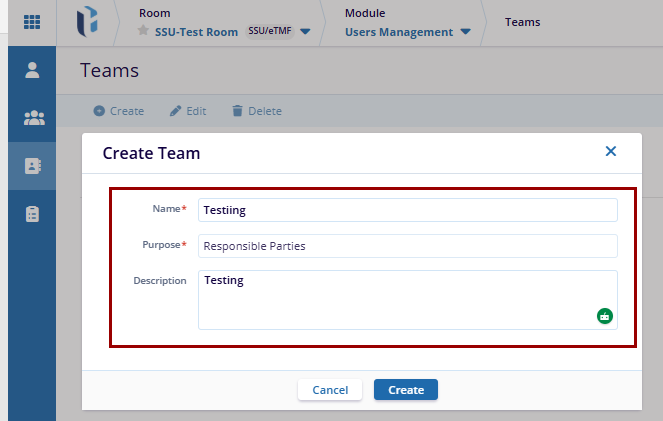
- The Memberl will display. Use the search bar to locate users and click the + icon next to
the user to select them. The selected user(s) will appear in the Selected Members section on
the right. After confirming the selection, click Add.
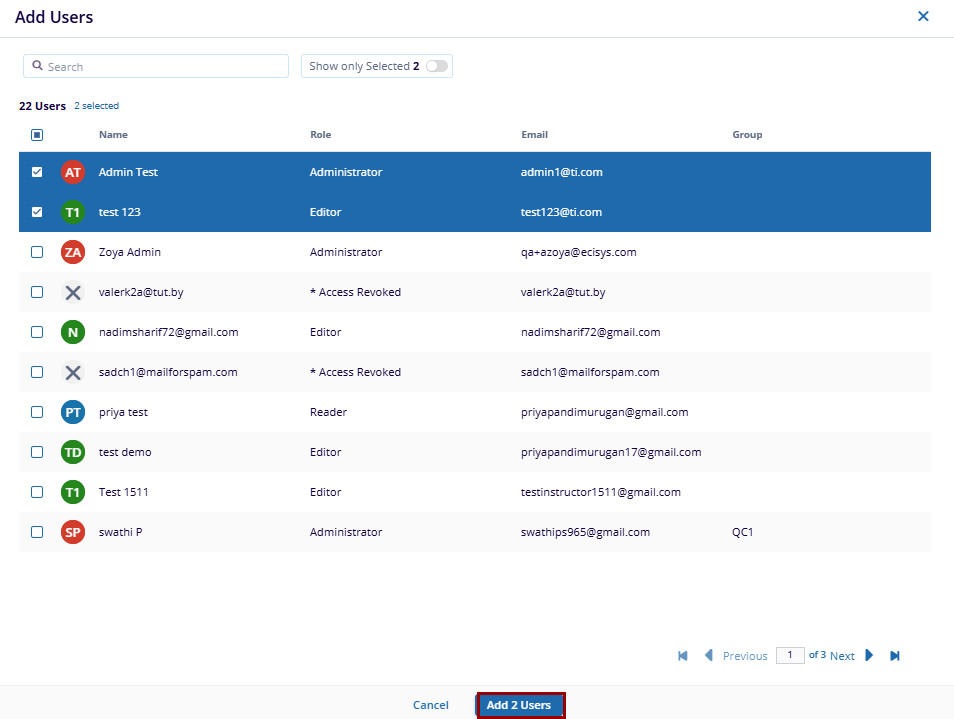
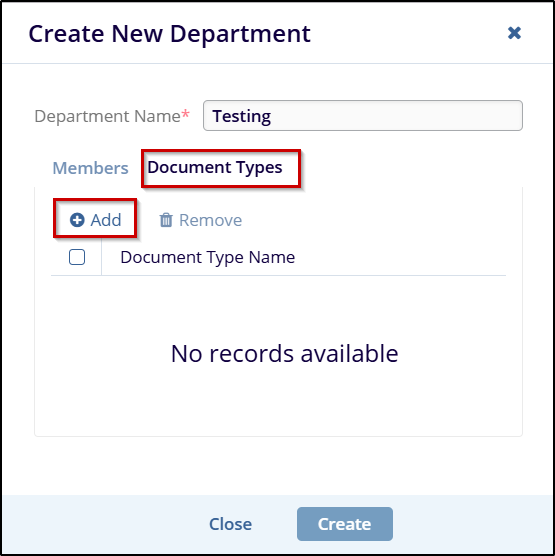
- To assign document types, select the Document Types tab within the Created Team
window. Click on the Add button to open the Add Document Types modal.
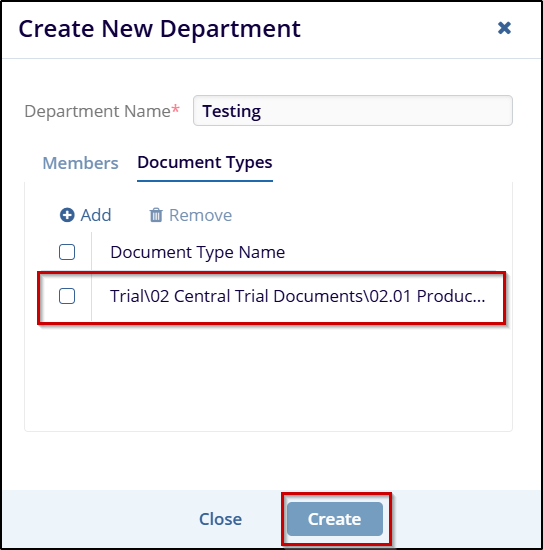
- In the Add Document Types modal, use the search bar to locate the required document
type. Select it by clicking the checkbox next to the document type and click Add Document
Types button. A successful message will pop-up

- After adding members and document types, click Create to finalize and create the
Team.
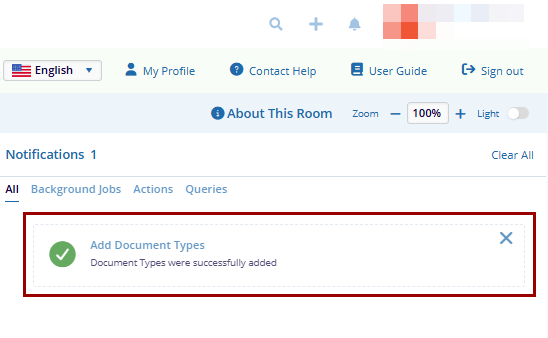
- A notification will appear, confirming that the Teams was successfully created.

 Linkedin
 X
X

