
Versions Tab
The Versions tab allows users to view and compare the different versions of a document. This is most commonly applicable in Trial Interactive rooms, such as TI Collaborate rooms, where documents are created, edited, and reviewed prior to becoming effective. However, this can also apply to a study room where expired or expiring documents have been replaced with newer copies.
To view the different versions, follow the steps below.
-
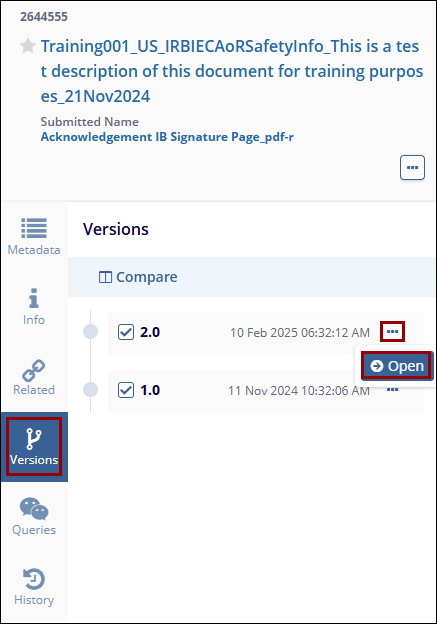
Select a document from the grid and click the Versions tab in the Metadata panel.
- Click on the horizontal ellipsis (three-dot) icon and select
the Open option to view the document in the TI Document Viewer.
-
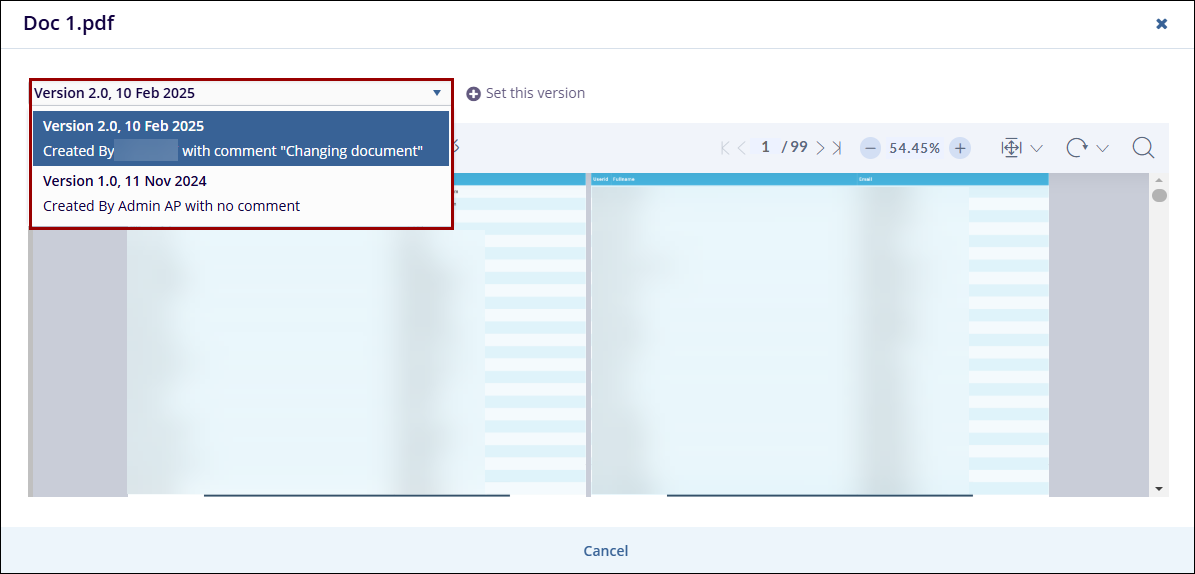
Click on the dropdown menu to access the different document versions.
-
Click on the Set this version button to set a specific version as the active one.
-
Access the Navigation menu that allows the user to:
-
- Download
- Zoom in/out
- Adjust brightness, contrast, and colors
- Adjust height and width
- Rotate
- Navigate through pages
- Search
-
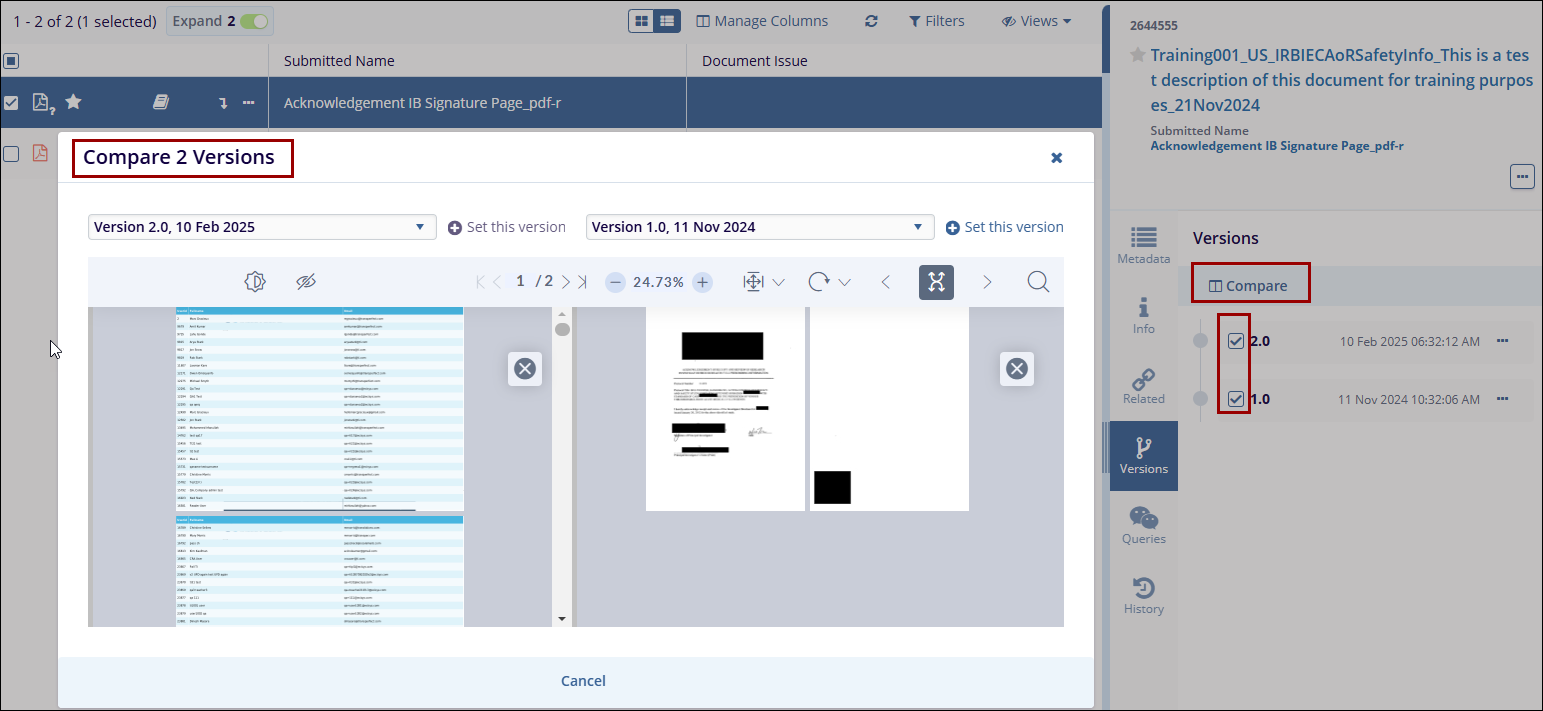
- Select the documents and click on the Compare button to display documents from both versions in a side-by-side view.

 Linkedin
 X
X

