
Index Structure
Explore Videos for more help:
Videos
The index structure of a room will be cloned from an existing room or a client-specific template room. Normally, any changes to the standard layout would be indicated in the configuration manual and addressed before the room is used. However, administrator-level users can make changes to room index structure.
Modify Index
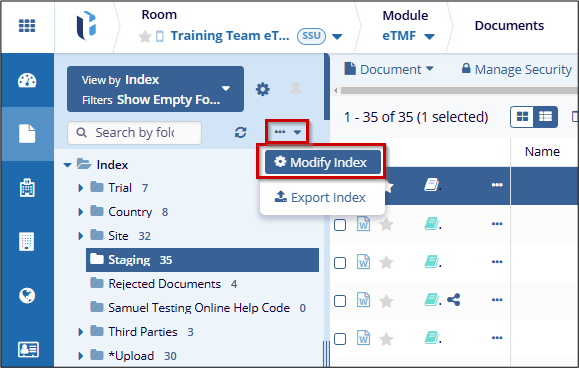
Administrator-level users can add new folders to the index structure of the documents module from the Index pane. There is a three-dot menu under the view selector menu.
To add new folders, follow the steps below:
- Click on the three-dot menu and select the Modify Index option from the
dropdown options. The Modify Index window opens.
-
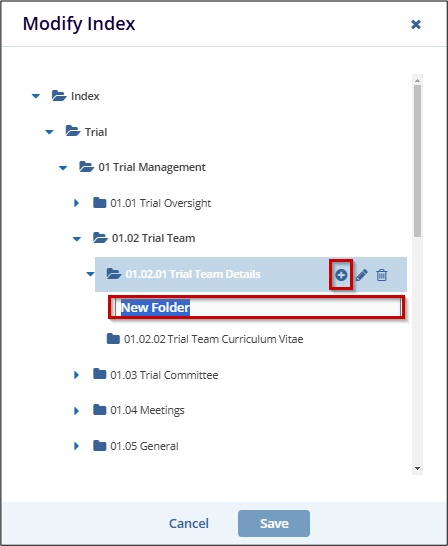
Hover over the parent folder, or hover over the index to create a new sub-folder, and click the + icon to add a new folder.
Note: The index structure may appear different from the one shown in the image above since index structures can be customized on a room-by-room basis. - When the folder is created, name the folder and press the enter key to save the name.
- Perform any other desired index modifications and click on the Save button.
Edit and Delete an Existing Index Folder
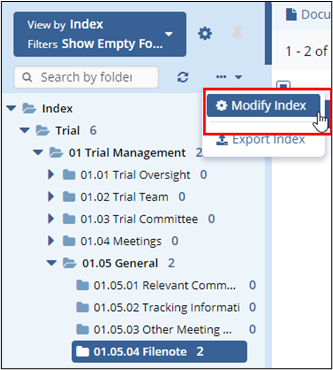
Administrator-level users can delete or edit the names of existing folders to the index structure of the documents module from the Index pane by accessing the three-dot menu under the view selector menu.
To edit or delete an index folder, follow the steps below:
- Click on the three-dot menu and select the Modify Index option. The Modify
Index window opens.
- Click on the edit (pencil) icon and modify the folder name.
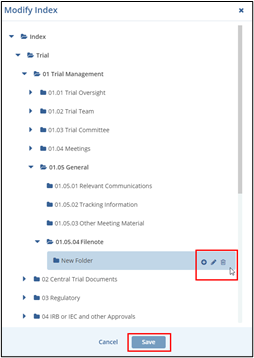
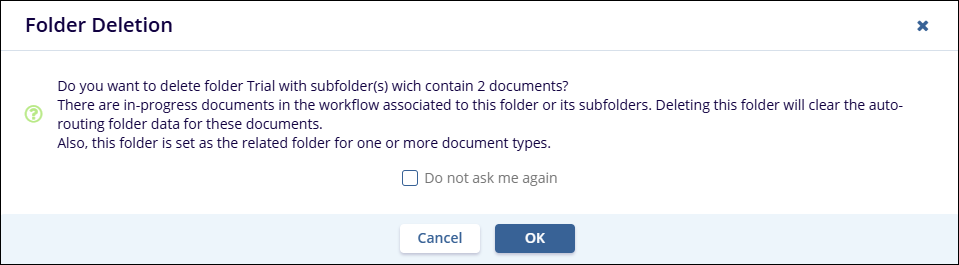
- Click on the Delete icon and confirm the folder deletion by clicking on the
OK button on the Folder Deletion confirmation popup.
- Perform any other desired index modifications and click on the Save button.
Edit Country and Site Level Folder
The country and site-level folders are greyed out and are not editable from the Modify Index window. These folders are controlled by the template folder settings.
Export Index
Export index allows to export the index structure of the room. Users can choose to export the index for the chosen folder or only the index outline. The index can be exported in either HTML, Microsoft Excel or Microsoft Word format. Besides these, users can also choose to export empty, or system folders as well as documents unpublished to the eTMF.
To export the index, follow the steps below:
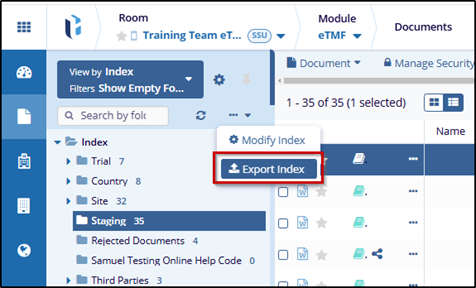
- Click on the three-dot menu and select the Export Index option from the
dropdown options. The Export Index window opens.
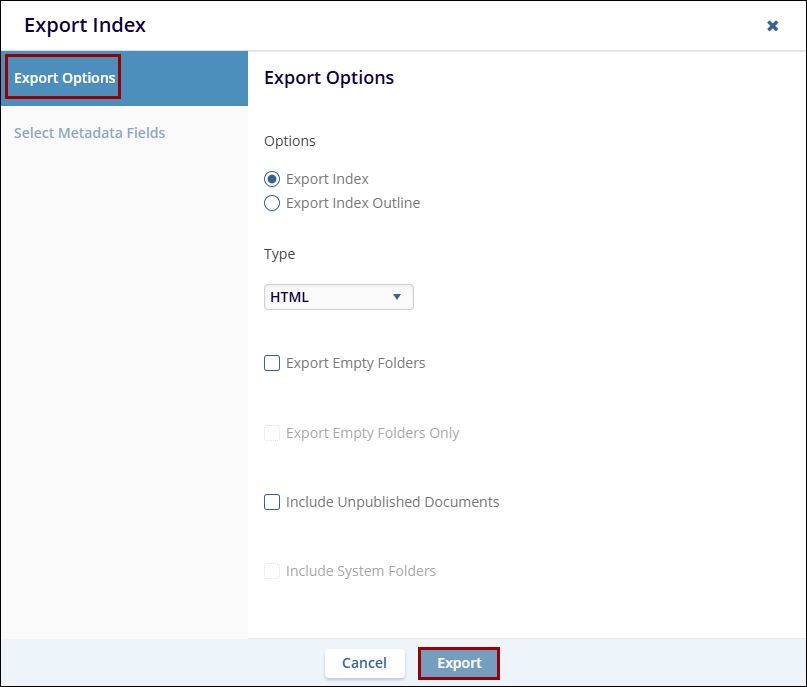
- On the Export Index window, perform the following.
- Select Export Index or Export Index Outline by clicking on the radio buttons.
- Select HTML, Microsoft Excel, or Microsoft Word from the Type dropdown options.
- Click on the Export Empty Folders checkbox to retrieve empty folders as well.
- Click on the Export Empty Folders Only checkbox to retrieve just the empty folders.
- Click on the Include Unpublished Documents checkbox to retrieve unpublished documents.
- Click on the Export button.
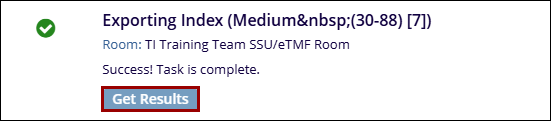
- On the success message popup, click on the Get Results button.
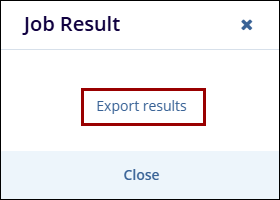
- On the Job Result window, click on the Export Results link.

 Linkedin
 X
X

