
Approval Workflow
To send an activity for approval workflow, follow the steps below:
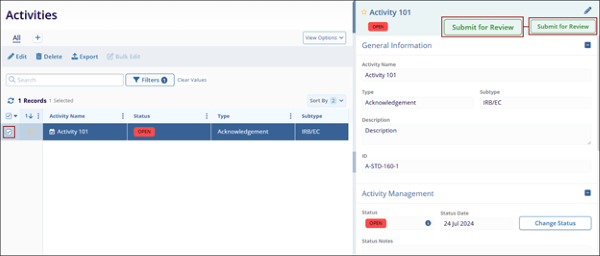
- Select an activity from the list and open the quick view panel.
- Click on the Submit for Review button.
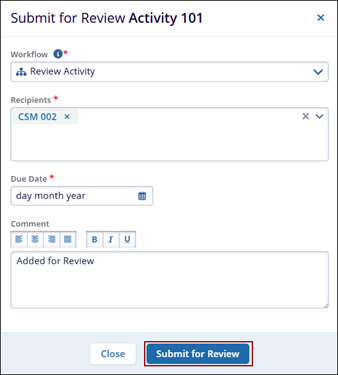
- Fill in the required details and click the Submit for Review button.
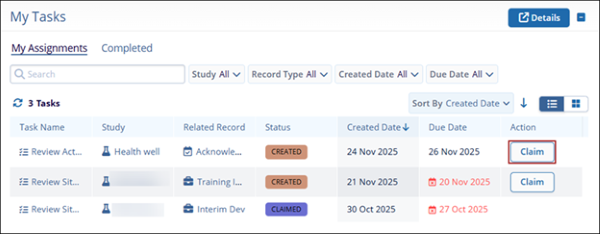
- As the user added as the recipient, access the My Tasks dashlet and click
Claim.
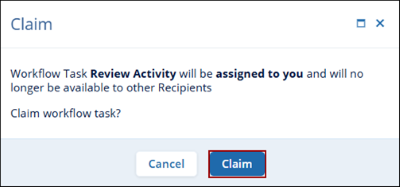
- On the Claim pop-up, click on the Claim button.
- Click on Review Activity on the My Tasks dashlet.
- On the Workflow Task Review Activity pop-up, click on Open Activity.

- The Activities page opens with the activity pre-selected. Open the metadata panel.
- To approve the activity, click on the Approve button.
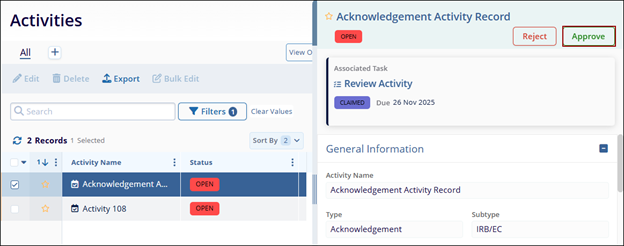
- Enter the Resolution Comment and click Approve.

- To reject an activity, click on the Reject button.

- Enter the resolution comment and click Reject.

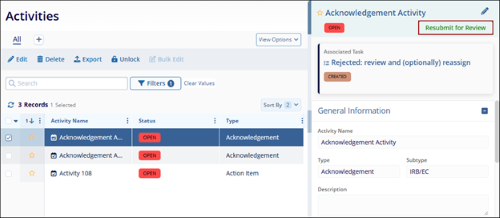
- As a user responsible for submitting the activity to the workflow, access the
metadata panel and click Resubmit for Review.

TransPerfect’s Trial Interactive is an industry leader in practical, global eClinical innovation
PRODUCTS
 Linkedin
 X
X
Didn’t find what you need?
Our dedicated Project Management and Client Services team will be available to meet your needs
24 hours a day, 7 days a week.
Toll Free:
(888) 391-5111
help@trialinteractive.com
© 2025 Trial Interactive. All Rights Reserved

