
Customize Columns on Contacts Screen
Hide Column
To hide a column, follow the steps below:
- Click on the ellipsis (vertical three dots) icon present beside each header field and
select Hide Column.
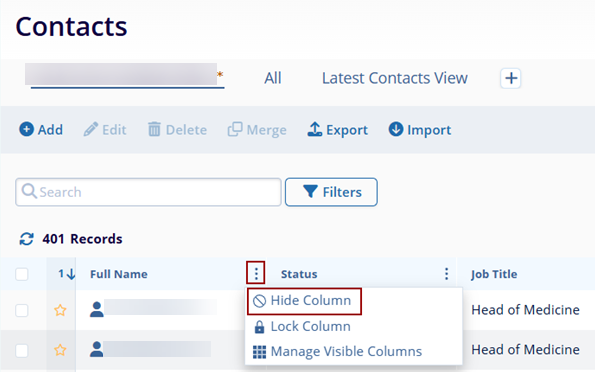
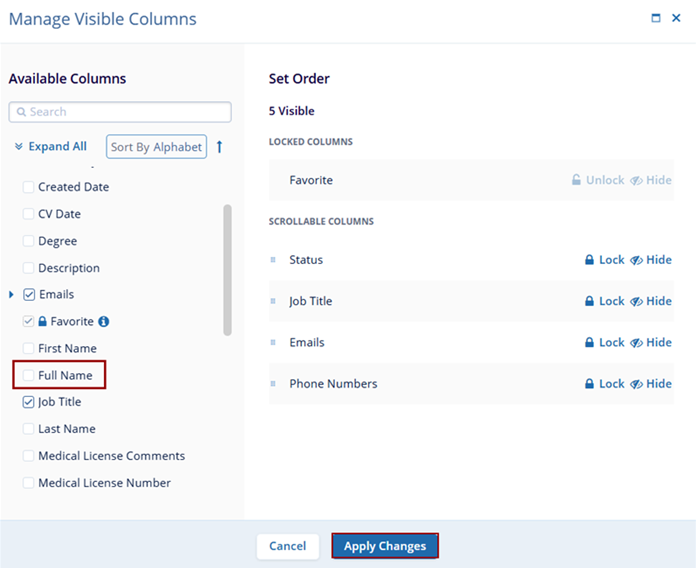
- The particular column will not be visible on UI until and unless it is enabled by
accessing the Manage Visible Columns option of any other column. Click on the check box to
unhide the column and click on the Apply Changes button.
Lock Column
To lock a column, follow the steps below:
- Click on the ellipsis (vertical three dots) icon present beside each header field and
select Lock Column.
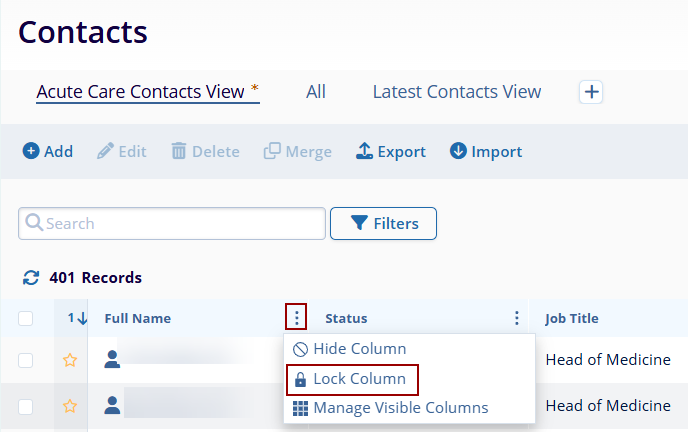
- Once the Lock Column option is selected, that particular column will be pinned beside the favorite’s column.
- To unlock a column, click on the ellipsis icon and select Unlock Column.
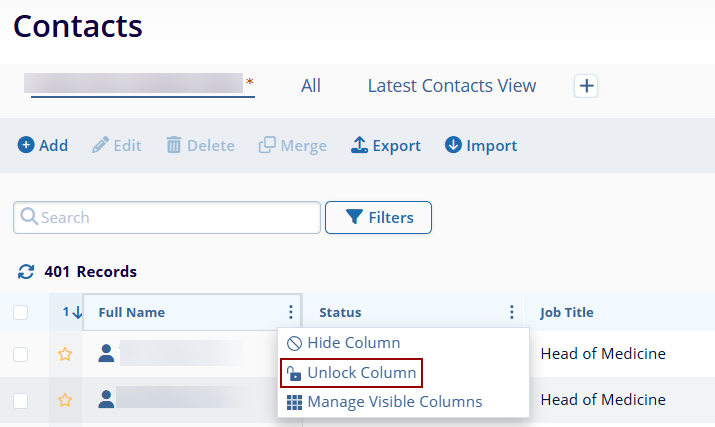
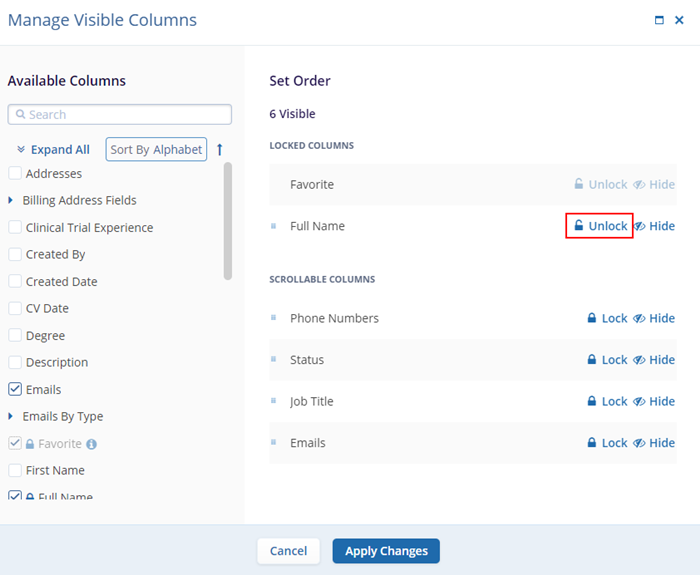
- It is also possible to unlock a column by accessing the Manage Visible Columns screen and
selecting the unlock option.
Manage Visible Columns
To access the Manage Visible Columns functionalities, follow the steps below
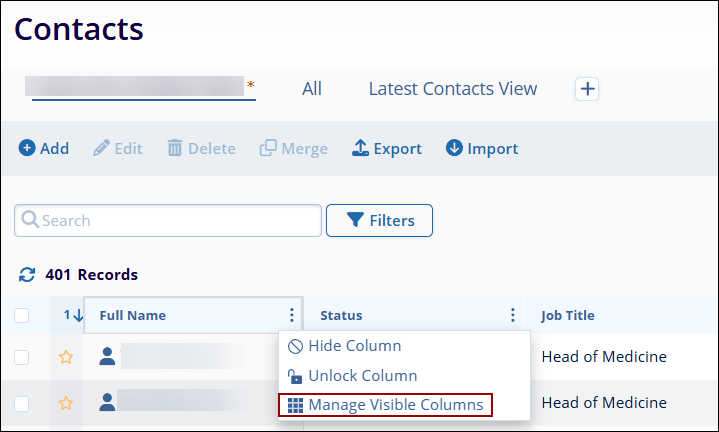
- Click on the ellipsis (vertical three dots) icon present beside each header field and
select Manage Visible Columns.
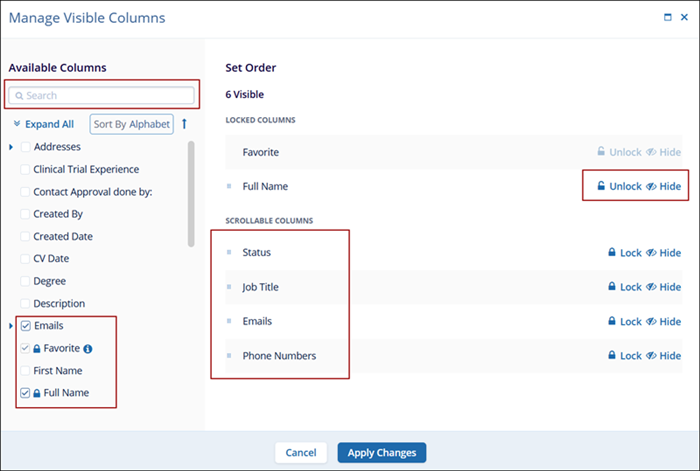
- On the Manage Visible Columns screen, users can perform the following actions.
- Sort the available columns in ascending or descending order by clicking on the Sort By Alphabet arrow.
- Enter the search term in the Search box to retrieve the desired column name.
- Click on Unlock or Hide in the Locked Columns section so that the corresponding actions will be reflected on the main Contacts screen.
- Drag and place the columns in the desired sequence.
- Click on the Apply Changes button and the main Contacts screen will reflect all the
customizations made on this screen.
Sort Ascending and Descending
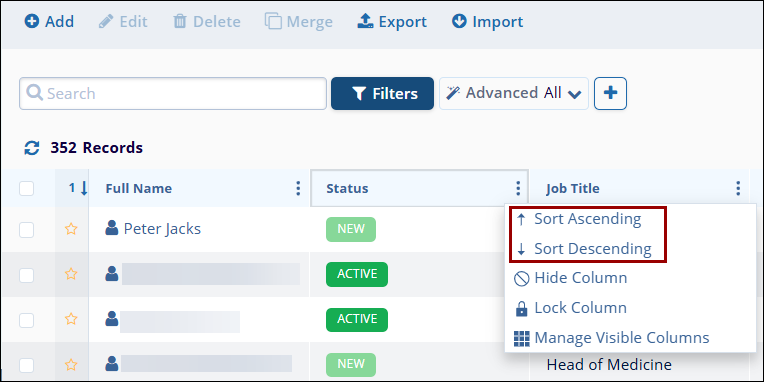
The Sort Ascending and Descending options are available only for the Status and Job Title columns.
To sort the columns in ascending order, follow the steps below:
- Click on the ellipsis (vertical three dots) icon present beside each header field and
select Sort Ascending or Sort Descending.

TransPerfect’s Trial Interactive is an industry leader in practical, global eClinical innovation
PRODUCTS
 Linkedin
 X
X
Didn’t find what you need?
Our dedicated Project Management and Client Services team will be available to meet your needs
24 hours a day, 7 days a week.
Toll Free:
(888) 391-5111
help@trialinteractive.com
© 2025 Trial Interactive. All Rights Reserved

