
Site Visit Types
Explore Job Aids for more help:
Job Aids
Add Site Visit Types
To add a site visit type, navigate to the Settings area and go to the Site Visit Types option and follow the steps below:
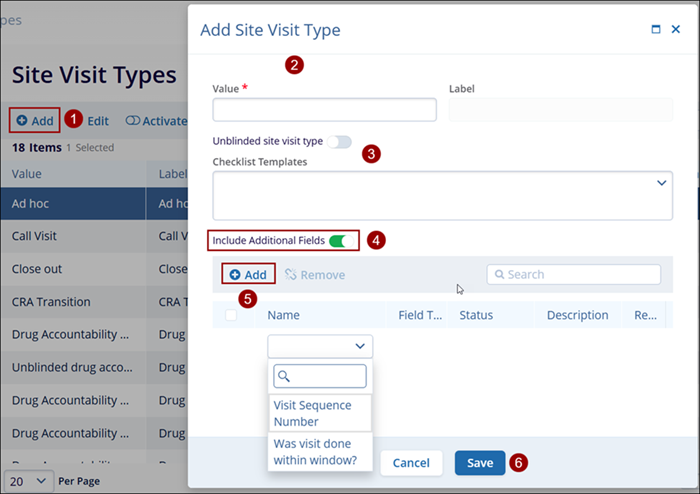
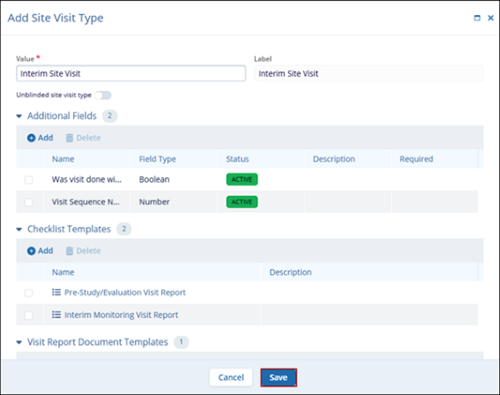
- On the Site Visit Types screen, click on the +Add button
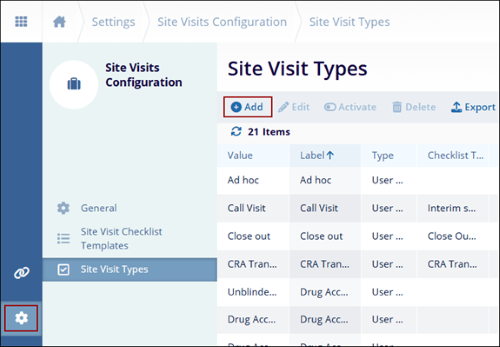
- Add a name in the Value field.
- Optionally enable the Unblinded site visit type toggle switch.
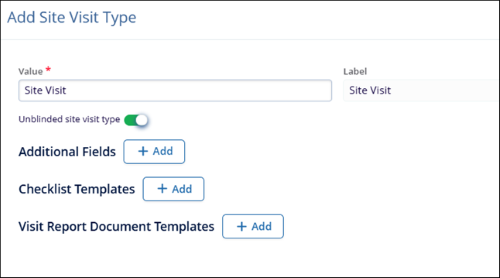
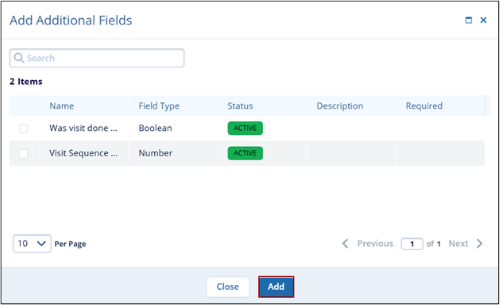
- To add additional fields, click the +Add button.
- Select the required fields and click Add.
- To add Checklist Templates, click the +Add button
- Select the required templates and click the Add button.
- To add visit report document templates, click on the +Add button.
- Select the required templates and click the Add button.
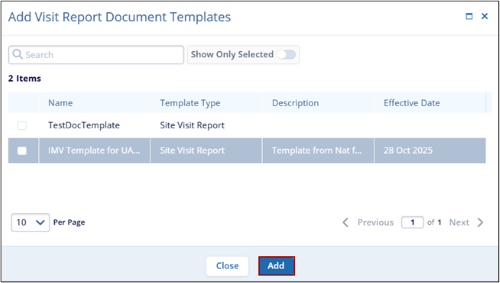
-
Click on the Save button.
Edit Site Visit Types
To edit site visit types, follow the steps below:
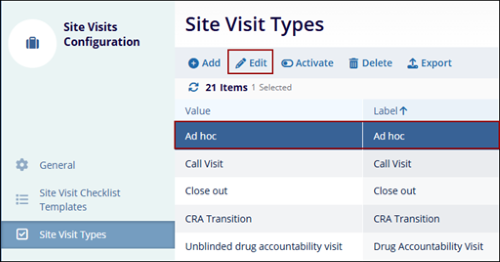
- Select a visit type and click the Edit button.
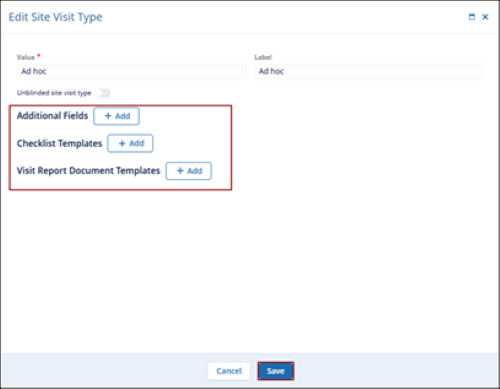
- On the Edit Site Visit Type window, make the required changes and click Save.
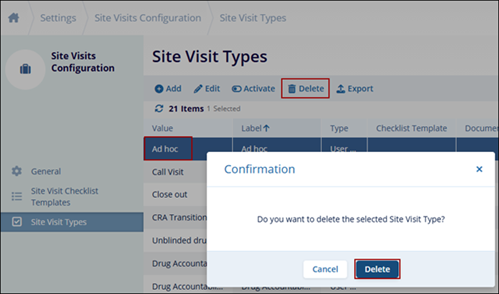
Delete Site Visit Type
To delete the site visit type, follow the steps below:
- Select a site visit type, and click on the Delete button.
- Click on the Delete button on the confirmation pop-up.
Important
- Creating a custom site visit field does not automatically make it available for all visit types. Since most fields are relevant only to specific visit types, users can customize the field list by navigating to the Site Visit Types in Settings. After creating a new field, users must manually associate it with the relevant visit types to ensure it is applied.
- Only active custom fields can be added as additional fields.
- To edit, activate, deactivate, and export the Site Visit Type details, follow the steps mentioned in the relevant sections above.
- Users can indicate that a visit type is unblinded without the necessity of having
unblinded appear in the name of the visit type. CTMS ensures all unblinded content is
restricted to unblinded team members:
- Site Visits,
- Site Visit Reports,
- Visit Report Content (responses),
- Subject-related comments
- Unblinded activities/actions.

TransPerfect’s Trial Interactive is an industry leader in practical, global eClinical innovation
PRODUCTS
 Linkedin
 X
X
Didn’t find what you need?
Our dedicated Project Management and Client Services team will be available to meet your needs
24 hours a day, 7 days a week.
Toll Free:
(888) 391-5111
help@trialinteractive.com
© 2025 Trial Interactive. All Rights Reserved

