
Approvers
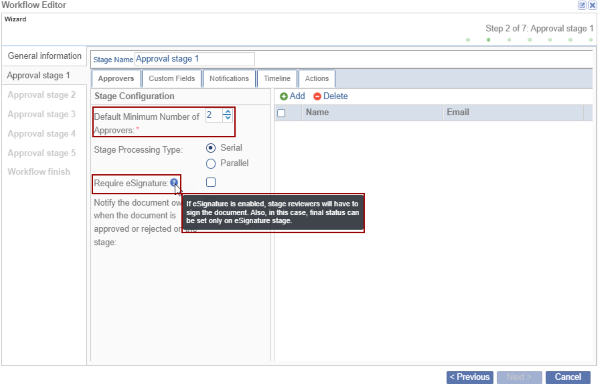
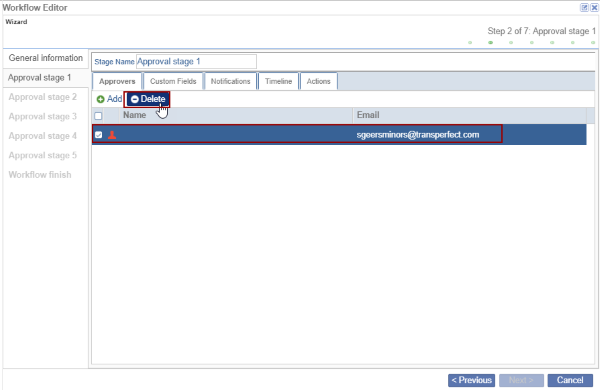
- Change the Stage Name, if desired. Click the Approvers tab. Refer to the screenshot above.
- Increase or decrease the number of approvers as per the requirement and set the stage processing type as Serial or Parallel.
- Check the Require eSignature check box to route the document for eSignature.
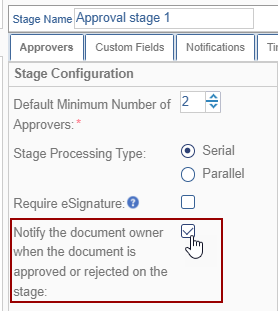
- Check the Notify the document owner when the document is approved or rejected on the
stage checkbox to notify the owner about the document status whether Approved or
Rejected.
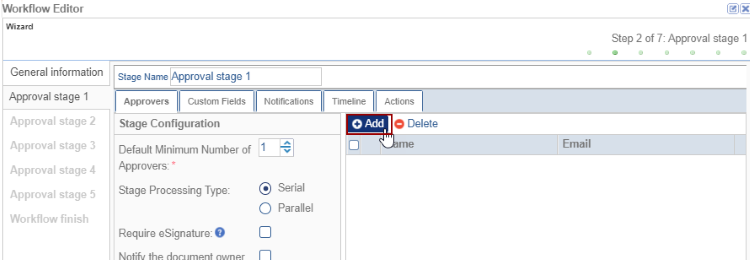
- This allows the user to add users/groups as reviewers of the documents for a
particular stage in the workflow. Note:
It is recommended to add a Group to save configuration time.
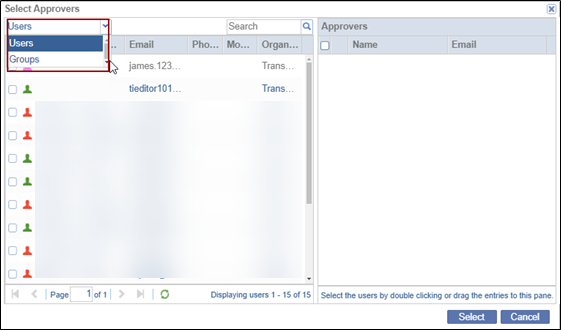
- Select the user/group from the list. The selected user/group moves to the Approvers tab on the right side.
- Click on the Select button.
- Click the Delete button to delete the selected users/groups.
© 2025 Trial Interactive. All Rights Reserved

