
Custom Fields
-
Click the Custom Fields tab that displays the Status and Issues panels.
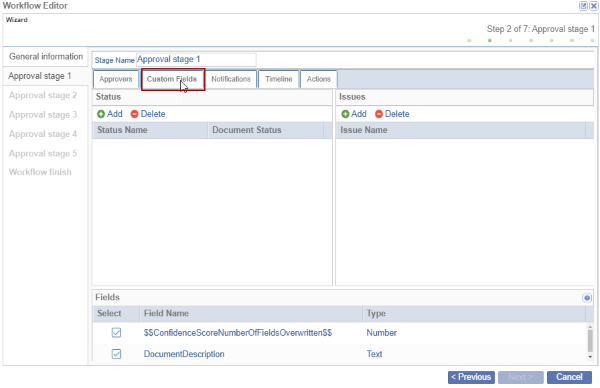
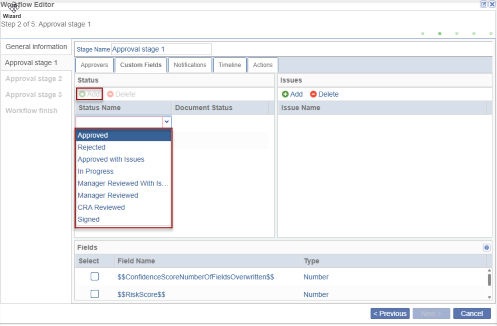
- Click Add below the Status section. The empty field gets added below the
‘Status Name’ with the following status:
- Approved
- Rejected
- Approved with issues
- In Progress
- Manager Reviewed with Issues
- Manager Reviewed
- CRA Reviewed
- Signed
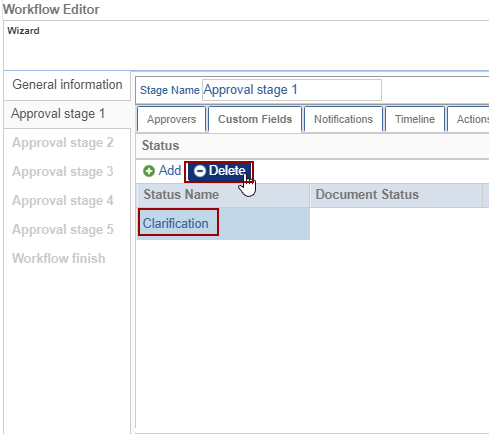
- Click the Delete button to delete the selected Status Name.
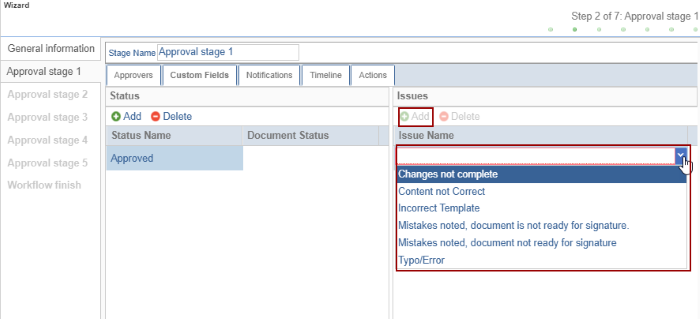
- Click Add below the Issues section. The empty field gets added below the Issue Name with the List of issues.
- Click the issues to assign the reasons in case the reviewer rejects a document/asks
for clarification.
- To make metadata fields, as required, available for a workflow configuration,
proceed to Fields section and select the Workflow Fields, as required.
- These fields will appear in the Fields panel at the bottom of the Custom
Fields tab. Tick the fields as required for the review. Refer to the
screenshot below:
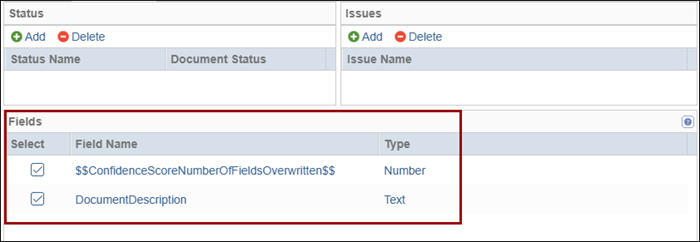
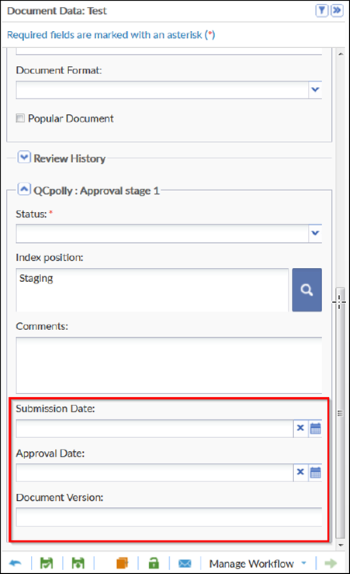
- These checked fields will appear in the Review panel of a document in the Collaborative Workspace > Documents Library module once a document is claimed for review.
- As shown in the screenshots, the Submission Date, Approval Date, and
Document Version fields checked in the workflow configuration appear in the
Review Panel of the document metadata window.
- These fields will appear in the Fields panel at the bottom of the Custom
Fields tab. Tick the fields as required for the review. Refer to the
screenshot below:
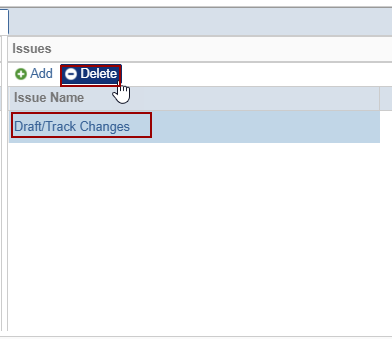
- Click the Delete button to delete the selected Issues Name.
© 2025 Trial Interactive. All Rights Reserved

