
Reconciliation Report Activities
Explore Job Aids for more help:
Job Aids
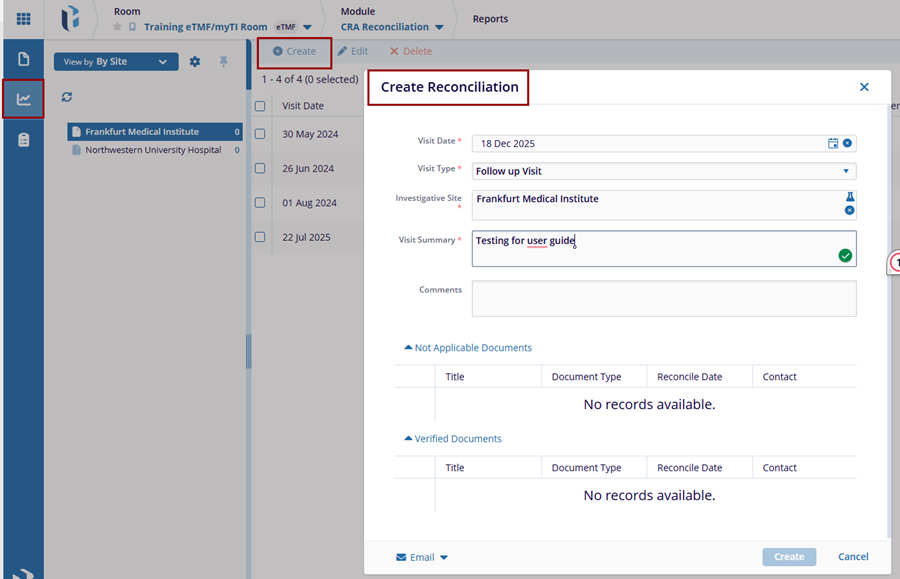
Steps to create a report:
- Select the appropriate filter from the View By dropdown. The relevant reports will then populate the grid.
- Select the appropriate site and click Create button from the top ribbon.
- A new Create CRA TMF Reconciliation window will open, Complete the required fields.
- Fill in the appropriate details and click Create button to create a report.
- User will receive a notification that the Site Report is created successfully. The
report will then be displayed in the grid.
Steps to Edit a Report:
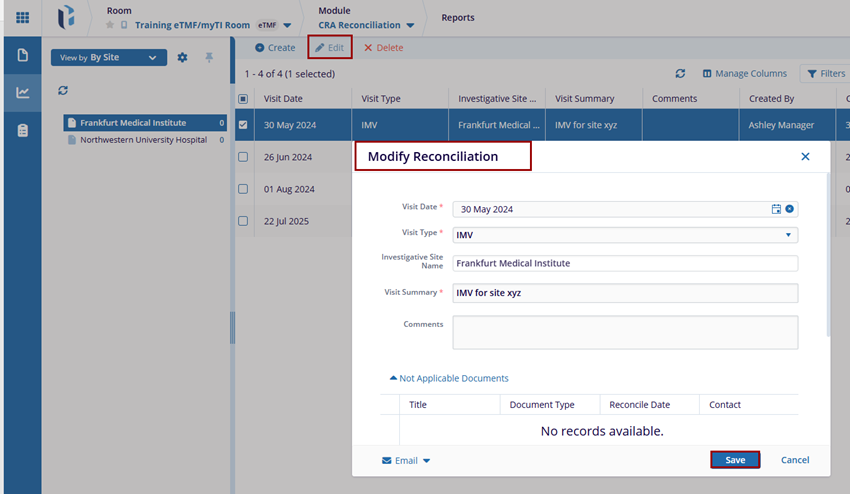
- Select the required site from the Reports and click the Edit button on the top ribbon.
- A new Modify CRA TMF Reconciliation window will open, Update or change the required fields.
- Once field are updated, click the Save button to apply the changes.
Steps to delete a report:
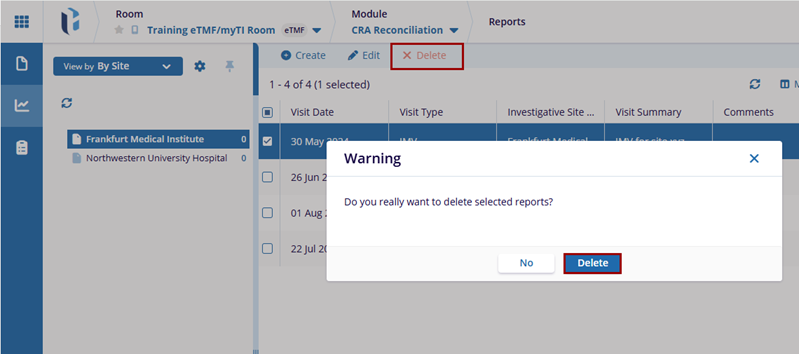
- Select the document from the grid, and click the Delete button on the top ribbon.
- A warning message window will open, with message ‘Do you really want to delete the selected reports?’.
- Click the Delete button to remove selected placeholder from document.

 Linkedin
 X
X

