Add New Group
To Add a new group in the User Management module, follow the steps below:
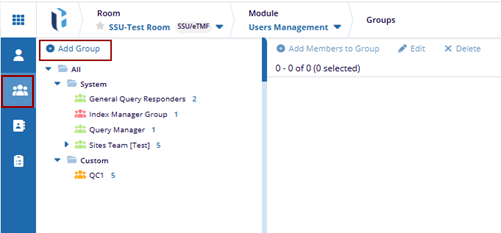
- In User Management module, click the Groups icon in the left menu.
- Click the Add Group button in the left pane.
- The Create New Group window opens. Enter a name for the new group and add a
description for the group. Note: You can clone security settings from an existing group. If the new group requires identical settings to an already established group, select that group from the dropdown menu.
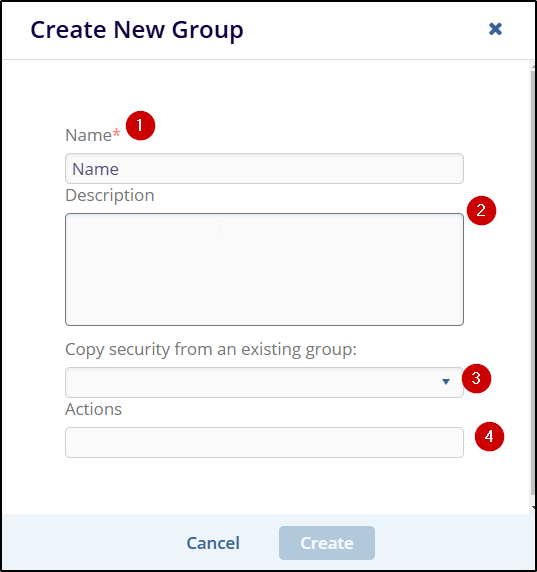
- Assign actions that members of the group can perform by selecting from the list of actions in the dropdown menu.
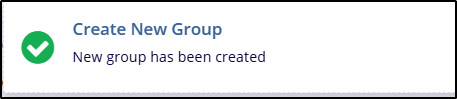
- Click Create. A notification confirms that the group has been created successfully.
Add New Child Group
To add existing child group in the User Management module, follow the steps below:
- In User Management, click the Groups icon on the left menu to access the Groups page.
- Click the Add Child Group dropdown in the top menu with two options:
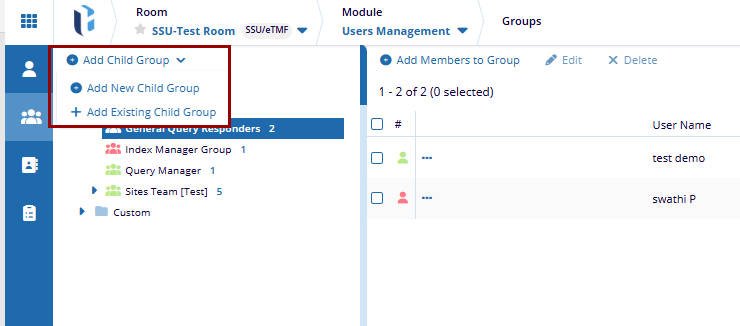
- Add New Child Group: This opens a window to create a new child group. Enter the
required details and click Create to add the new child group.
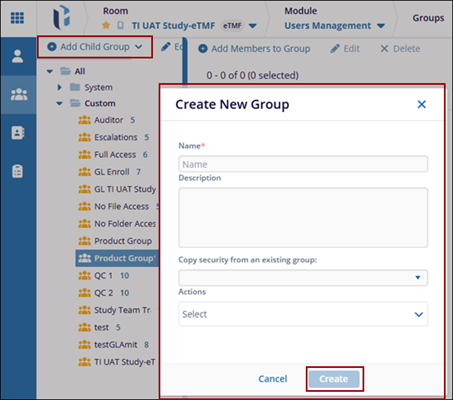
- Click Create. A notification confirms that the new child group has been created
successfully.

-
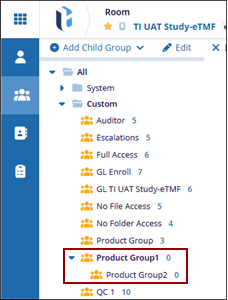
The user can see the new created group and child group within it in the left pane.
Add Existing Child Group
- Click the Add Child Group drop-down and select the Add Existing Child
Group.
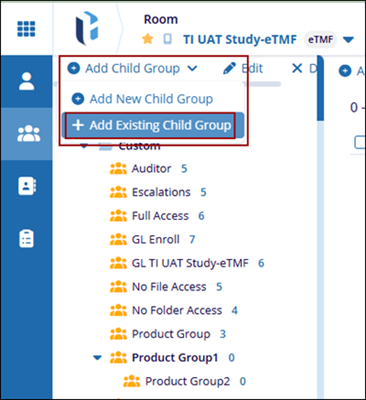
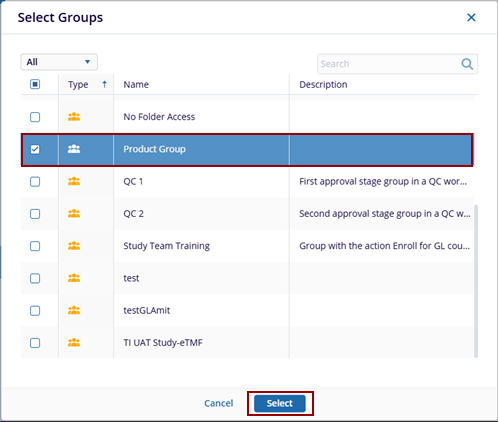
- Displays the Select Groups popup. Select an existing group from the list to
designate it as a child group of the selected parent group, then click
Select.
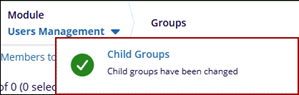
- Click Select. A notification confirms that the child groups has been
changed.