
Top Menu Ribbon
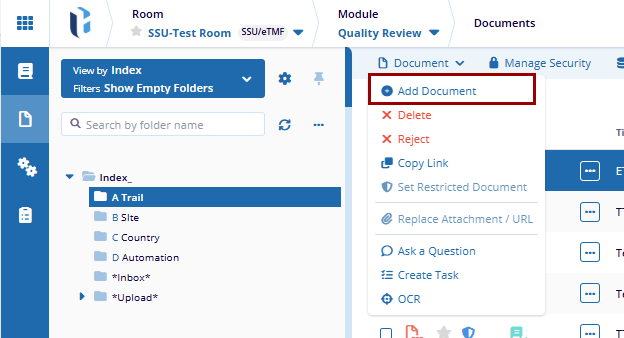
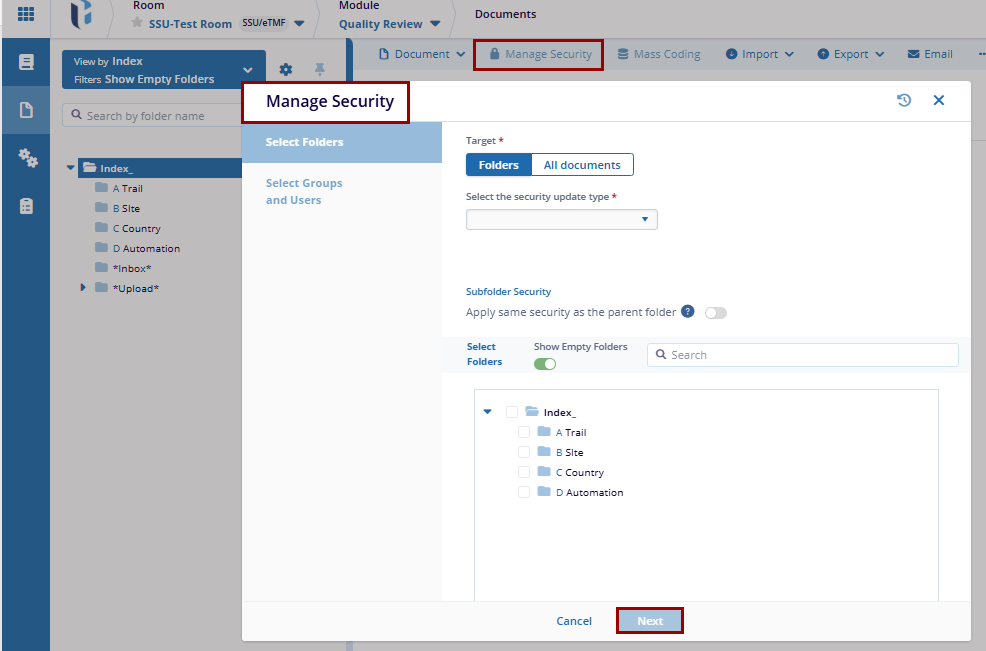
The top menu ribbon in the Quality Review tab provides quick access to various options such as:
Documents
The Documents dropdown enables users to copy the link of the selected document and send the document for eSignature.
Copy Link
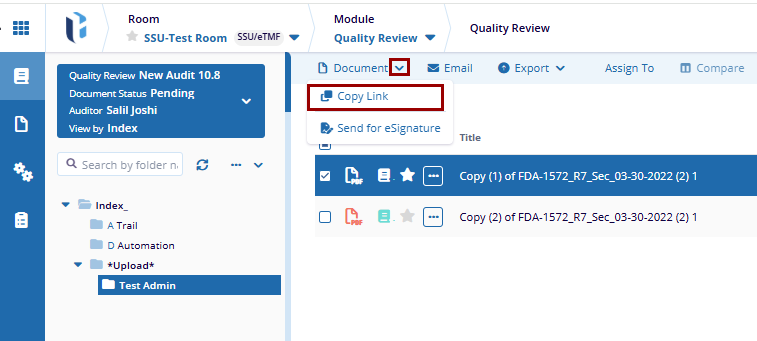
The Copy Link option generates a URL for the selected document, allowing it to be distributed to other users.
To copy a documents link, follow the steps below:
- Select a document within the grid.
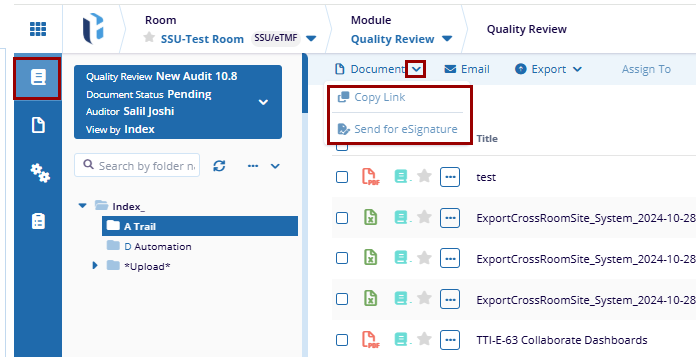
- Click the Document dropdown and select Copy Link.
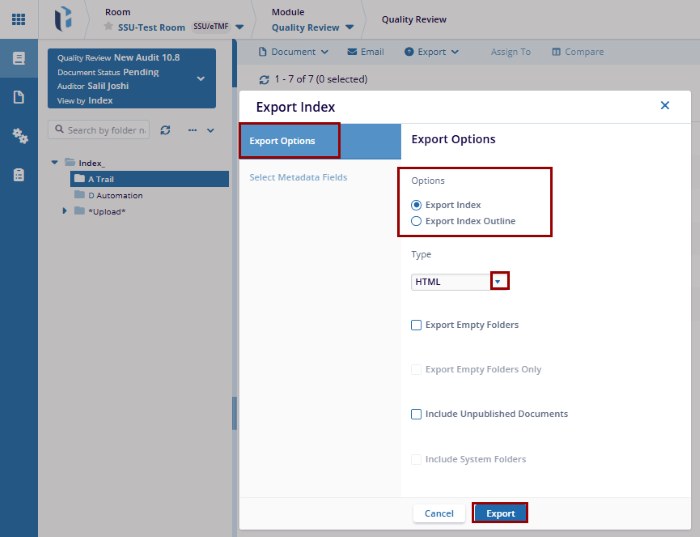
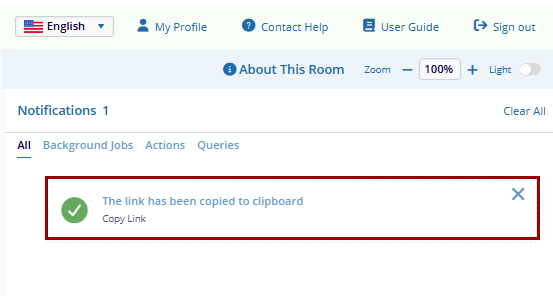
- Click the user profile dropdown and view the ‘Notifications’ section that
displays the success message.
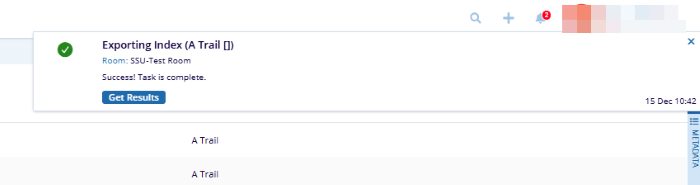
Send for eSignature
The Send for eSignature option enables users to route the selected document to designated recipients for electronic signature.
To send a document for eSignature, follow the steps below:
- Select a document within the grid.
- Click the Document dropdown, and select Send for
eSignature.
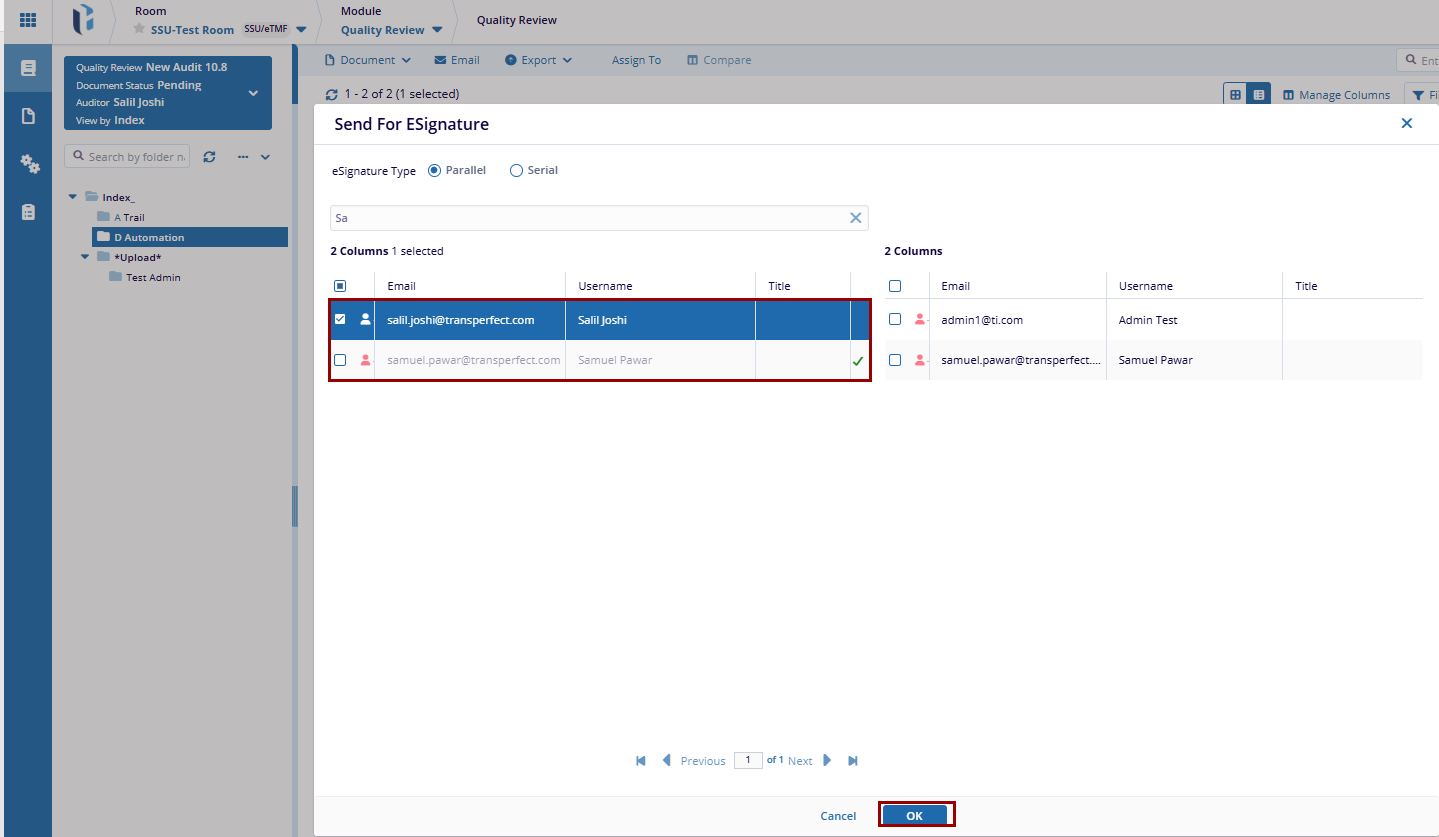
- On the Send for ESignature window, select an eSignature type i.e., Parallel or Serial.
- Select one or multiple users and drag & drop them to the right side of the window.
- After making selections, click OK.
Selecting the Email option enables users to send messages to other room users, groups, or contacts. The email may be associated with a specific document or sent as a general communication.
To send an email, click Email from the top menu bar, select the intended recipients, compose the message, and attach any necessary files before sending.
Export
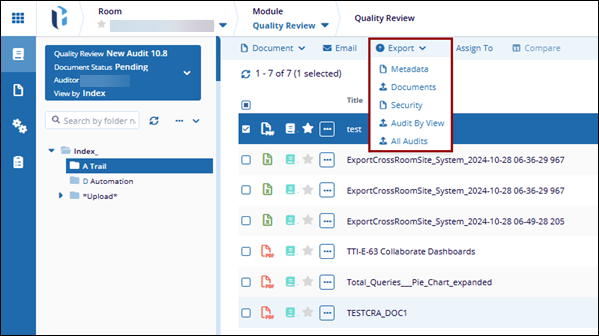
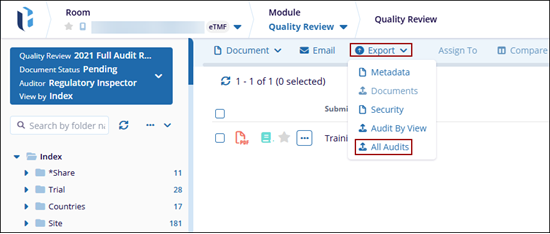
The Export option allows users to export Metadata, Documents, Security, Audit By View, or All Audits.
Export Metadata
To export metadata, click the Export dropdown and select the Metadata option.
Export Document
To export documents, click the Export dropdown and select the Documents option.

Export Security
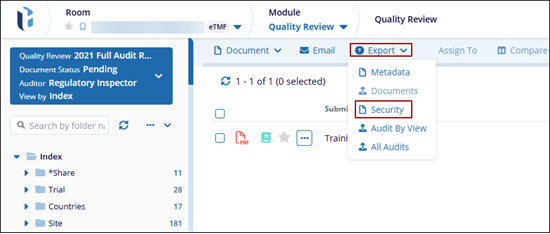
To export documents, click the Export dropdown and select the Security option.
Export Audit By View
To Export Audit By View, follow the steps below:
- Click the Export dropdown, and select Export Audit by view.
- On the Export Audit By View, select any one of the options in the Export Options Under Source
- Click Next.
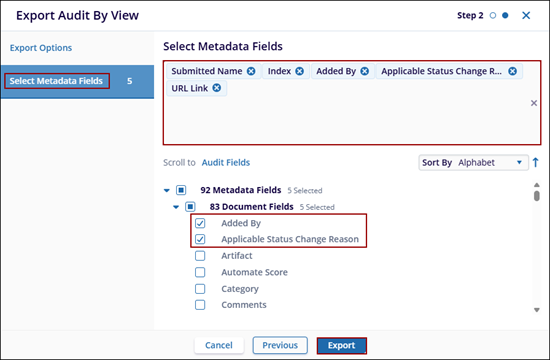
- On the Select Metadata Fields tab, select the required metadata fields.
- Click Export.
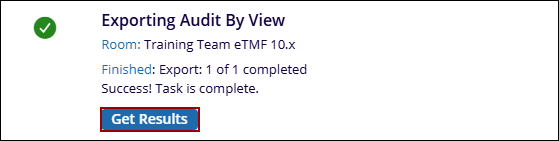
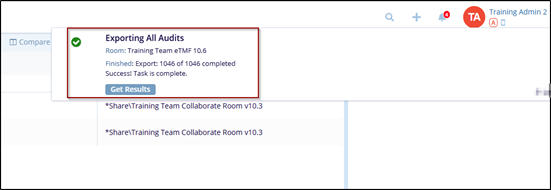
- Click Get Results on the success message pop-up.
Export All Audits
The Export All Audits refers to a comprehensive collection of audit records that includes all available audits. It typically encompasses the Audits Source, Audits, Auditors Source, Auditors, and Status.
To Export All Audits, follow the steps below:
- Click the Export dropdown, and select All Audits.
- In the Export All Audits window, select either All Audits or Selected Audits as the Audit Source.
- If Selected Audits is chosen, click in the field next to Audits and select the
required audit profiles from the list.
- Select either All Audits or Selected Auditors as the Auditor’s Source.
- If Selected Auditors is chosen, click in the field next to Auditors and select
the required auditors from the list.
- Click the Status dropdown and choose the required statuses.
- Click Next.
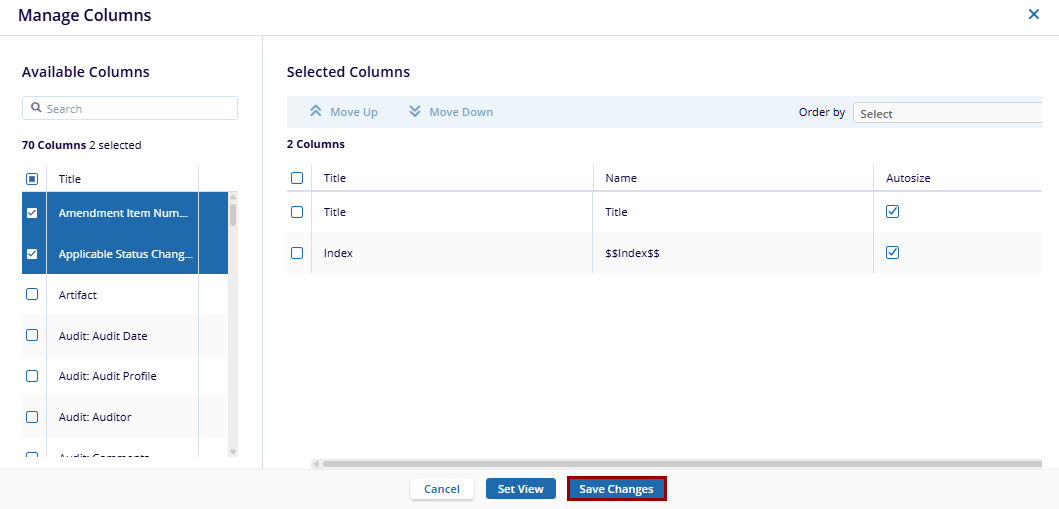
- On the Select Metadata Fields tab, select the required metadata fields.
- Click Export.

- Click Get Results in the success message pop-up.
Assign To
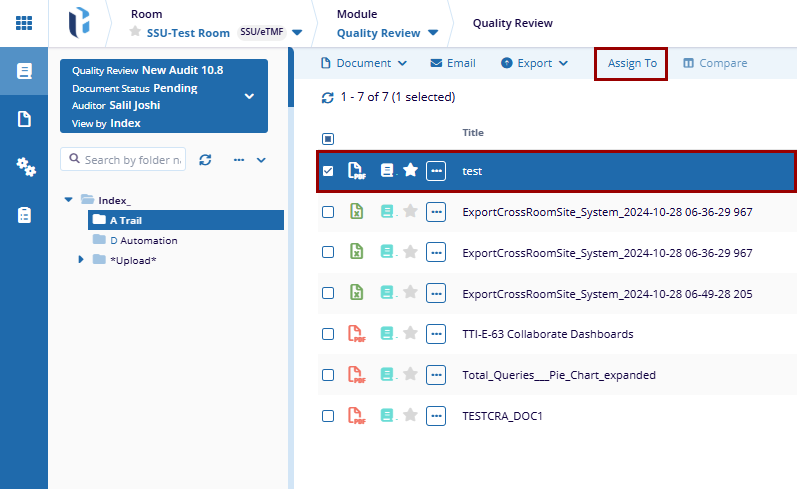
The Assign To option allows users to assign the selected documents to a specific auditor or automatically assign documents between the existing auditors.
To assign auditors, follow the steps below:
- Select one or multiple documents from the grid.
- Click the Assign To button from the top menu bar.
- On the Assign To pop-up window check the ‘Automatically reassign randomly
between existing auditors’ checkbox.
- To assign document to specific auditors, uncheck the checkbox.
- Click the Auditors dropdown and select the auditors.
- Click Assign.
- The success message pop-up displays the success message upon successful
reassignment.

Compare
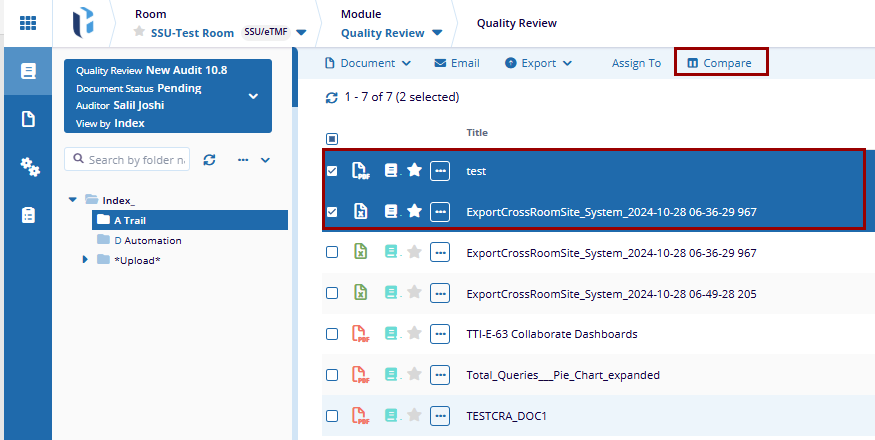
The Compare Documents functionality enables users to view selected documents in a side-by-side comparison format.
To compare documents, select two files with the same file extensions from the grid and click Compare in the top menu bar.
Search
The search bar allows users to locate documents within the Quality Review module. Search results are dynamically refined based on the currently applied filters and sorting criteria.
To search for a document fo, follow these steps:
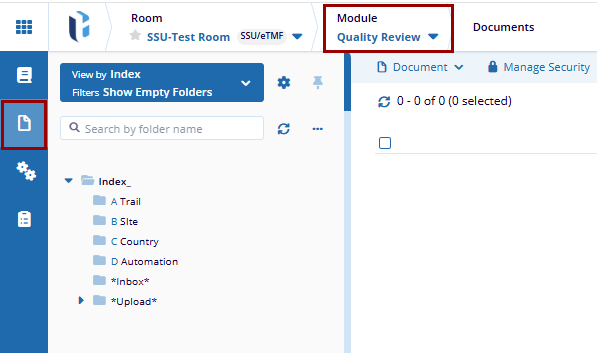
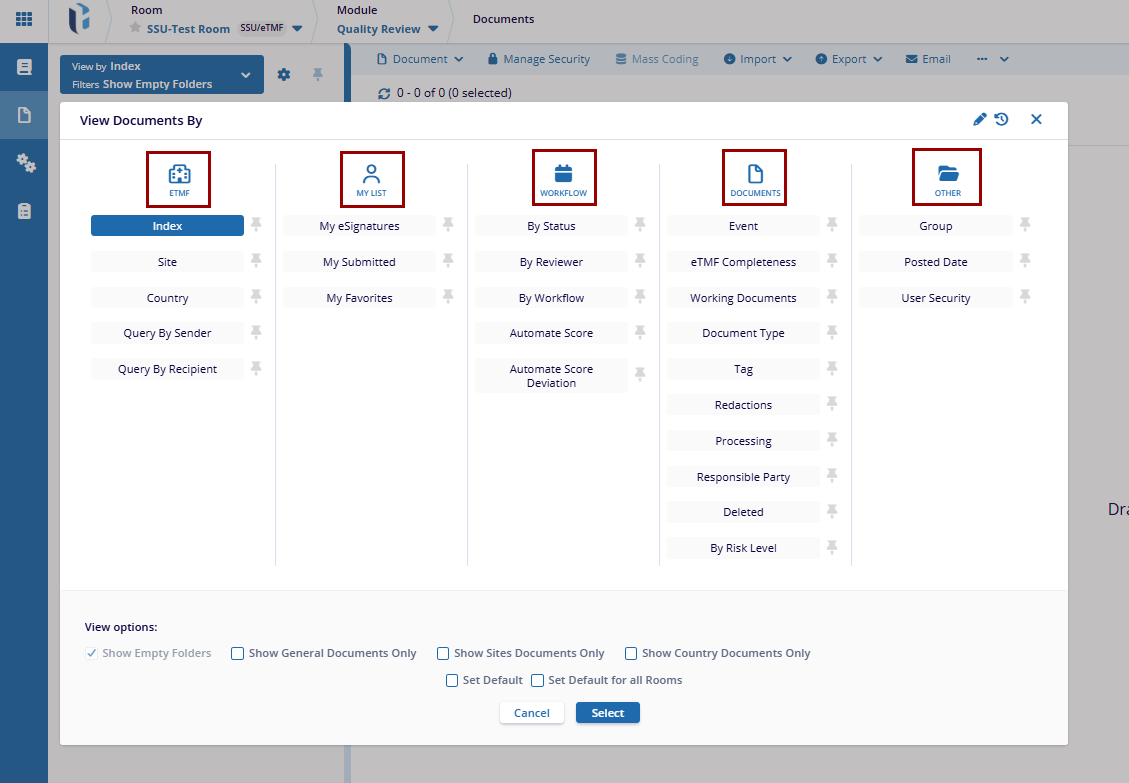
- Select Quality Review Module.
- Search a document with the title, index number, or Document ID using the search
bar.
Add to Cart & Documents Cart
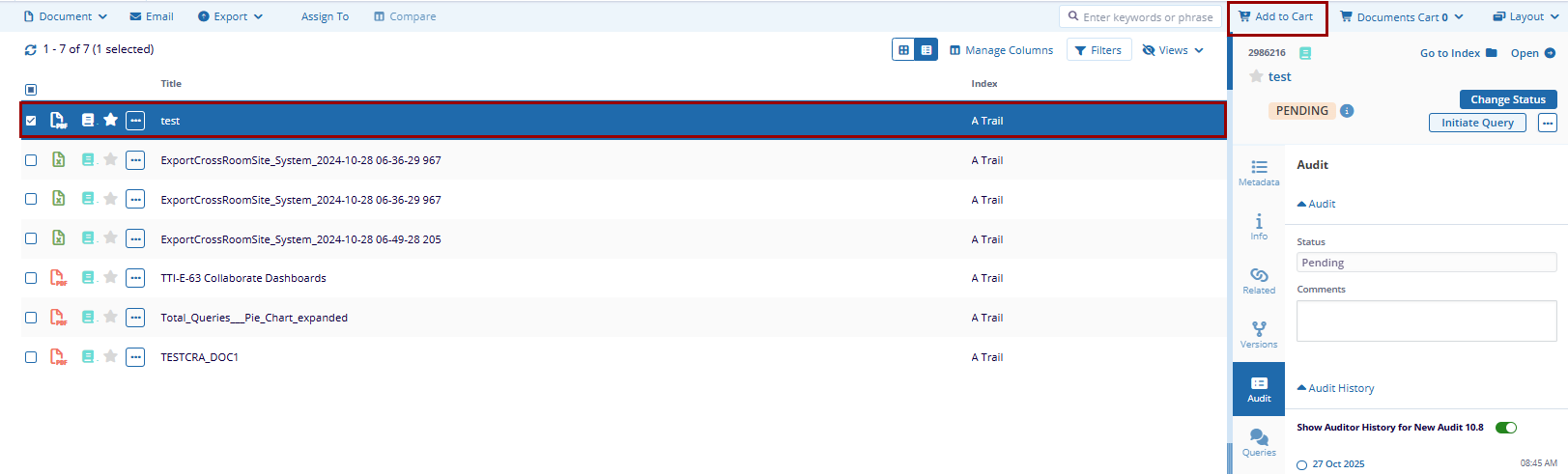
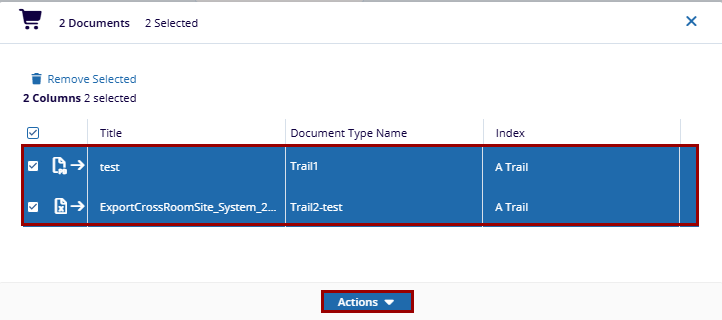
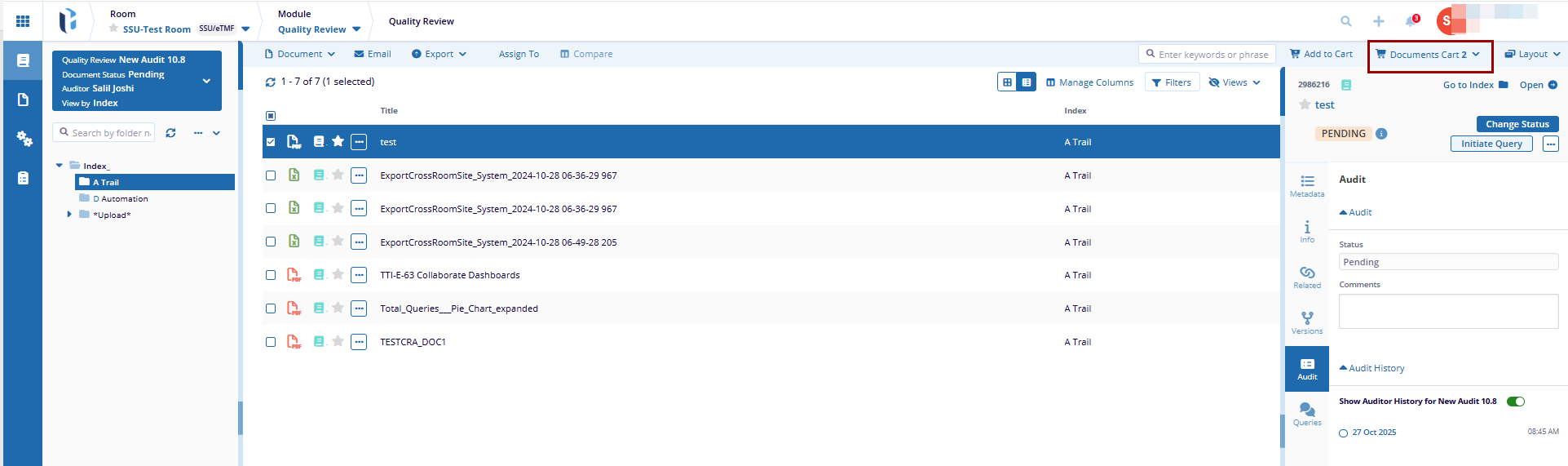
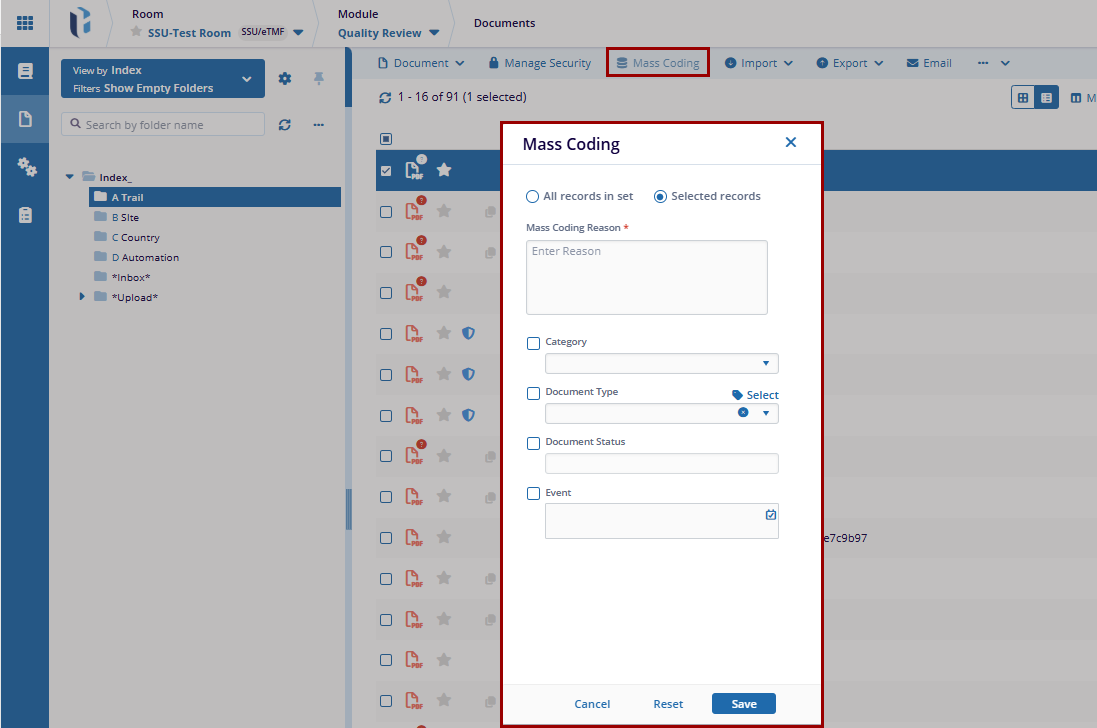
Users can select multiple documents and select ‘Add to Cart’ to add documents to the documents cart. Here users can perform multiple actions to the selected documents to the selected documents.
Layout
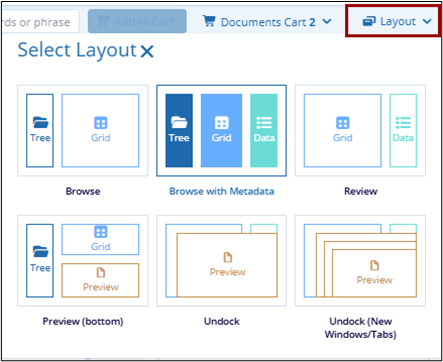
The layout menu, above the metadata pane, allows the user to choose from several potential page layouts.
- Browse
- Browse with Metadata
- Review
- Preview (bottom)
- Undock
- Undock (New Windows/Tabs)

 Linkedin
 X
X

