
Read and Acknowledge
To add a Read and Acknowledge activity, follow the steps below:
- Click on the Activities tab and select Read and Acknowledge.
- On the Editing Read and Acknowledge screen, configure the following settings.
General Name Description. Name* Enter a suitable name for the activity PDF Description Enter the PDF description Choice Description Enter the choice description Display Choice Description on Activity Page Enable the setting to view the descriptions on the Activity page 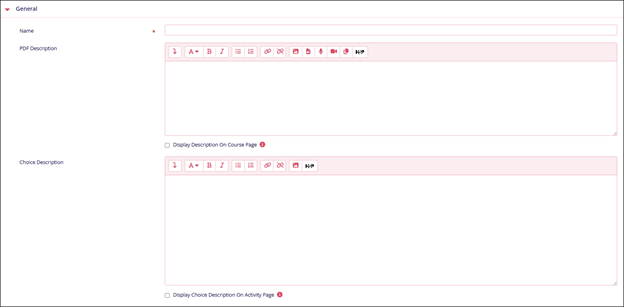
Content Name Description. Select Files* Drag and drop or manually upload files in the designated section. 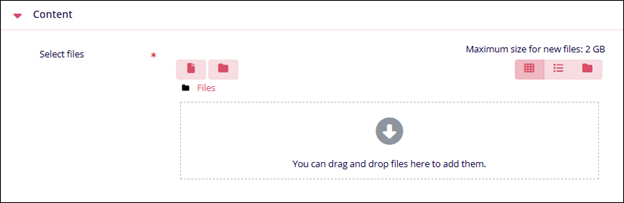
Appearance Name Description. Show Size Check the setting to display the file size. Show Type Check the setting to display the file type. Show Upload/Modified Date Check the settings to display the uploaded or modified date Display Resource Description Check the settings to enable the display of resource descriptions. 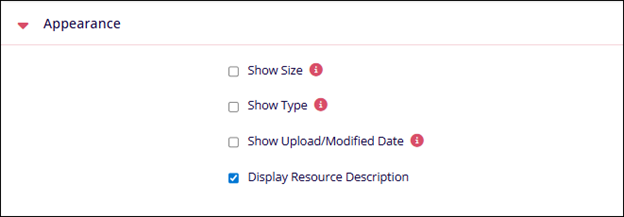
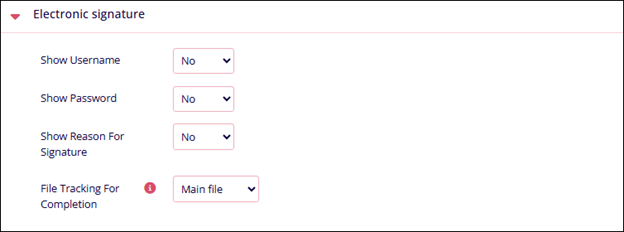
Electronic Signature Name Description. Show User name Select Yes or No Show password Select Yes or No Show reason for signature Select Yes or No File tracking for completion Select either of the following
- Main File
- Any File
- All File
Availability Name Description. Restrict Answering to this field Enable this setting to configure the activity’s availability. Open Set the date and time from when the activity should open. Until Set a date and time for when the activity should remain open. 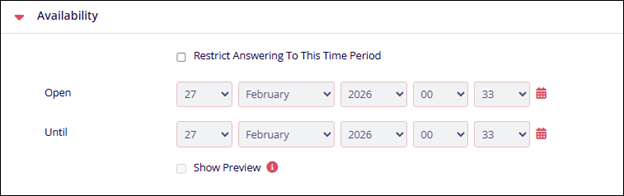
Due period Name Description. Due Weeks Set the number of weeks 
Notification Name Description. Email when acknowledgement by Learner This setting allows teachers to receive an email when learner acknowledges Email to Teacher (when learner acknowledge any file) This setting allows defining a specific message to be sent to the teacher when the learner acknowledges 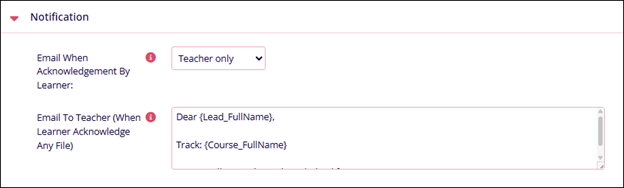
Results Name Description. Publish results Select either of the following
- Do not publish results to students
- Show results to students after they answer
- Show results to students only after the reacknowledge is closed
- Always show results to students
Privacy of results Select either of the following
- Publish anonymous results, do not show student names
- Publish full results, showing names and reacknowledges
Show column for unanswered Include responses from inactive/suspended users 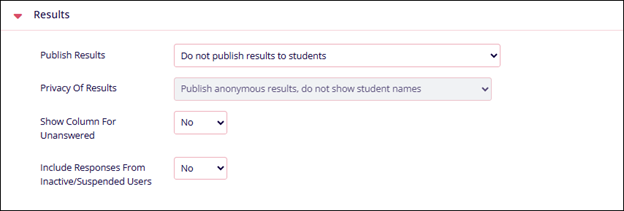
Common Module Settings Name Description. Availability Select either of the following
- Show on Course Page
- Hide on Course Page
ID Number Enter an ID number. Group Mode Select either of the following
- No Groups
- Separate Groups
- Visible Groups
Note: If Separate and Visible Group options are selected, they can be added as restriction criteria.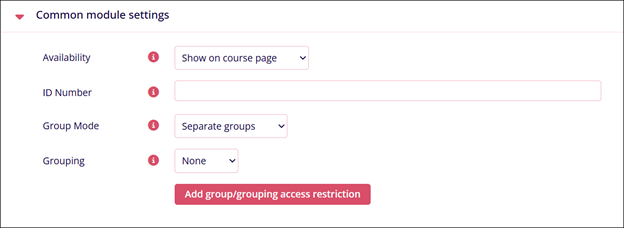
Restrict Access Name Description. Add Restrictions Refer to the Restrict Access section. 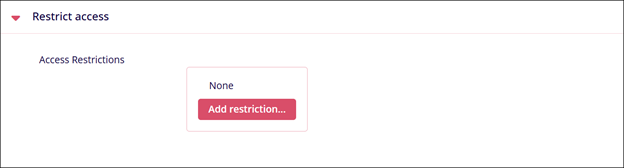
Activity Completion Name Description. Completion Tracking Select either of the following
- Do not indicate activity completion
- Students can manually mark the activity as completed
- Show activity as complete when conditions are met
Require View
Note: Visible only if ‘Show activity as complete when conditions are met’ is enabled in Completion Tracking.Enable or disable the following
- Student must view this activity to complete it
- Show as complete when user makes a choice
Expect completed on
Note: Visible only if Students can manually mark the activity as completed is selected in Completion TrackingClick the Enable checkbox and enter the date, month, and time. A specific timeline to complete an activity can be set by enabling this setting. 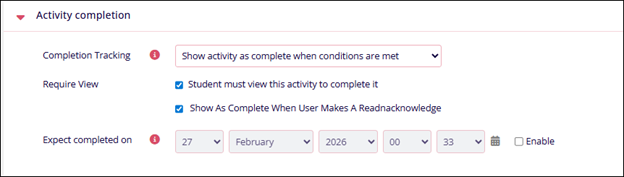

TransPerfect’s Trial Interactive is an industry leader in practical, global eClinical innovation
PRODUCTS
 Linkedin
 X
X
Didn’t find what you need?
Our dedicated Project Management and Client Services team will be available to meet your needs
24 hours a day, 7 days a week.
Toll Free:
(888) 391-5111
help@trialinteractive.com
© 2025 Trial Interactive. All Rights Reserved

