
Quiz
To add a Quiz, follow the steps below:
- Click on the Activities tab and select Quiz.
- On the Editing Quiz screen, configure the following settings.
General Name Description. Name* Enter a name for the quiz activity Description Provide a suitable description for the quiz activity. Display description on the course page Enable the checkbox to view the choice description on the course page. 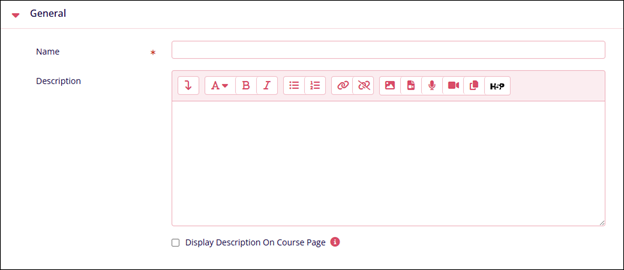
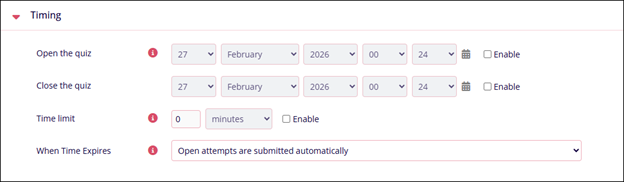
Timing Name Description. Open the quiz Enable the setting by clicking on the checkbox and specify date, month, year, and time. This date and time determine the time the quiz will be open for students. Close the quiz Enable the setting by clicking on the checkbox and specify date, month, year, and time. This date and time determine the time the quiz will end. Time Limit Enable the setting by clicking on the checkbox and specify the number of weeks, days, hours, minutes, or seconds to complete the quiz. When Time Expires Select either of the following
- Open attempts are submitted automatically
- There is a grace period when open attempts can be submitted, but no more questions answered.
- Attempts must be submitted before time expires, or they are not counted.
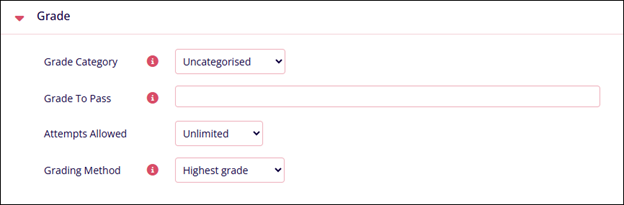
Grade Name Description. Grade Category Select Uncategorized Grade To Pass Mention the minimum grade necessary for a student to pass Grade To Pass Mention the minimum grade necessary for a student to pass Grading Method Select either of the following
- Highest Grade
- Average grade
- First attempt
- Last attempt
Layout Name Description. New Page This setting allows to limit of the number of questions visible on a single page. 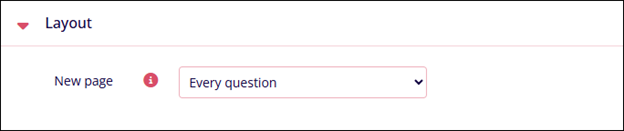
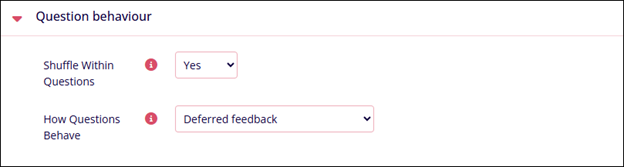
Question Behavior Name Description. Shuffle Within Question Select either Yes or No How Questions Behave Select either of the following
- Adaptive Mode
- Adaptive Mode (no penalties)
- Deferred feedback
- Deferred feedback with CBM
- Immediate feedback
- Immediate feedback CBM
- Interactive with multiple tries
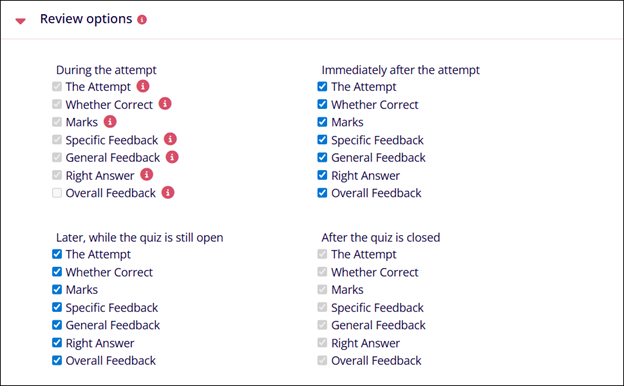
Review Options Name Description. During the attempt This setting enables learners to review their answers while attempting the questions.
Enable or disable the options by clicking on their respective checkboxes
Immediately after the attempt This setting enables learners to review their answers immediately after answering the questions.
Enable or disable the options by clicking on their respective checkboxes
Later, while the quiz is still open This setting enables learners to review their answers while the quiz is not yet submitted/closed.
Enable or disable the options by clicking on their respective checkboxes
After the quiz is closed This setting enables learners to review their answers after the quiz is closed.
The options here are checked by default and cannot be unchecked.
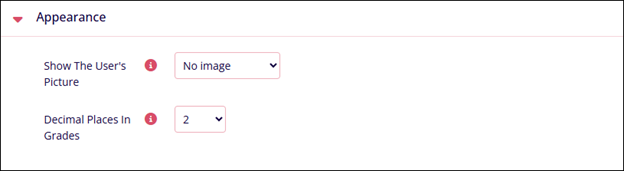
Appearance Name Description. Show the User’s Picture Select either of the following
- No image
- Small Image
- Large Image
Decimal Places In Grades This setting determines the number of decimal places used while displaying the grades.
Select a number from 0 to 5.
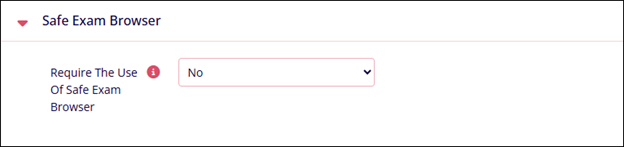
Safe Exam Browser Name Description. Require the use of Safe Exam Browser Select either of the following
- Yes – Configure manually
- Yes – Upload my own config
- Yes – Use SEB client config
Extra Restrictions on Attempts Name Description. Require Password This setting allows adding a security step by mandating students to enter a password before attempting a quiz. 
Overall Feedback Name Description. Grade Boundary Specify a grade boundary and specific feedback is visible after obtaining that grade. Feedback Enter the feedback text. Add 3 more feedback fields Click on this button to add three additional feedback fields. 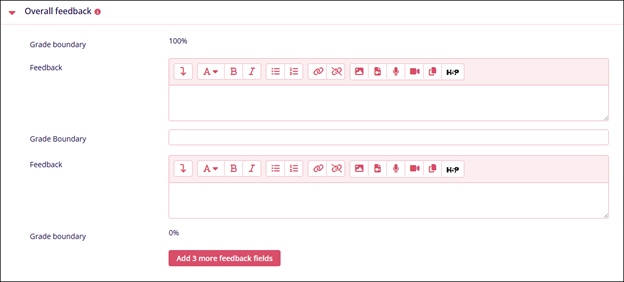
Common Module Settings Name Description. Availability Select either of the following
- Show on Course Page
- Hide on Course Page
ID Number Enter an ID number. Group Mode Select either of the following
- No Groups
- Separate Groups
- Visible Groups
Note: If Separate and Visible Group options are selected, they can be added as restriction criteria.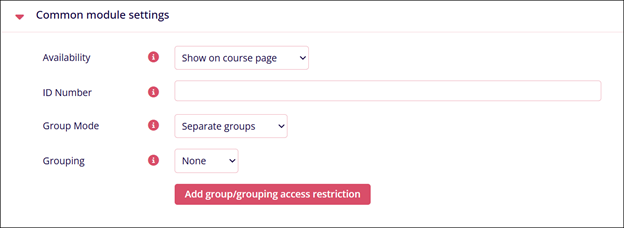
Restrict Access Name Description. Add Restrictions Refer to the Restrict Access section. 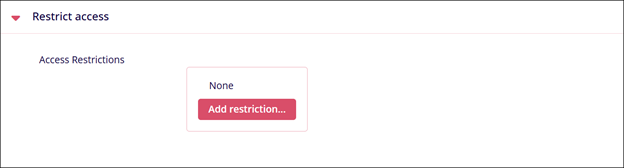
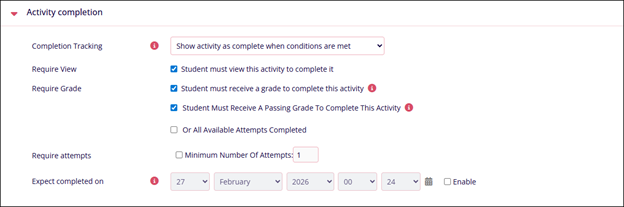
Activity Completion Name Description. Completion Tracking Select either of the following
- Do not indicate activity completion
- Students can manually mark the activity as completed
- Show Activity as complete when conditions are met
Require View
Note: Visible if Show Activity as complete when conditions are met is selected in Completion Tracking.Enable the Student must view this activity to complete it checkbox Require Grade Check or uncheck the following
- Student must view this activity to complete it
- Student must receive a grade to complete this activity
- Student must receive a passing grade to complete this activity
- Or All Available Attempts Completed
Note: The last option becomes accessible when the first one is enabled.Require attempts Enable this setting and add the number of times a student can attempt the quiz. Expect completed on
Note: Visible if Students can manually mark the activity as completed is selected in Completion Tracking.Click the Enable checkbox and enter the date, month, and time.
A specific timeline to complete an activity can be set by enabling this setting.

TransPerfect’s Trial Interactive is an industry leader in practical, global eClinical innovation
PRODUCTS
 Linkedin
 X
X
Didn’t find what you need?
Our dedicated Project Management and Client Services team will be available to meet your needs
24 hours a day, 7 days a week.
Toll Free:
(888) 391-5111
help@trialinteractive.com
© 2025 Trial Interactive. All Rights Reserved

