
Interactive Content
To add an Interactive Content, follow the steps below:
- Click on the Activities tab and select Interactive Content.
- On the Editing Interactive Content screen, configure the following
settings.
Description Name Description Description Enter a suitable description for the content Display description on the course page Enable this setting to view the description on the course page below the activity link or the course page. 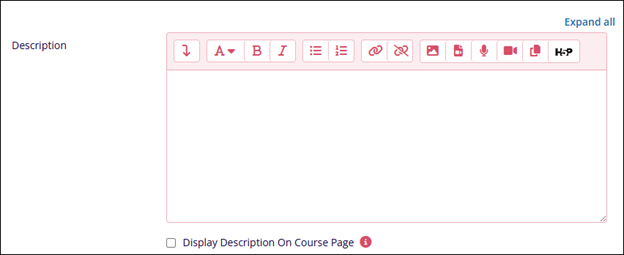
Editor Name Description Create Content Select the content type from the available options.
- Interactive Video
- Multiple Choice
- Fill in the Blanks
- Drag the Words
- Drag and Drop
- Single Choice Set
- True/False Question
Click on the Details button to learn more about the content type
Upload Click on the Upload a file button to upload an H5P file 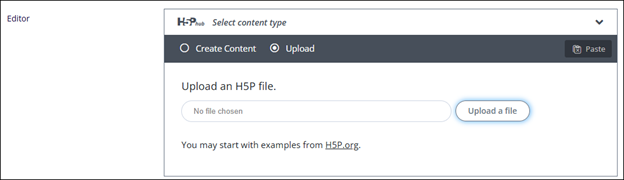
Display Options Name Description Display action bar and frame Enable the checkbox to display the action bar and frame Copyright Button
Enable or disable the checkbox to control the Copyright Button display.
Note: Visible only of the Display action bar and frame is enabled.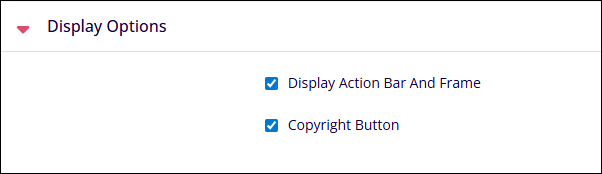
Grade Name Description Grade Category Select Uncategorized Grade to Pass Add a value which will be the minimum grade required to pass Maximum Grade Enter a number that will be the maximum grade a student can score. 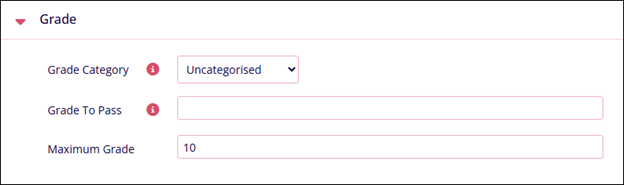
Common Module Settings Name Description. Availability Select either of the following
- Show on Course Page
- Hide on Course Page
ID Number Enter an ID number. Group Mode Select either of the following
- No Groups
- Separate Groups
- Visible Groups
Note: If Separate and Visible Group options are selected, they can be added as a restriction crit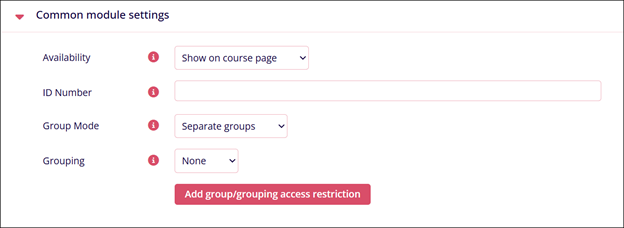
Restrict Access Name Description. Add Restrictions Refer to the Restrict Access section. 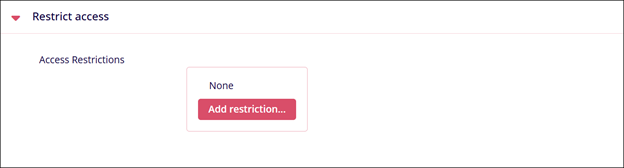
Activity Completion Name Description. Completion Tracking Select either of the following
- Do not indicate activity completion
- Students can manually mark the activity as completed
- Show Activity as complete when conditions are met
Require View
Enable the Student must view this activity to complete it checkbox.
Note: Visible if ‘Show Activity as complete when conditions are met’ is selected in Completion Tracking.Require Grade Check or uncheck the following
- Student must receive a grade to complete this activity
Student must receive a passing grade to complete this activity
Note: This option becomes accessible when the first one is enabled.Expect completed on
Click the Enable checkbox and enter the date, month, and time. A specific timeline to complete an activity can be set by enabling this setting.
Note: Visible if Students can manually mark the activity as completed is selected in Completion Tracking.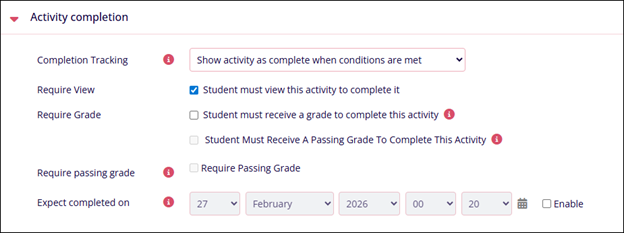

TransPerfect’s Trial Interactive is an industry leader in practical, global eClinical innovation
PRODUCTS
 Linkedin
 X
X
Didn’t find what you need?
Our dedicated Project Management and Client Services team will be available to meet your needs
24 hours a day, 7 days a week.
Toll Free:
(888) 391-5111
help@trialinteractive.com
© 2025 Trial Interactive. All Rights Reserved

