
Training Assignments
Create Training Assignments
Explore Job Aids for more help:
Job Aids
To create a training assignment for a particular study, follow the steps below:
- Navigate to the Manage Studies & Sites module from the Company Dashboard and select a study.
- Select the Training Assignments tab.
- Click on the ‘+Create New Training Assignments’ button.
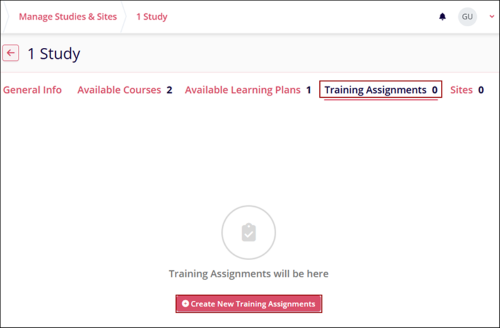
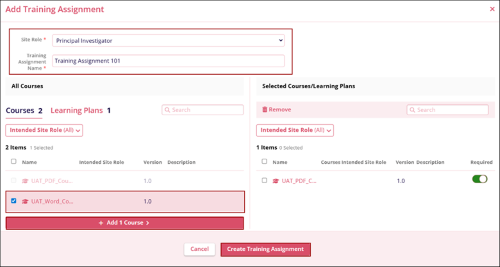
- On the Add Training Assignment form, perform the following
- Select a Site Role* from the dropdown options.
- Enter a Training Assignment Name*
- Select a course and/or a learning plan from the All-Courses section by accessing their tabs.
- Click on the +Add button to add the courses and/or learning plans to the Selected Courses/Learning Plans.
- Enable or disable the Required toggle switch.
- Click on the Create Training Assignment button.
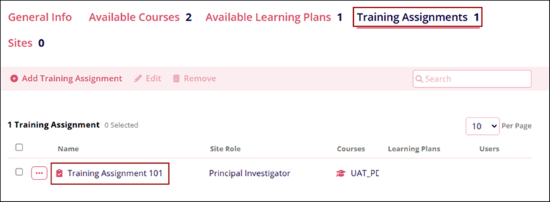
- Once the training assignment is successfully created, the Training Assignments tab
displays the created assignment.
Note:
- Courses associated with the particular study are visible in the Available Courses section, and can be added to the assignment.
- Learning Plans associated with the particular study are visible in the Available Learning Plans sections, and can be added to the assignment.
- When a Training assignment is created, users with that particular site role are auto-assigned the courses and learning plans in the assignment.
Edit Training Assignment
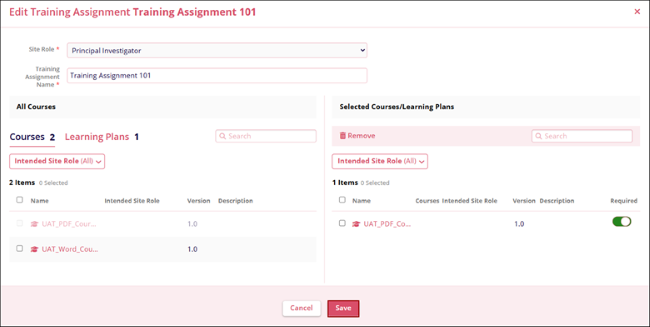
To edit a training assignment, follow the steps below:
- Select the assignment and click on the Edit button in the top menu bar.
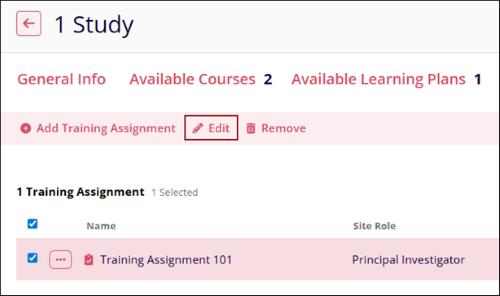
- On the Edit Training Assignment screen, add or remove the courses and/or learning
plans by using the Add and Remove functionality and click on the Save button.
Impact on Training Assignments (Direct and Indirect)
Direct Impact:
When changes are made to an assignment, they directly affect a user's enrollment or progress in training assignments in the following scenarios.
- Removal of Site Personnel Role: The system identifies all active training assignments linked to the role, providing options to either keep users enrolled in ongoing training or unenroll them. A confirmation warning displays impacted courses and learning plans, ensuring administrators can make informed decisions.
- Editing or Deleting Training Assignments: If a course or learning plan is removed, the system prompts whether users should remain enrolled or be unenrolled. It adjusts user progress and status based on the admin's decision, maintaining transparency and control.
Indirect Impact:
Changes made elsewhere in the system indirectly affect user training assignments in the following scenarios.
- Updating User’s Site Role: The system checks for any training assignments linked to the new role and enrolls users accordingly, providing warnings and options if the new role involves different training assignments than the previous one.
- Removing a Site from the Study Profile: The system identifies personnel affected by the removal and displays a warning about ongoing training. Admins have the option to keep users enrolled, unenroll them, or transfer them to other assignments as necessary.
- Changes to Site Personnel's Membership: When site personnel are added or removed, the system re-evaluates their training assignments and displays the courses and learning plans that may be gained or lost.

TransPerfect’s Trial Interactive is an industry leader in practical, global eClinical innovation
PRODUCTS
 Linkedin
 X
X
Didn’t find what you need?
Our dedicated Project Management and Client Services team will be available to meet your needs
24 hours a day, 7 days a week.
Toll Free:
(888) 391-5111
help@trialinteractive.com
© 2025 Trial Interactive. All Rights Reserved

