
Add Task, Sites, and Events
Steps to Add Task to a Room from the Home Page:
- Click the Add dropdown button located on the right side of the
room on the home page.
.png)
- Select Add Task from the dropdown. The Add Task window will appear.
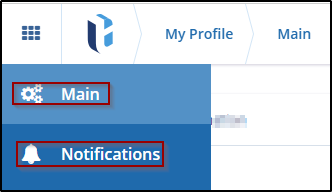
- The Create Task window will open.
- Enter the required details as prompted on the screen.

- Once all the information is entered, click Save to complete the task creation.
Steps to Add Site to a Room from the Home Page:
- Click the Add dropdown button on the home page's right side of the room.
.png)
- Select Add Sites from the dropdown. The New Site window will appear.
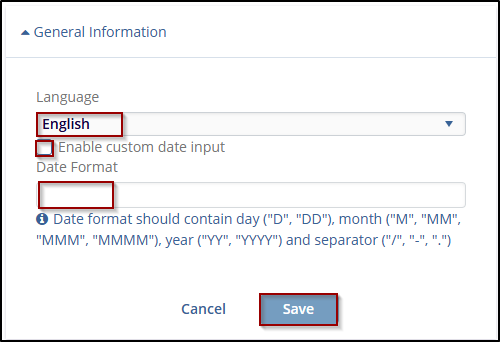
- Enter the required details as prompted on the screen. The Institution Name field is a mandatory field.
Steps to Add Event to a Room
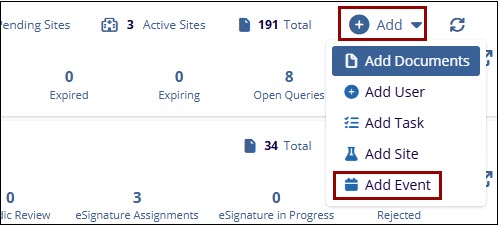
- Click the Add dropdown button on the home page's right side of the room. Click
the Add Event from the drop-down.
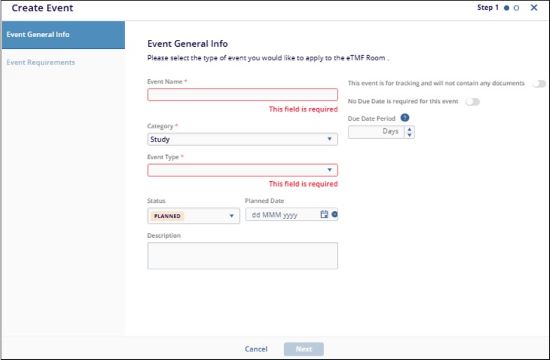
- This is an open Create Event window. To create the event and understand the step-by-step
process. Please refer to this section.

 Linkedin
 X
X

