
Quick Create Actions
Explore Videos for more help:
Videos
Add Documents to a room from the Home Page:
Follow the steps below:
- Click the Add dropdown button located on the right side of the room on the home
page.
.png)
- Select Add Documents from the dropdown. The Import Documents window will appear.
- Drag and drop the files into the window, or click Browse File at the bottom of the
page to locate and upload the required document.
- After uploading the document user can apply Metadata.
Add Users to a Room from the Home Page:
Follow the steps below:
- Click the Add dropdown on the right side of the room line on the home page.
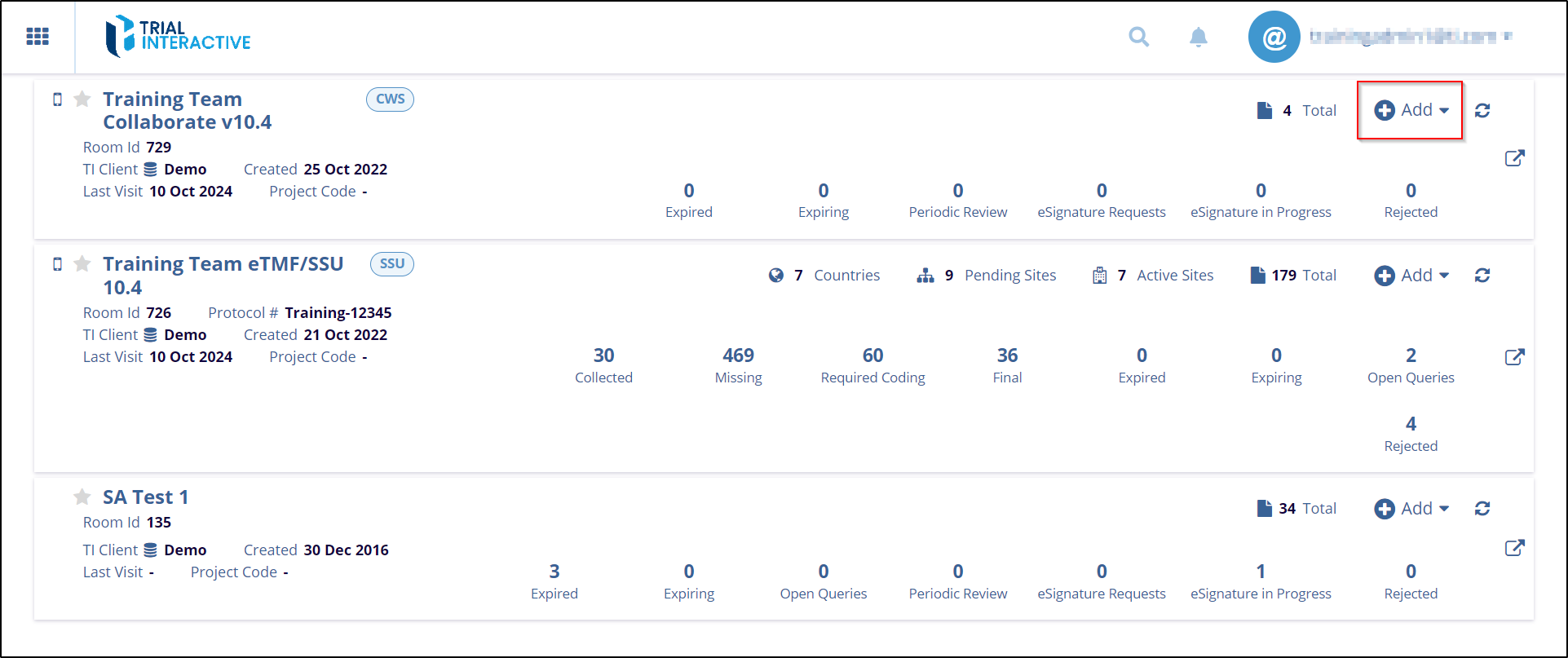
- From the dropdown list, select Add User. This will open the User Invitation window.

- The User Invitation pop-window is displayed. Enter all Mandatory fields in the below
sections User details, Invitation Details, and Contact Details.
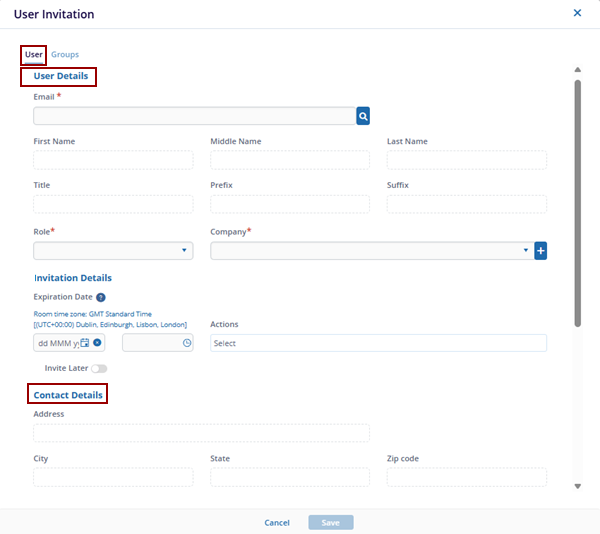
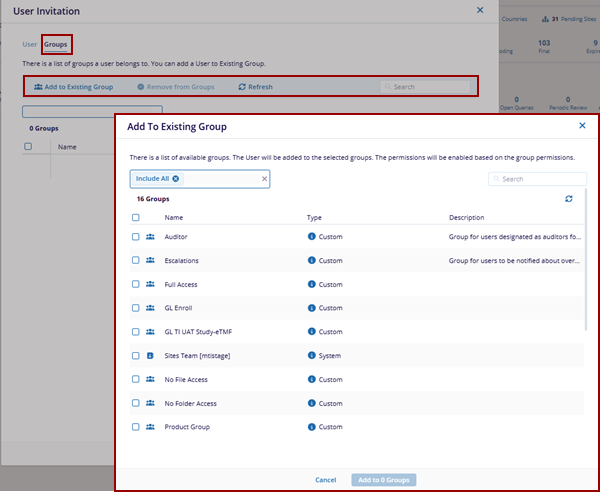
- Click the Groups tab and there is a list of groups a user belongs to, hence the user can be added to Existing Group.
- Here, users can remove users from groups, refresh the page, and search for a specific
group by name using the search field.
Add Task to a Room from the Home Page:
Follow the steps below:
- Click the Add dropdown button located on the right side of the room on the home
page.
- Select Add Task from the dropdown. The Add Task window will appear.
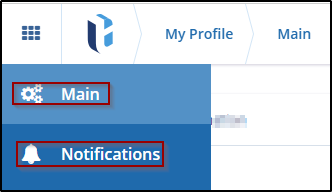
- The Create Task window will open. Enter the required details and click Save to
complete the task creation.

Add Site to a Room from the Home Page:
Follow the steps below:
- Click the Add dropdown button on the home page's right side of the room.
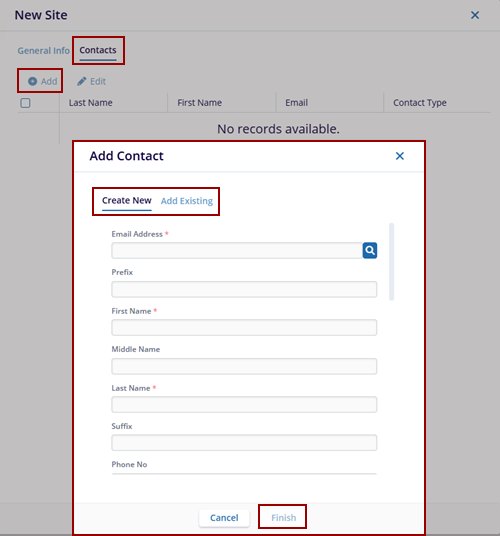
- Select Add Sites from the dropdown. The New Site window will appear.
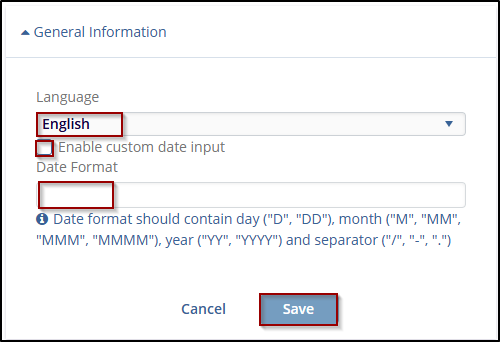
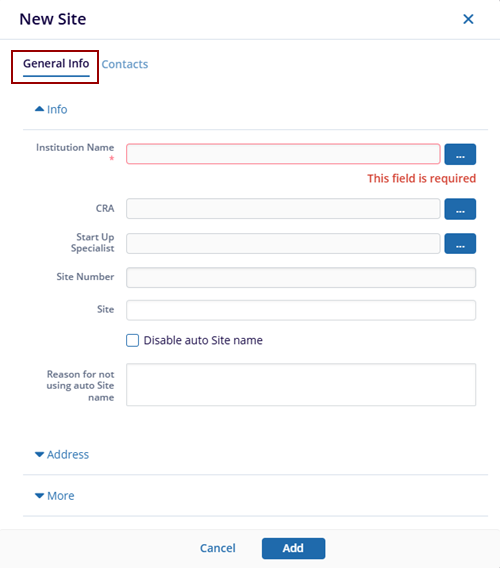
- The New Site window will open. Enter the required details in the General Info
tab.
- Click the Contacts tab, here users can Add a new contact or the Exisiting contact.
- Click Finish to complete the site creation process.
Add Event to a Room from the Home Page:
Follow the steps below:
- Click the Add dropdown button on the home page's right side of the room.
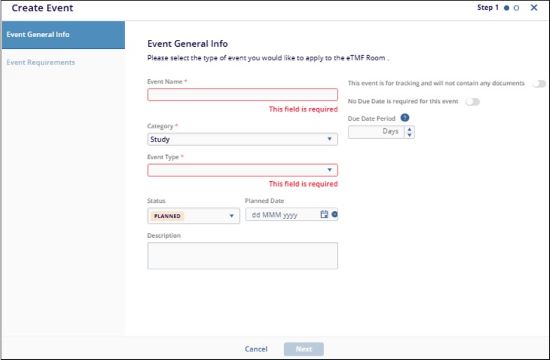
- Select Add Event from the dropdown. The Create Event window will appear. Fill in
all the required fields in the Event General Info and Event Requirements tabs.

 Linkedin
 X
X

