
Communication Inbox
Explore Job Aids and Videos for more help:
Job Aids
Videos
The Communication Inbox is a centralized section within the Communications module where study-related communications are organized and managed. This inbox allows users to review and classify communications for their relevance to the study. Communications are automatically converted into PDF format upon receipt and displayed in a tabular format for easy processing.
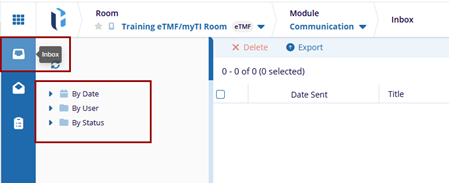
The Communication Inbox categorizes messages using the following filters:
- By Date:
Allows users to view messages received during specific time periods such as Today, Last 7 Days, or This Month.
- By User:
Displays messages grouped by the sender, helping users quickly locate communications from specific individuals.
- By Status:
Organizes messages based on their current status:
- Pending: Messages that have not yet been reviewed or classified.
- Relevant: Communications deemed important to the study.
- Non-Relevant: Messages identified as not significant to the study.
Users can classify each communication as either Relevant or Non-Relevant based on its content and importance. Once classified, relevant communications can be added to the study’s QC workflow
Steps to perform for this review:
- Navigate to the Communications module, where messages are categorized as:
- By Date
- By User
- By Status
- Select a category to filter the communications, for example (By status).
- Click on a checkbook with a Pending status to load its details in the metadata
pane.
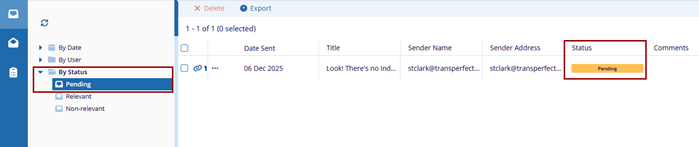
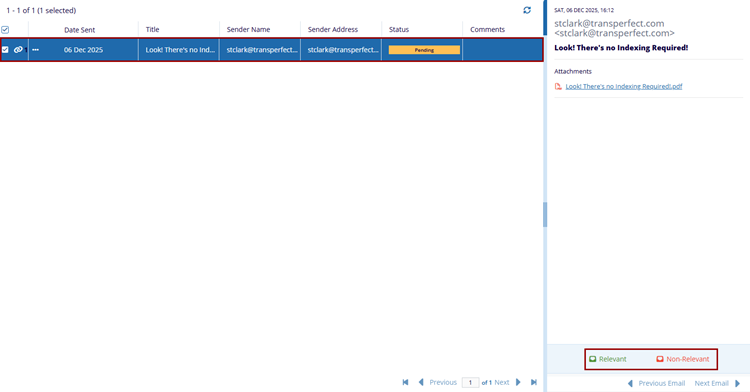
- Open the attached PDF file from the metadata pane to review the content of the communication.
- Based on the review, click either the Relevant or Non-Relevant button at the bottom of the metadata pane.
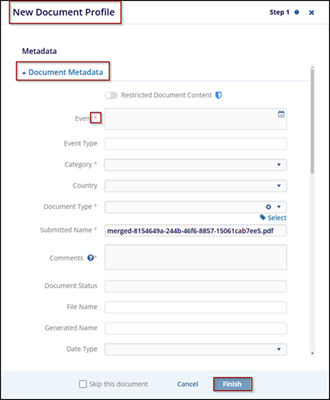
- If the communication is marked as Relevant, the system will generate a new document
for the study room.
- Complete the required metadata fields in the New Document Profile window.
- After entering the necessary metadata, click Finish to complete the document
creation process.
 Note:
Note:Emails that display images which are not embedded in the email itself but instead loaded from an external web location (for example, images hosted on a website or content delivery network), may not convert successfully to PDF. Although these images appear visible when viewing the email, they are not physically included in the message content, and this can cause the conversion process to fail or result in a PDF with missing content.
To ensure a successful conversion, please make sure all images are embedded directly within the email, rather than referenced or linked from an external webpage. Text-only content and embedded images are fully supported.

 Linkedin
 X
X

