
Report and Adhoc Reports
Explore Videos for more help:
Videos
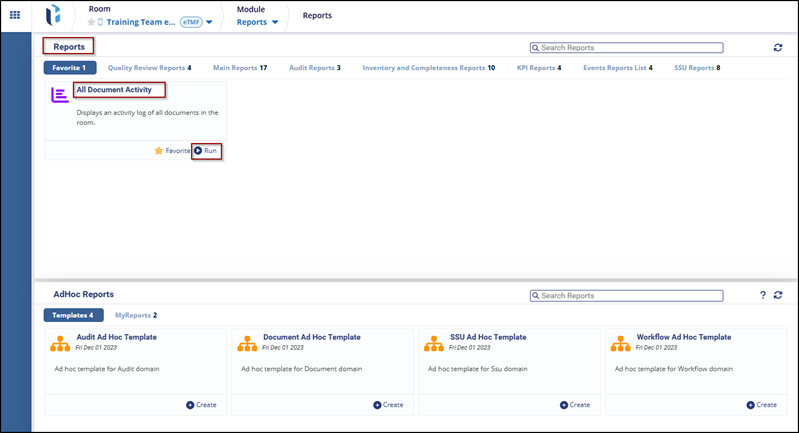
The Reports tab displays a list of room activities and log activity.
To run the reports, follow these steps:
- Navigate to the Reports tab, and select any report from the below options (Favorite, Quality Review Reports, Main Reports, Audit Reports, and so on).
- Click on the Run button to view the report.
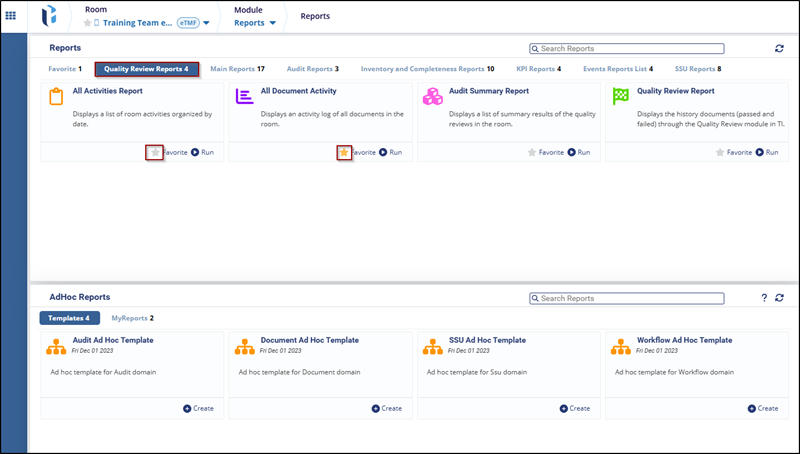
To add a report as a favorite, follow these steps:
- Select any reports from the Report tab, and the user can see the Star icon.
- Click on the Star icon to mark that report as a favorite and the report will
be added to the favorite option.
Adhoc Reports
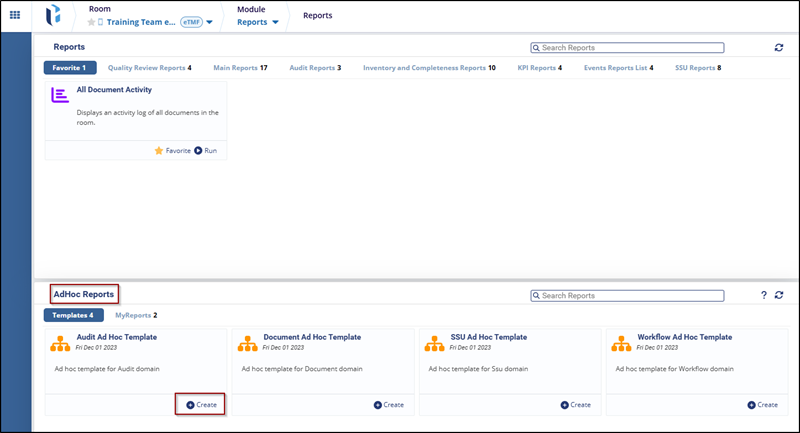
The AdHoc Reports allow users to generate or create reports based on requirements.
To create reports, follow these steps:
- Navigate to the AdHoc Reports tab and select any templates.
- Click the +
Create, this will open the template reports, fill in the necessary details as
per requirement, and save the report.

 Linkedin
 X
X

