
Documents Reconciliation
The Documents tab within the CRA Reconciliation module enables users to configure placeholders, add documents to the placeholder, reconcile documents by applying the statuses and perform other common functions such as import, export, email, manage grid views and add documents to the document cart.
View Documents By
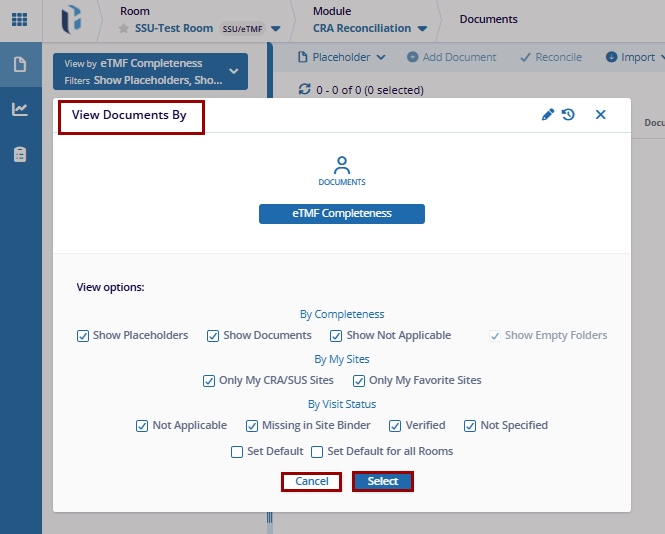
Within the View Documents By dropdown, users can choose from multiple view options to configure the folder structure used to display documents and placeholders.
To choose and apply a view, follow the steps below:
- Navigate to the Documents tab within the CRA Reconciliation module.
- From the top of the Index panel, click the View Documents By dropdown menu.
- Select the eTMF Completeness view.
- Based on the requirements, choose the applicable view options in the below
categories by selecting the corresponding checkboxes:
- By Completeness
- By My Sites
- By Visit Status
- To configure the selected view as default, choose one of the following options:
- Set Default: Applies the selected view as the default for the current session.
- Set Default for All Rooms: Applies the selected view as the default across all rooms.
- Click Select.
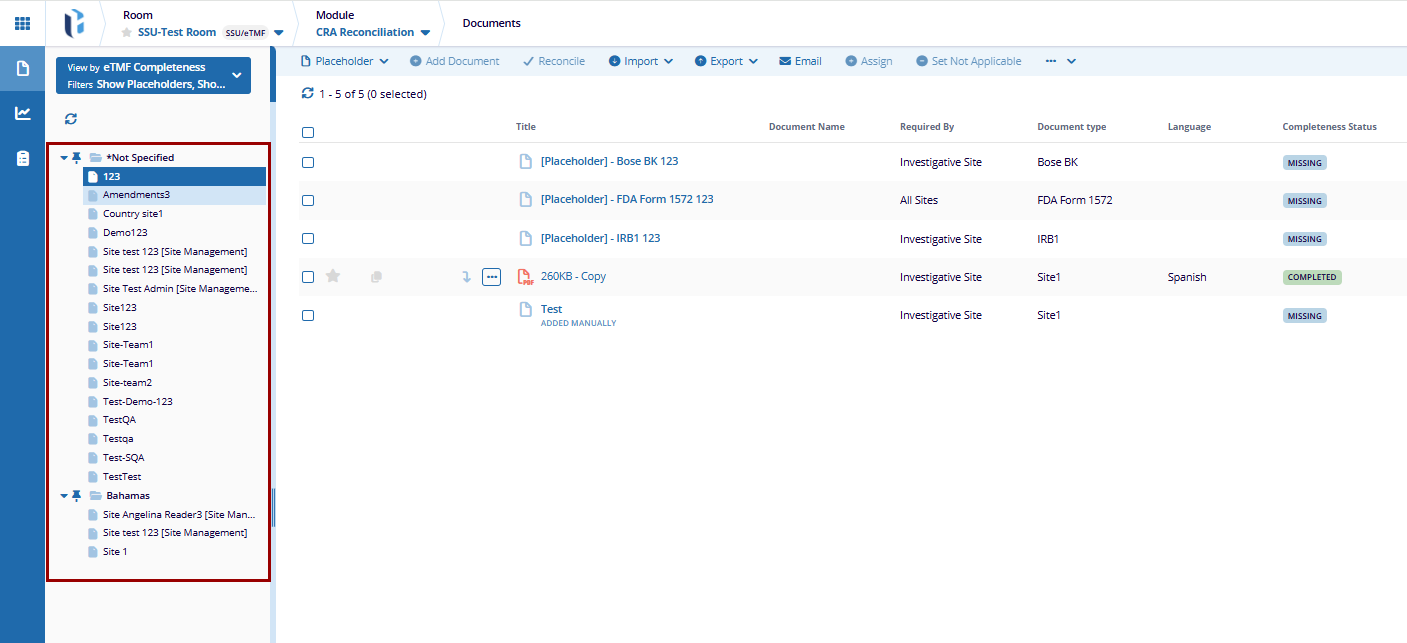
- After applying the selection from the View Document by options, the user can see the
folder based on the selections.

 Linkedin
 X
X

