
Documents Events
The Documents Events section provides a structured interface for managing, tracking, and organizing documents associated with various events. It allows users to efficiently view and process document-related activities within an event-driven workflow.
Users can access documents events by selecting Documents in the menu bar on the left-side navigation pane.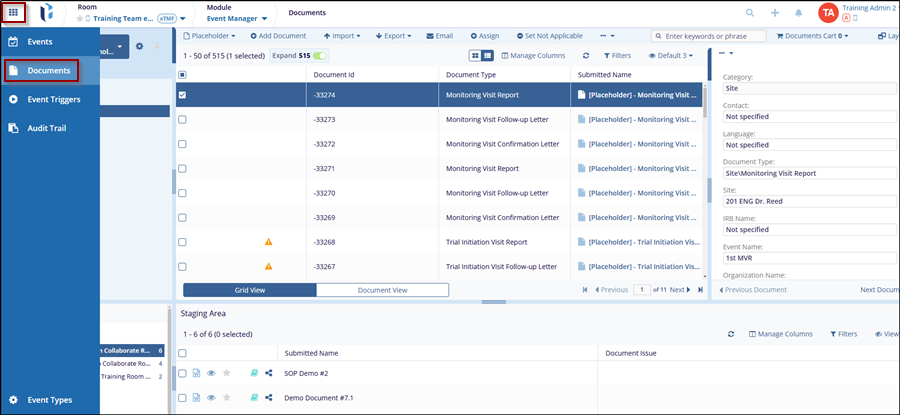
Apply Filter
In the View Documents By, users can select a view for a documents event review based on requirements
Steps to apply View Documents By filter:
- Navigate to the Documents section from the Event Manager module, at the top of the Index pane, click the View By dropdown menu.
- This dropdown menu allows users to choose how they want to view the documents.
- Select the available documents views under four categories: Event eTMF, Completeness, Working, Documents, Responsible Party.
- Based on user requirements, select one of the options from View Documents by options.
- If the user needs to review, the user has the option to make their selection the
default view:
- Set Default: this will set the selected view as the default for the current session.
- Set Default for All Rooms: this will make the selection the default
for all rooms, not just the current one.
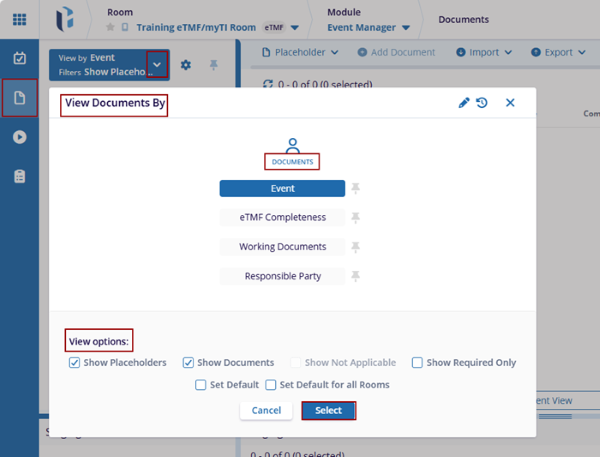
- After selecting the view documents by options, click Select to apply the changes, these changes will reflect at the top of the Index pane, or click the Cancel button to discard the changes.
-
After applying the selection from View Document by options, the user can see the folder, based on the selections.
Staging Area
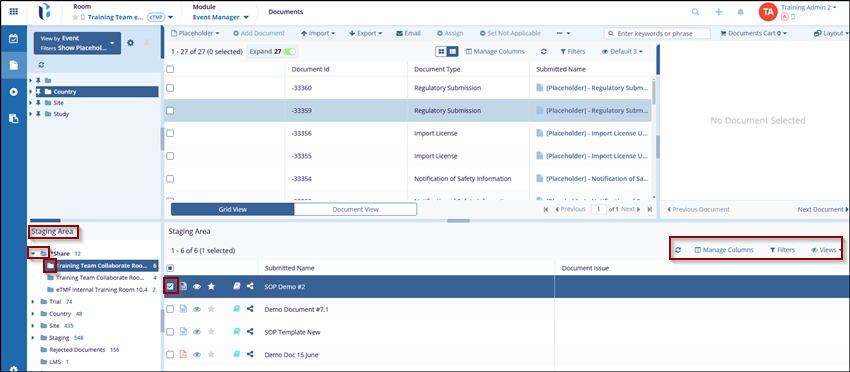
In the Staging Area, user can find folder related to documents. Folder displays its eTMF Health measurement at the study, country, and site levels.
Steps to select Staging Area document:
- Navigate to the Documents section from the Event Manager module, at the top of the Index pane, click the Staging Area dropdown menu.
- This dropdown menu allows users to select the documents, from the staging area folders.
- Select the available documents views under folders: Share, Trial, Country, Site, etc.
- Once folder is selected, documents are reflected on the right side of staging area,
where user can access tools such as Refresh, Manage Column, Filter, Views, etc.

 Linkedin
 X
X

