
Password Reset Request
Explore Job Aids for more help:
Job Aids
To reset a forgotten password, click Forgot Password at the bottom of the login window.
Users do not need to contact the service desk, as password reset operations can be managed without assistance. Clicking the Forgot your Password? link sends a password reset email to the email address associated with your user account.
Follow these steps to reset your password:
- Enter your Email address in the field provided and click the Forgot Password
button.
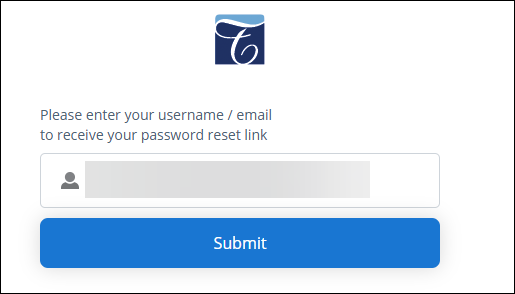
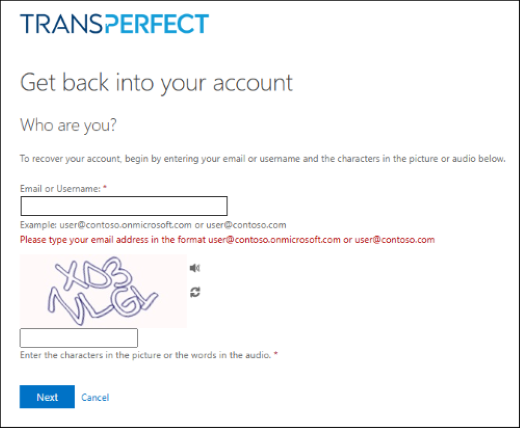
- Enter your Email in the textbox, then enter the answer for the provided
question and click the Submit button.
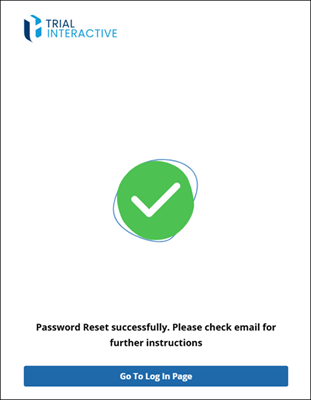
- Once submitted the user can see the successful message and the email is sent to the
user.
-
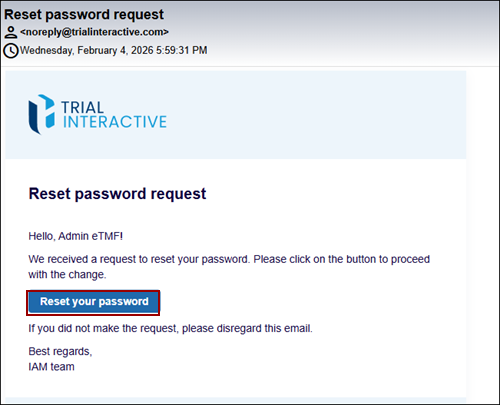
The user received an email open the email and click on the Reset your password button.
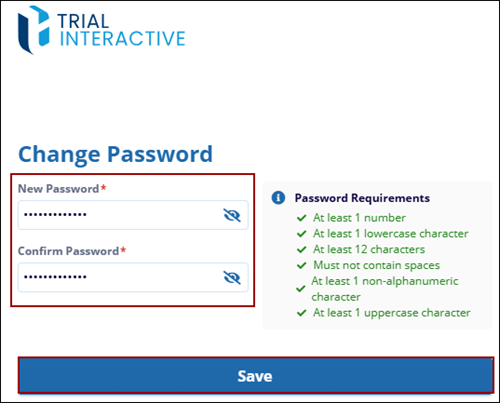
- The user directed to the Change Password page of Trial Interactive and click
save.
-
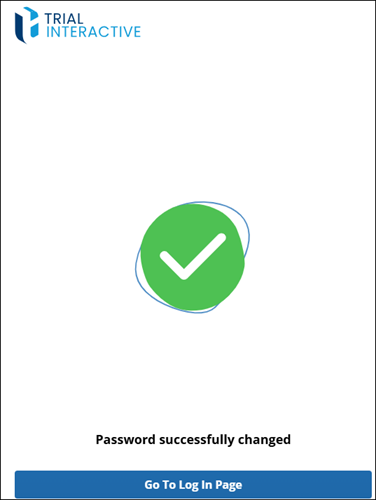
The user will get the Password successfully changed message.

 Linkedin
 X
X

