
Sign in on Subsequent Visits
Explore Videos for more help:
Videos
This section outlines the process for signing in to the Trial Interactive platform using the available login options.
Log in to Trial Interactive
- Using your preferred internet browser, navigate to https://www.trialinteractive.com/
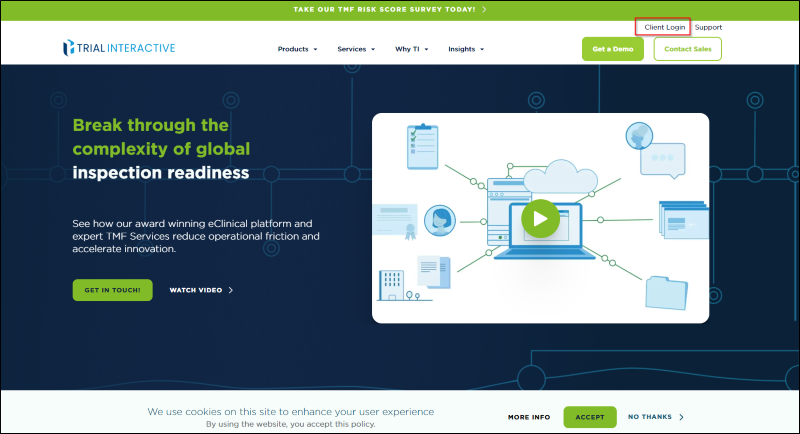
- Click the Client Login button located at the top-right corner of the page.
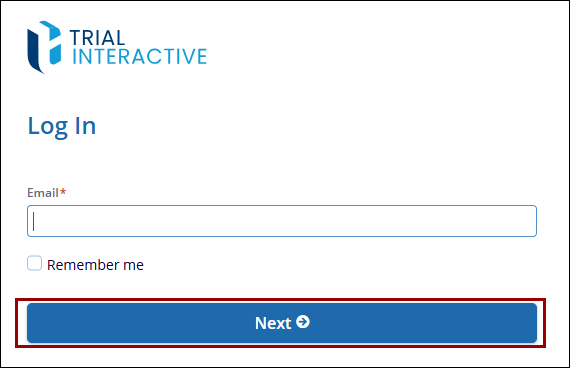
- The Trial Interactive Log in page appears with Email and Next button.
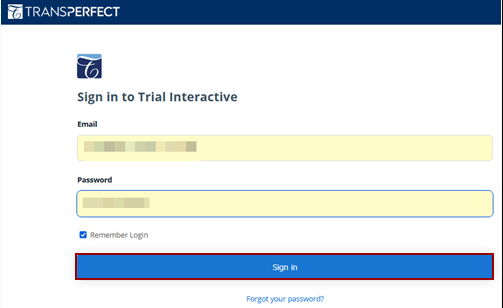
- Enter your Username and Password. Your Username is the full email address that was submitted by the client-appointed Administrator and is likely the one to which the initial invitation was sent.
- Once user click on the Sign in button, it will redirect to the Trial Interactive
Home page.
Log in with IAM (Identity and Access Management)
Follow the steps below to log in with IAM:
-
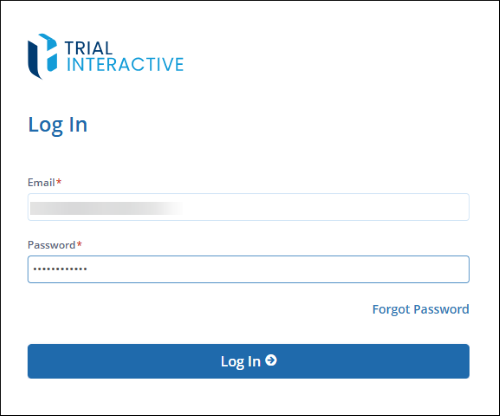
Enter the username and password on the login page.
-
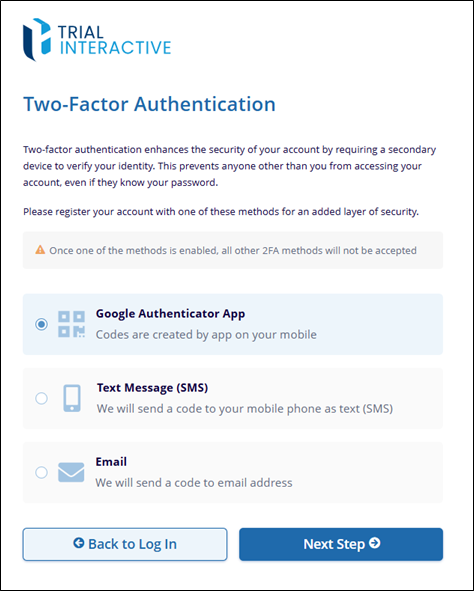
On the Two Factor Authentication page, select any one of the authentication methods i.e., Google Authenticator App, Text Message, or Email etc.
-
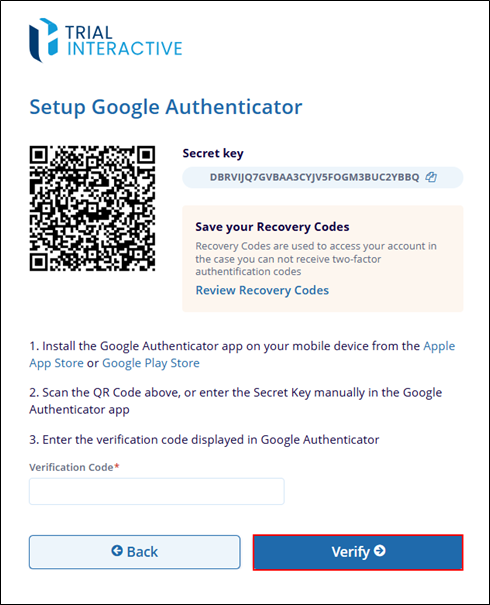
For Google Authenticator App, install the app from Google Play Store, or Apple Play Store. Scan the QA code on the Setup Google Authenticator page or enter the Secret Key in the Google Authenticator app. Enter the verification code displayed in Google Authenticator and click on the Verify button.
-
For Text Message option, select the Text Message option, add the country from the available dropdown options and enter the phone number registered with the email address.
-
For Email, select the Email option and enter the verification code shared on the email address.

 Linkedin
 X
X

