
Complete Site Visit
To complete a Site Visit, follow the steps below:
- Navigate to the Site Visit General Information screen by following the steps detailed in the Site Visit Navigation section, and click on the Visit General Information link.
- Click on the ‘Edit’ button.
- Select the ‘Completed’ status from the ‘Visit’ status dropdown.
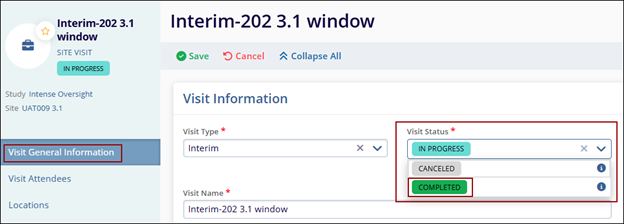
-
On the Complete Site Visit (visit name) window, enter the Visit Start & End Dates and click the Complete Visit button.
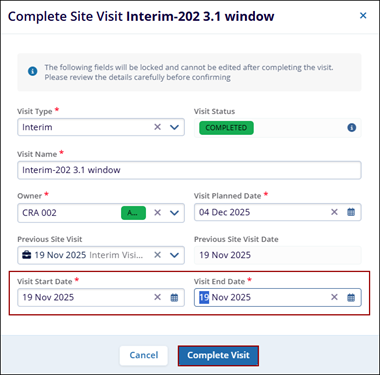
-
Click on the Save button.
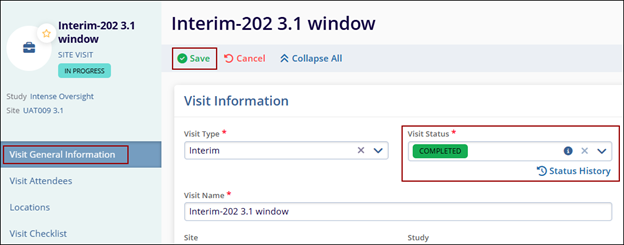
-
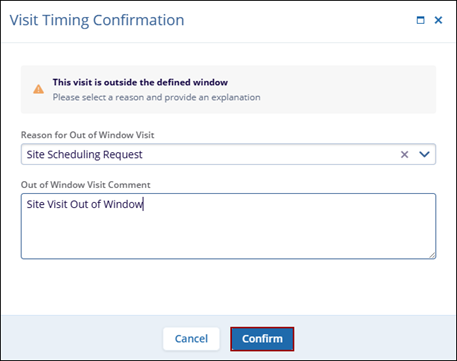
If the visit Start and End dates are mentioned earlier than the planned date, the Visit Timing Confirmation window is displayed.
-
Select a reason from the available dropdown options.
-
Enter a comment and click Confirm.

TransPerfect’s Trial Interactive is an industry leader in practical, global eClinical innovation
PRODUCTS
 Linkedin
 X
X
Didn’t find what you need?
Our dedicated Project Management and Client Services team will be available to meet your needs
24 hours a day, 7 days a week.
Toll Free:
(888) 391-5111
help@trialinteractive.com
© 2025 Trial Interactive. All Rights Reserved

