
Enrollment Summary
To access the Site Visit Enrollment Summary, follow the steps below.
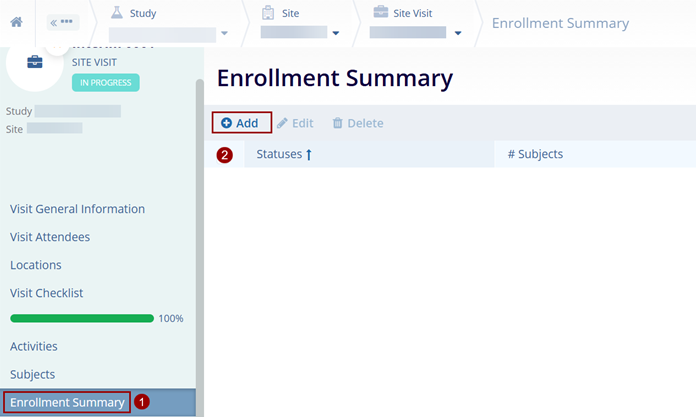
- Navigate to the Site Visit General Information screen by following the steps detailed in the Site Visit Navigation section and click on the Enrollment Summary link.
- On the Enrollment Summary screen, click on
+Add
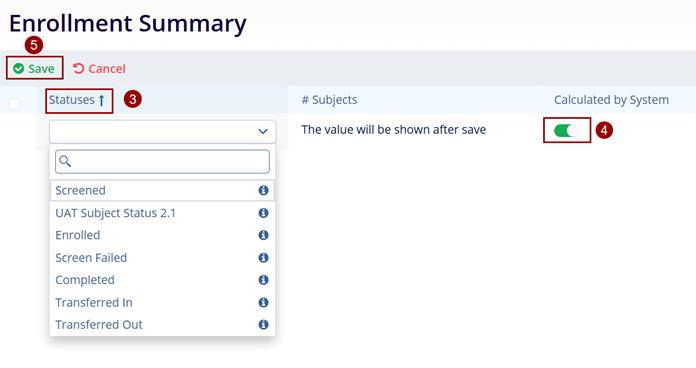
- Select the required Statuses and click the Add <number> Statuses.
-
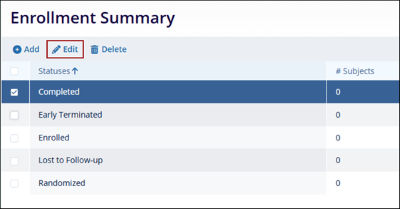
To edit the enrollment summary status, select a status and click Edit from the top menu bar.
-
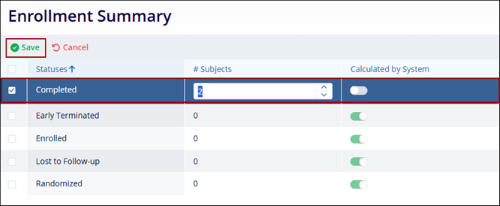
Disable the Calculated by System toggle and manually enter the subject count.
-
Click Save.
-
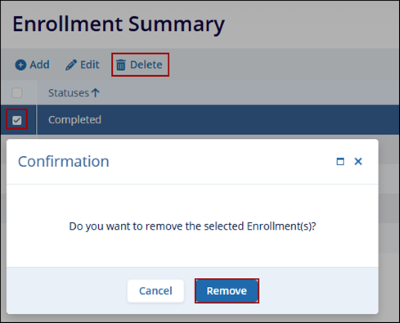
To delete a status, select a status and click Delete from the top menu bar.
-
Click Remove on the confirmation pop-up.
Important
- The enrollment summary statistics are calculated based on the Site Visit Completion Date, meaning only subject statuses up to that date are considered.
- As a result, any changes made to a subject’s status at the visited site after the visit completion date will not be automatically reflected in the Enrollment Summary section of the Site Visit.
- If different information is required that what is auto-calculated based on the dates, users can disable the ‘Calculated by System’ option and manually enter data.

TransPerfect’s Trial Interactive is an industry leader in practical, global eClinical innovation
PRODUCTS
 Linkedin
 X
X
Didn’t find what you need?
Our dedicated Project Management and Client Services team will be available to meet your needs
24 hours a day, 7 days a week.
Toll Free:
(888) 391-5111
help@trialinteractive.com
© 2025 Trial Interactive. All Rights Reserved

