
Generate Report Preview
Explore Job Aids and Videos for more help:
Job Aids
Videos
To generate a Site Visit Report Preview, follow the steps below.
- Navigate to the Site Visit General Information screen by following the steps detailed in the Site Visit Navigation section and select the Visit General Information.
- Update the Report Status to In Progress
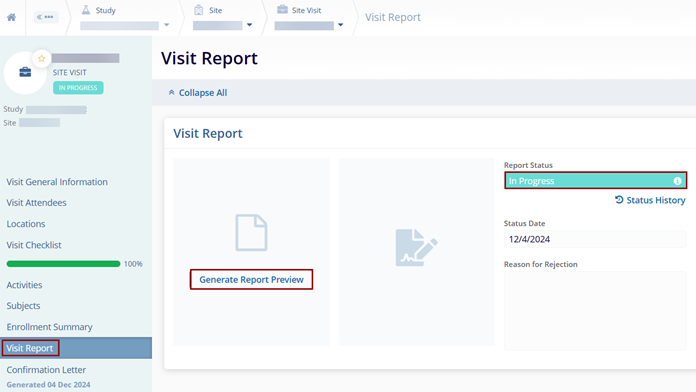
- Click on the Visit Report link and update the Report Status to In Progress.
- Click on the Save button.
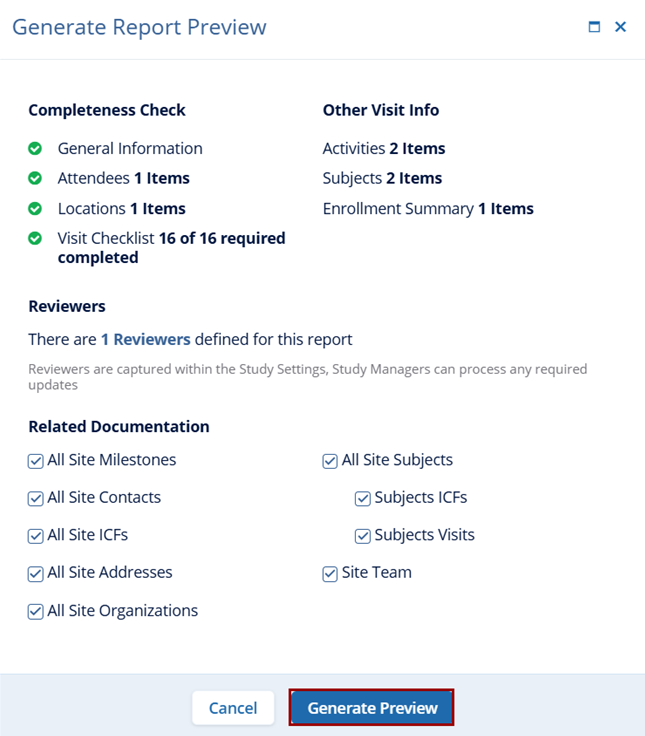
- Click on the Generate Report Preview button.
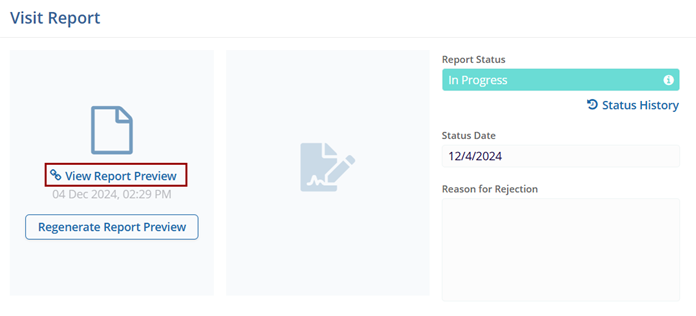
- On the Generate Report Preview window, select the additional data from the dropdown options.
- Click on the Generate Preview button.
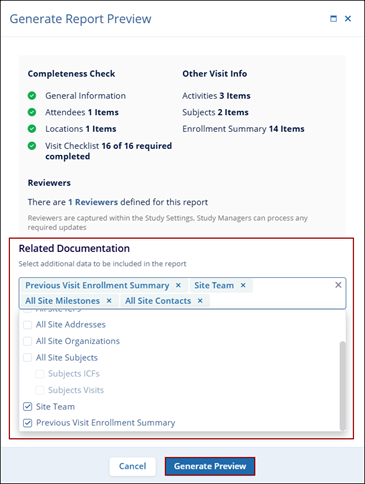
-
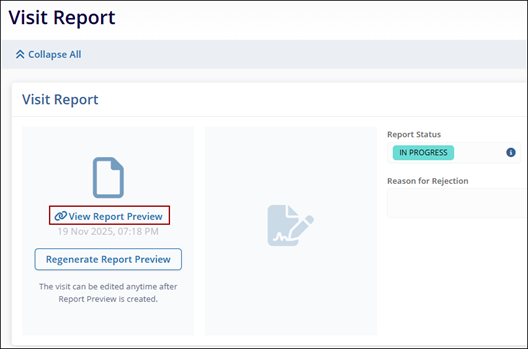
Once the report is generated, click on the View Report Preview button.
Important
- The site visit owner can indicate whether enrollment statistics from the previous visit should be included in the site visit report.
- When the ‘Previous Site Visit’ field is completed in the visit’s general information, the system automatically populates the referenced previous visit in the report.
- Users can change or select a different previous visit than the one specified in the Previous Site Visit field, as the referenced visit may differ from the default selection.

TransPerfect’s Trial Interactive is an industry leader in practical, global eClinical innovation
PRODUCTS
 Linkedin
 X
X
Didn’t find what you need?
Our dedicated Project Management and Client Services team will be available to meet your needs
24 hours a day, 7 days a week.
Toll Free:
(888) 391-5111
help@trialinteractive.com
© 2025 Trial Interactive. All Rights Reserved

