
Potential Duplicates
When the system identifies potential duplicates of an uploaded document, it is marked with a duplicate icon. Users can access the Potential Duplicates option from the dropdown menu to view and manage the identified documents.
To view the potential duplicates of a document, follow the steps below.
-
Click on the three-dot menu and select the Potential Duplicates option.
-
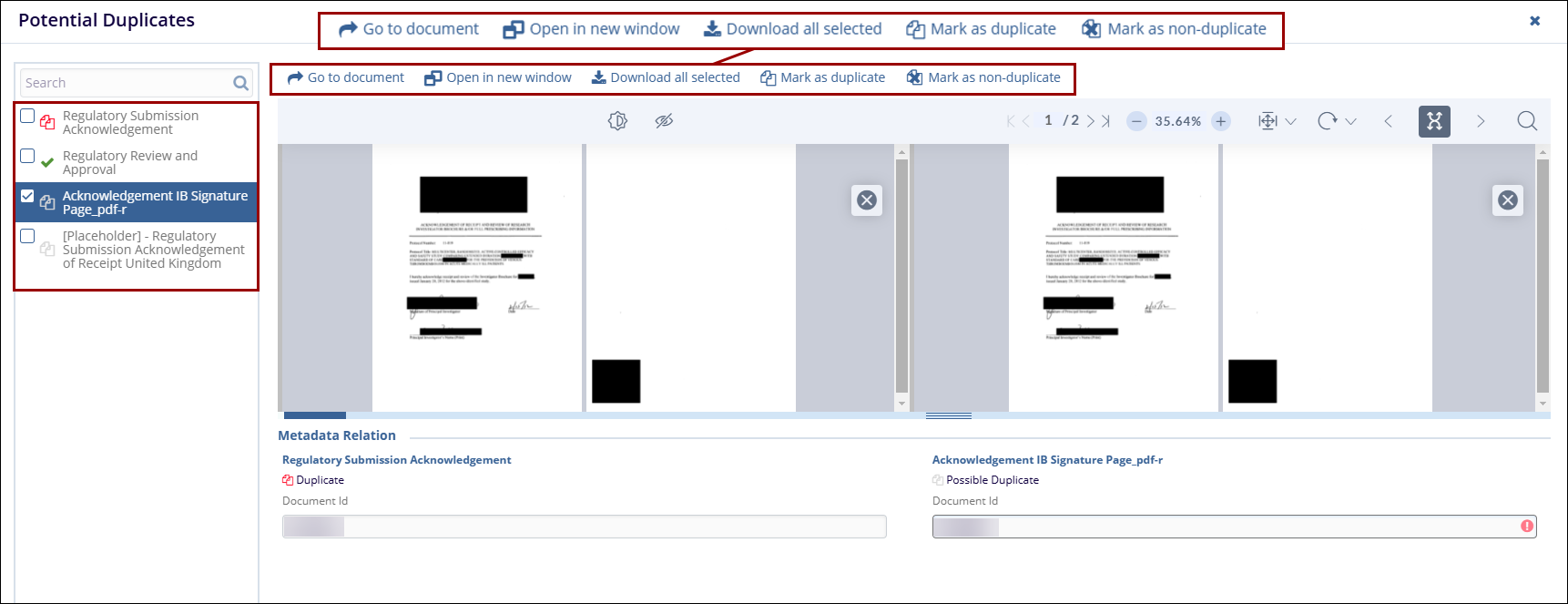
The Potential Documents screen displays side-by-side previews of the versions of a document, allowing users to compare them.
-
Access the options from the top menu bar and perform the related functions.
- Go to document – Opens the document in TI viewer.
- Open in new window – Opens document in a separate window.
- Download all selected – Enables bulk downloading of documents.
- Mark as duplicate – Confirms the document as a duplicate.
- Mark as non-duplicate – Rejects the duplicate suggestion.
Note
- Documents marked with a red linked-document icon, indicating a duplicate document.
- Documents marked with a green checkmark, indicate that they are not marked as duplicates.

 Linkedin
 X
X

