
Translation Request
This section explains how to create and track a Translation Request for a document.
Creating a Translation Request
- Navigate to the document list and locate the required document.
- Click on the three dots (More Options) next to the document.
- From the menu, select Translation Request.
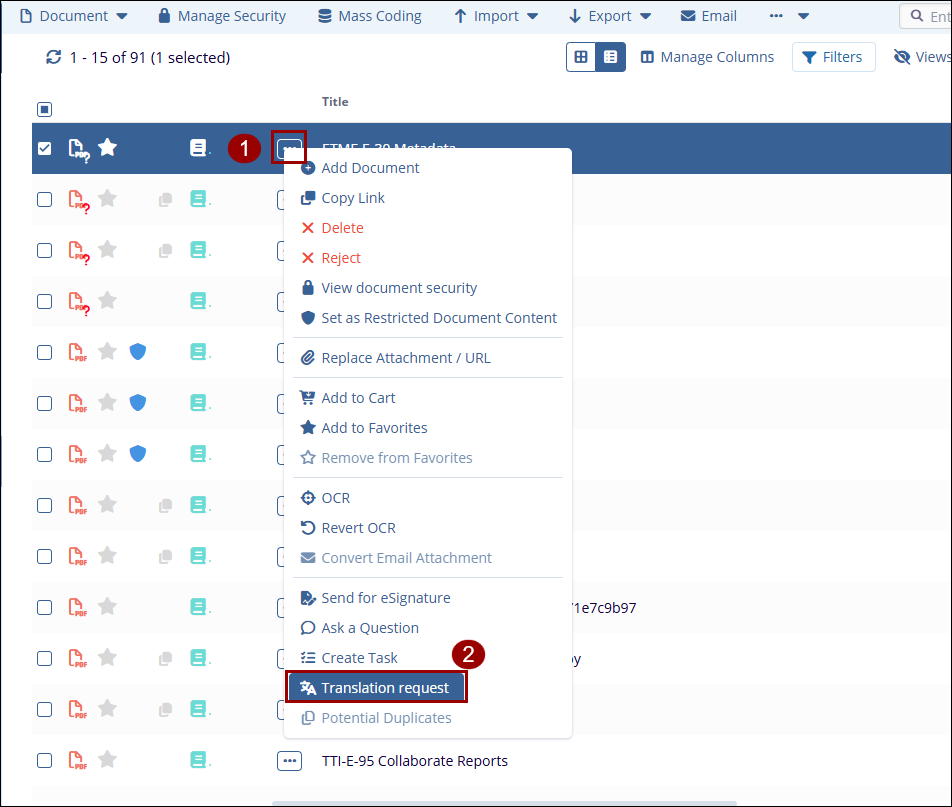
- The Translation Request window will open.
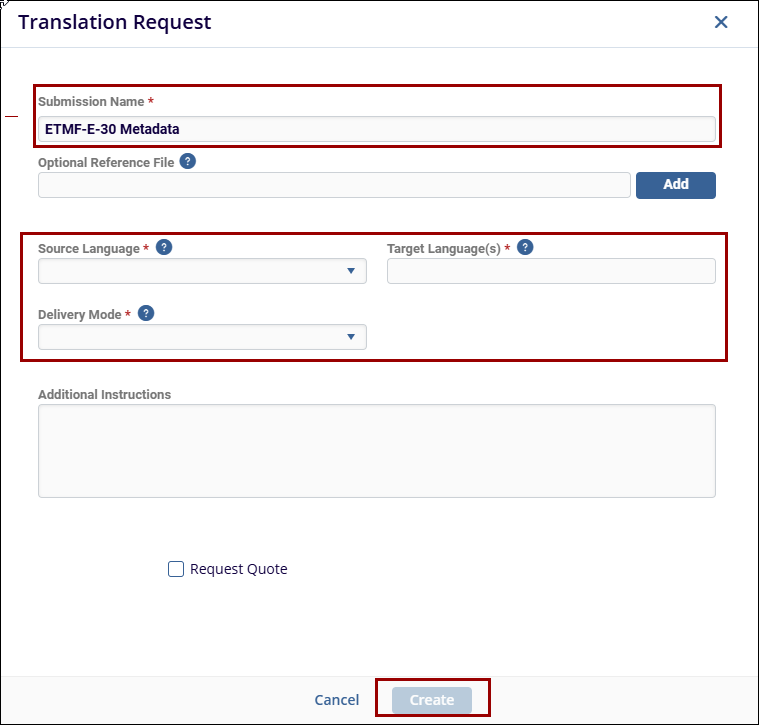
- In the pop-up window, complete all mandatory fields, including:
-
- Submission Name
- Source Language
- Target Language(s)
- Delivery Mode
-
- Fill in any additional optional fields as required, such as:
-
- Optional Reference File
- Additional Instructions
- Request Quote (if applicable)
-
- Click Create to submit the request.
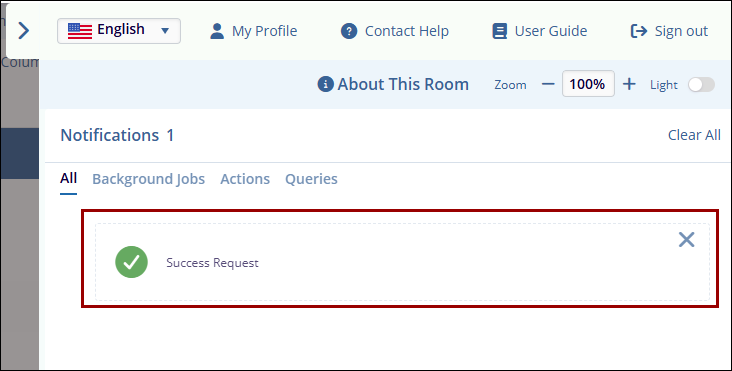
- After clicking Create, a confirmation notification with the message “Success Request” is displayed, indicating that the translation request has been submitted successfully.
Viewing the Translation Request
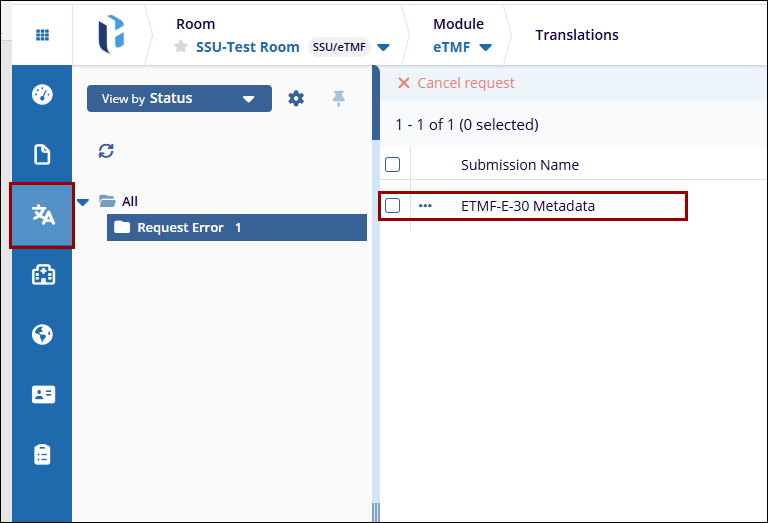
- Navigate to the Translations module from the left-side menu.
- The submitted document will appear under the Translation Request list.
- If there is any issue with the request, the document may appear in the Request Error folder.

 Linkedin
 X
X

