
Document Review Actions
Reassign Reviewer
To reassign a reviewer, follow the steps below:
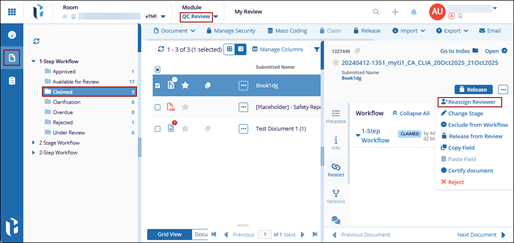
- Go to the QC Review module and open the My Review tab.
- From the Claimed folder, select the required document and open its metadata panel.
- Click the horizontal ellipsis (three-dot) menu and choose Reassign
Reviewer.
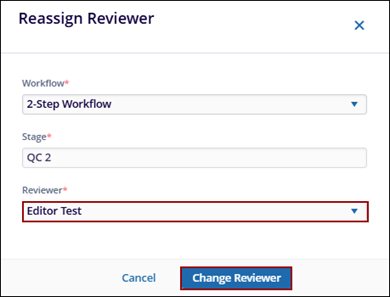
- Select a reviewer from the Reviewer dropdown and click the Change Reviewer
button.
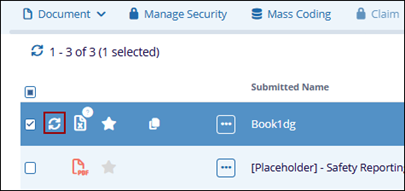
- Click the refresh icon next to the document icon.
The process of changing the assigned reviewer of a document to another qualified individual. Occasionally, a room administrator may need to reassign a document reviewer.
Change Stage
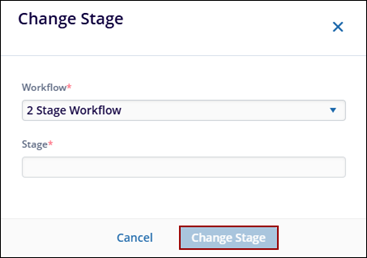
To change the workflow stage, follow the steps below:
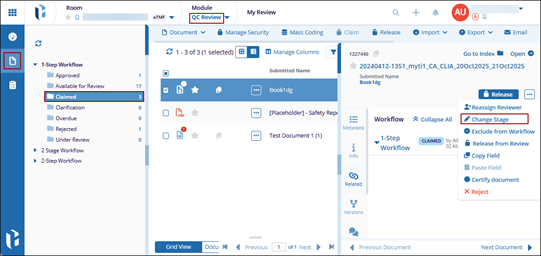
- Go to the QC Review module and open the My Review tab.
- From the Claimed folder, select the required document and open its metadata panel.
- Click the horizontal ellipsis (three-dot) menu and choose Change
Stage.
- On the Change Stage pop-up, change the workflow stage.
- Click Change Stage.
Exclude from workflow
To exclude a document from workflow, follow the steps below:
- Go to the QC Review module and open the My Review tab.
- From the Claimed folder, select the required document and open its metadata panel.
- Click the horizontal ellipsis (three-dot) menu and choose Exclude from
Workflow.
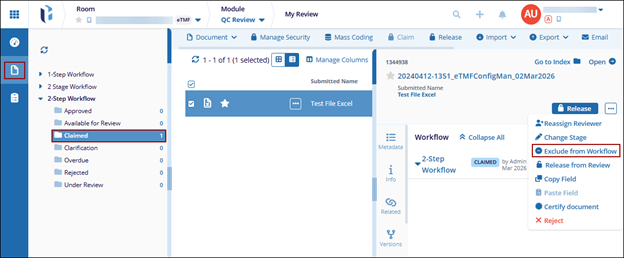
- On the Exclude From Workflow pop-up, select additional workflow apart from the existing one.
- Mandatorily specify the exclusion reason.
- Click Exclude.
Release From Review
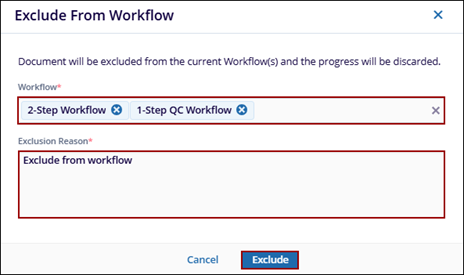
To release a document from review, follow the steps below:
- Go to the QC Review module and open the My Review tab.
- From the Claimed folder, select the required document and open its metadata panel.
- Click the horizontal ellipsis (three-dot) menu and choose Release From
Review.
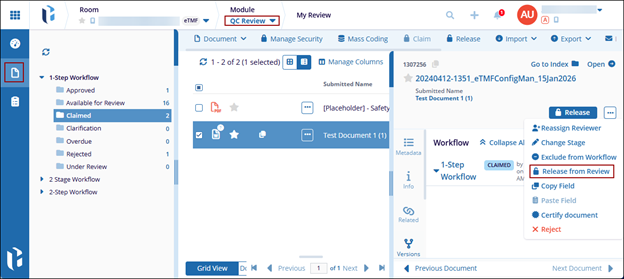
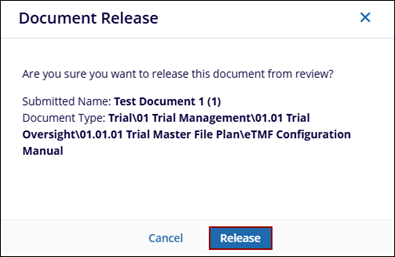
- Click Release on the confirmation pop-up.
Copy and Paste Fields
To copy metadata fields from one document and apply them to another document, follow the steps below:
- Go to the QC Review module and open the My Review tab.
- From the Claimed folder, select the required document and open its metadata panel.
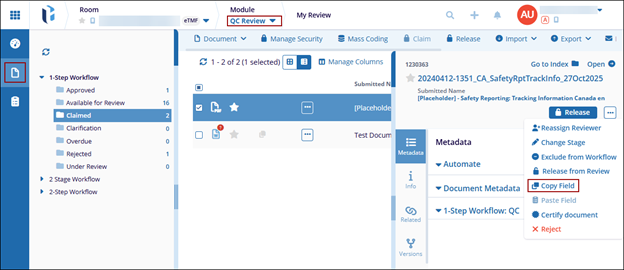
- Click the horizontal ellipsis (three-dot) menu and choose Copy
Field.
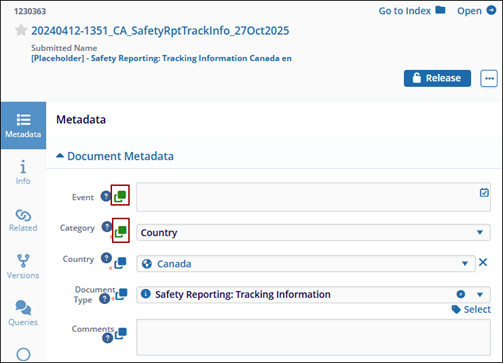
- Click the Copy icon next to the metadata field to copy its value.
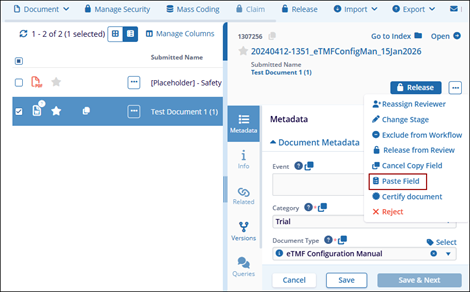
- Select a different document and access its metadata panel.
- From the metadata tab, click the horizontal ellipsis menu and select Paste
Field.
Certify Document
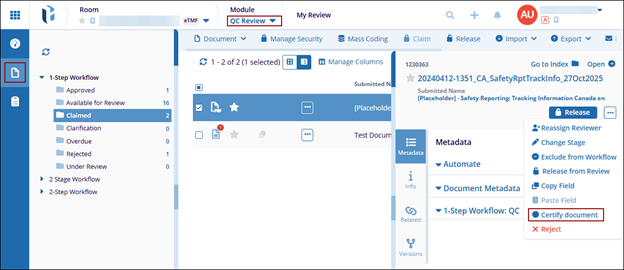
To certify a document, follow the steps below:
- Go to the QC Review module and open the My Review tab.
- From the Claimed folder, select the required document and open its metadata panel.
- Click the horizontal ellipsis (three-dot) menu and choose Certify
Document.
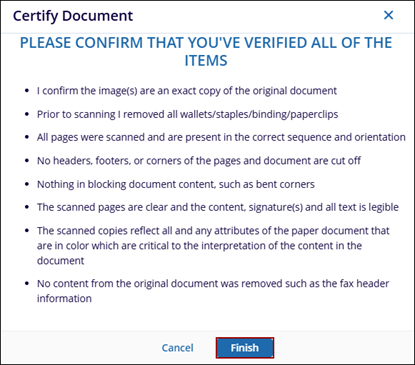
- On the Certify Document pop-up, verify the terms and click Finish.
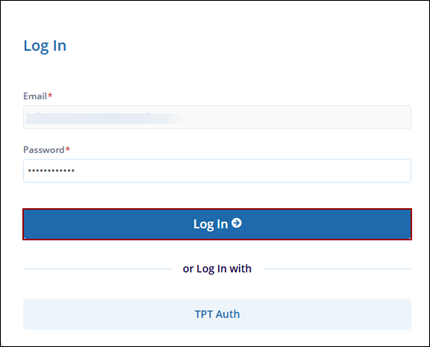
- On the login page where the email is pre-populated by the logged in users name, click Next.
- Enter the password and click Log In.
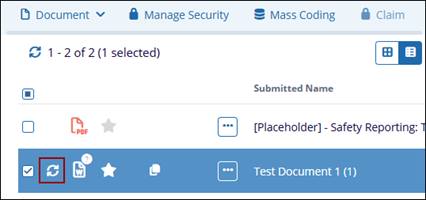
- Click the refresh icon next to the document icon.
Reject
To reject a document, follow the steps below:
- Go to the QC Review module and open the My Review tab.
- From the Claimed folder, select the required document and open its metadata panel.
- Click the horizontal ellipsis (three-dot) menu and choose Reject.

- On the Reject Document pop-up, select the rejection reasons, enter comments and
click Reject.


