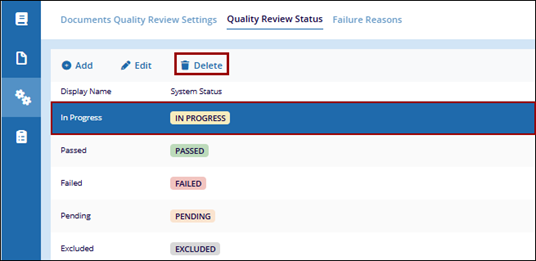
Quality Review Status

Every status that can be assigned to a document during a quality review has to be added to the Quality Review Status before the related audit is built. The system allows users to create custom statuses but each one will represent one of the basic six system statuses:

The 6 basic system statuses:

  • Passed: No findings are associated with the document, indicating it meets all required standards.
  • Failed: The document has failed the review, generating an audit finding that needs to be reviewed and potentially corrected by the Audit Responders.
  • Pending: The document is awaiting review by an auditor and has not yet been assessed.
  • In Progress: A placeholder status used between Passed and Failed, representing ongoing evaluation or other review-related activities.
  • Excluded: This status cannot be manually applied by users but may be automatically assigned by the system under specific conditions.
  • No Findings: The document has no findings associated with it, indicating no issues were identified during the review process.


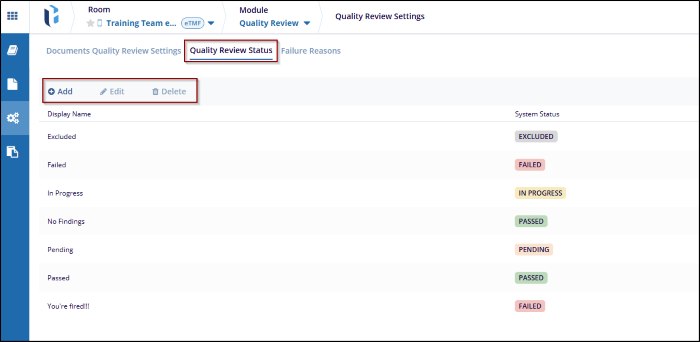
The Add button is used to add a new Status below.

To Add audit status, follow these steps:

  1. Click the button on the Quality Review Status tab.
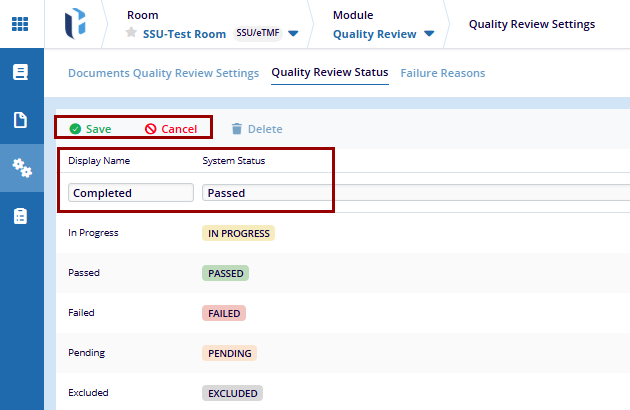
  2. Once clicked on the Add button, the fields under the Display Name and System Status are available to edit.
  3. Enter the status in the Display Name. Click on the dropdown arrow from the System Status field and select the established System Status term to associate with the newly added Display Name.
  4. After adding, click the Save button to apply the changes and click on Cancel to discard the changes.


The Edit button is used to edit the available audit status.

To Edit the available audit status, follow these steps:

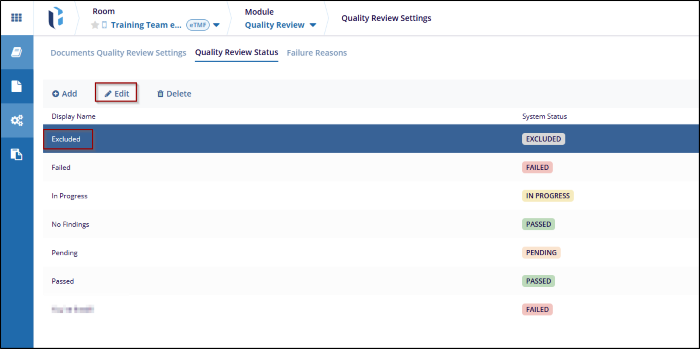
  1. Select the status from the list in the Display Name in the Quality Review Status tab.
  2. The user can edit the audit in 2 ways, click the Edit button on the top ribbon bar or click the Edit button that appears when the user hovers the mouse over the status.
  3. After Editing, click the Save button to apply the changes and click on Cancel to discard the changes


The Delete button is used to delete the available statuses, in the quality review setting.

To delete an audit status, follow these steps:

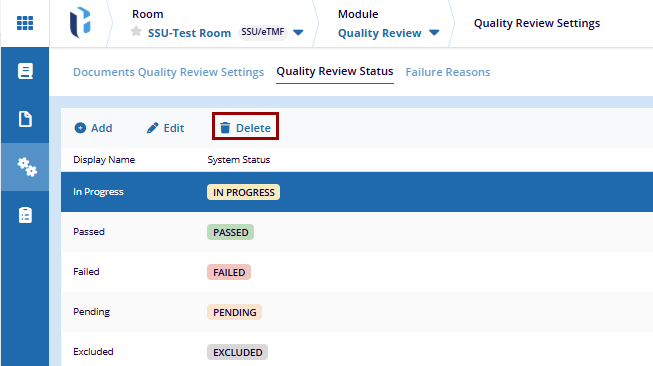
  1. Select the status from the list in the Quality Review Status tab.
  2. Click the Delete from the top ribbon bar or click the trash can icon that appears, after hovering the mouse over the status.