
Submit for Review
Once the site visit details have been added and the status is set to Completed, CRA users can also directly submit the report for review and sign the report. The Submit for Review button becomes available when the report status is changed to In Progress.
To submit a report for review, follow the steps below:
- Change the Visit Report status to In Progress and click the Submit for Review
button.
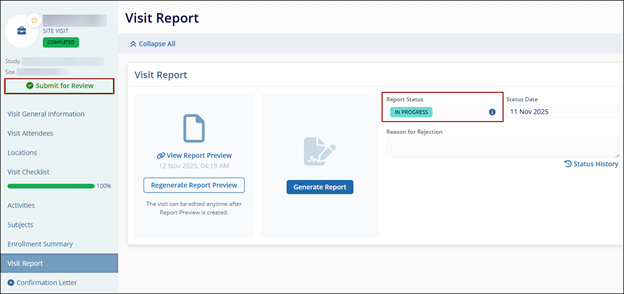
-
On the Sign & Submit window, select the necessary options from the Related Documentation dropdown.
-
Select a Report Template from the dropdown options.
-
Click Sign & Submit.
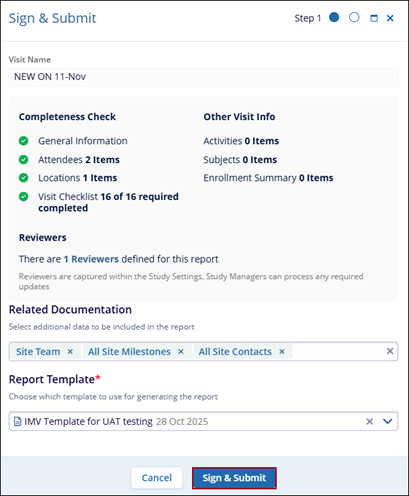
-
Mandatorily enter the signature reason and check the declaration checkbox.
-
Optionally add comments.
-
Click Sign & Submit.
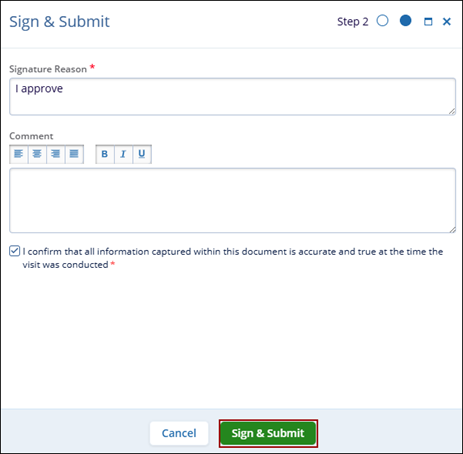
-
On the Log In window, enter the username and password.
-
Click Log In.
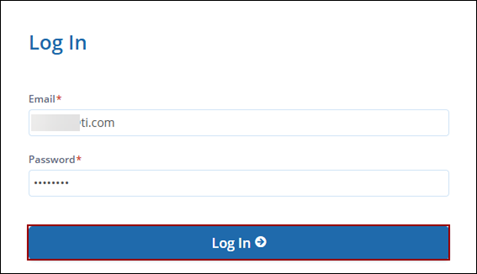

TransPerfect’s Trial Interactive is an industry leader in practical, global eClinical innovation
PRODUCTS
 Linkedin
 X
X
Didn’t find what you need?
Our dedicated Project Management and Client Services team will be available to meet your needs
24 hours a day, 7 days a week.
Toll Free:
(888) 391-5111
help@trialinteractive.com
© 2025 Trial Interactive. All Rights Reserved

